





















How to Create an Electronic Signature ( 3 Easy Ways)
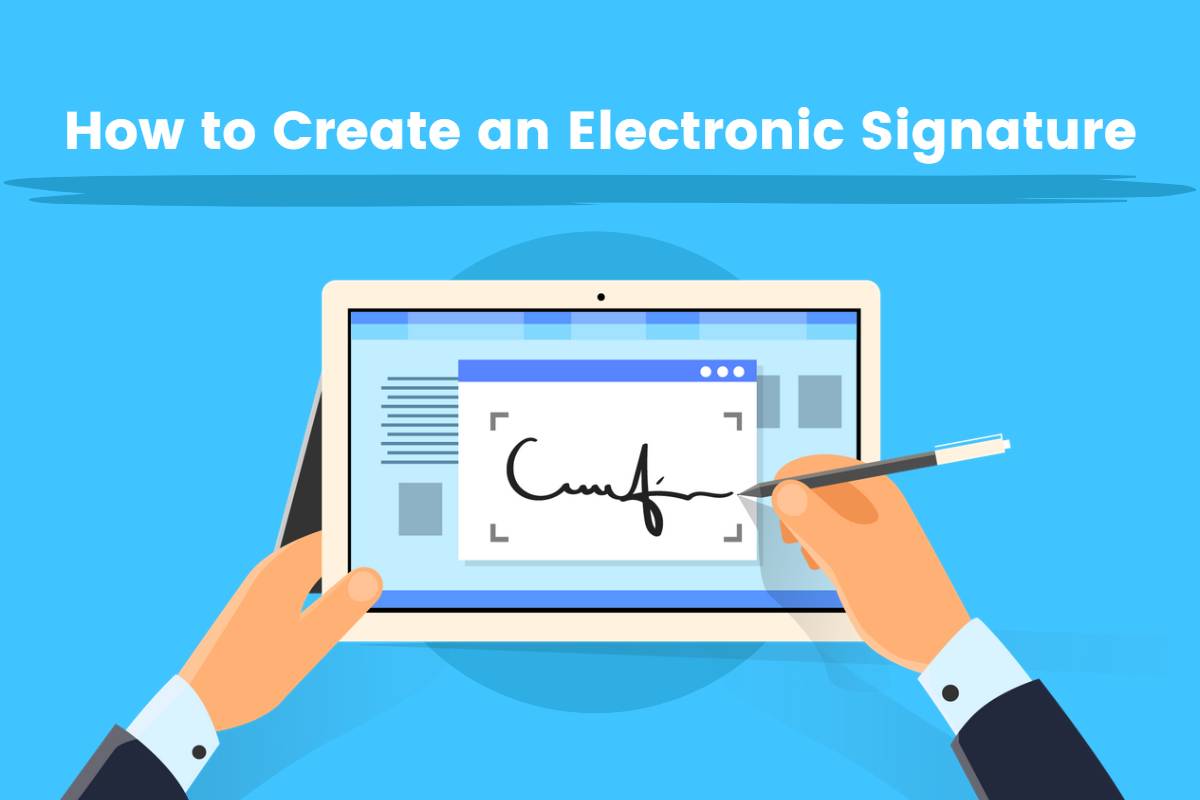
As more and more businesses go online, it's becoming increasingly popular to sign documents and agreements digitally. So we’ve put together this article on how to create an electronic signature for you.
We’ll cover 3 free and easy ways to help you create your own electronic signature easily and quickly, and provide you with step-by-step instructions to walk you through the steps.
So let's dive into the details and see which option best fits your needs!
How to Create an Electronic Signature Online?
Creating an electronic signature online can be a simple process. We’ll share two simple online tools that you can use to get the job done.
Create an Electronic Signature Online With Fotor
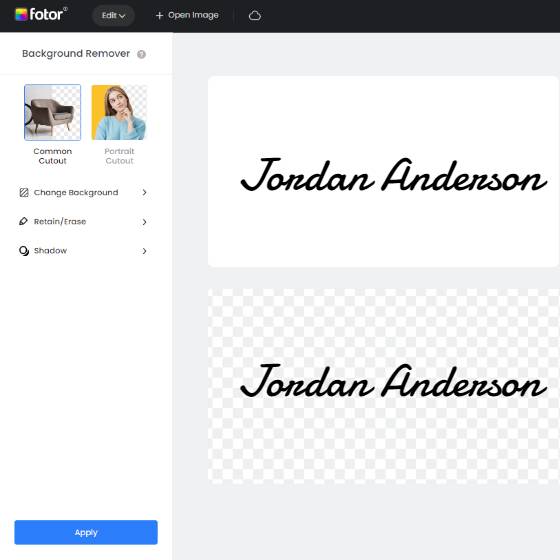
All-in-one photo editor with easy-to-use editing features and massive design content.
Creating a digital signature is not a complex process. With Fotor, You can create your own esignature in just a few clicks. Here's how to create an esignature online using Fotor:
Step 1: Write Your Signature on Paper
Write your signature on a piece of white paper, preferably in black or blue ink.
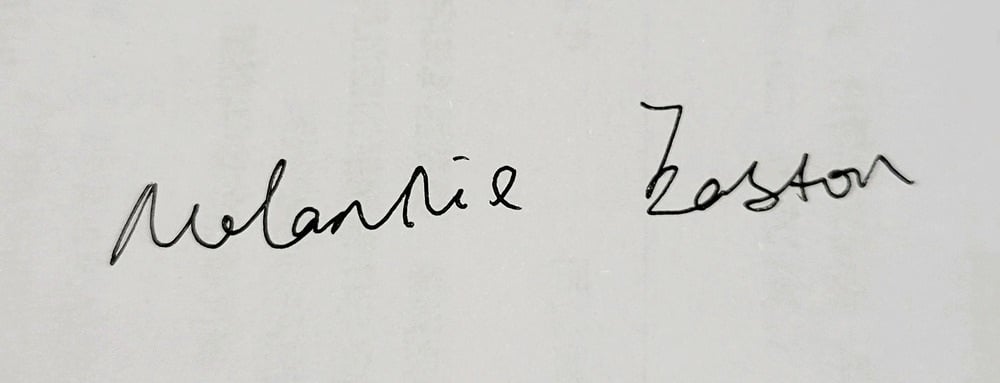
Step 2: Take a Photo of Your Signature
Take a photo of your handwritten signature using your phone’s camera.
Step 3: Remove Signature Background
Then upload your signature photo to Fotor's free online background remover.
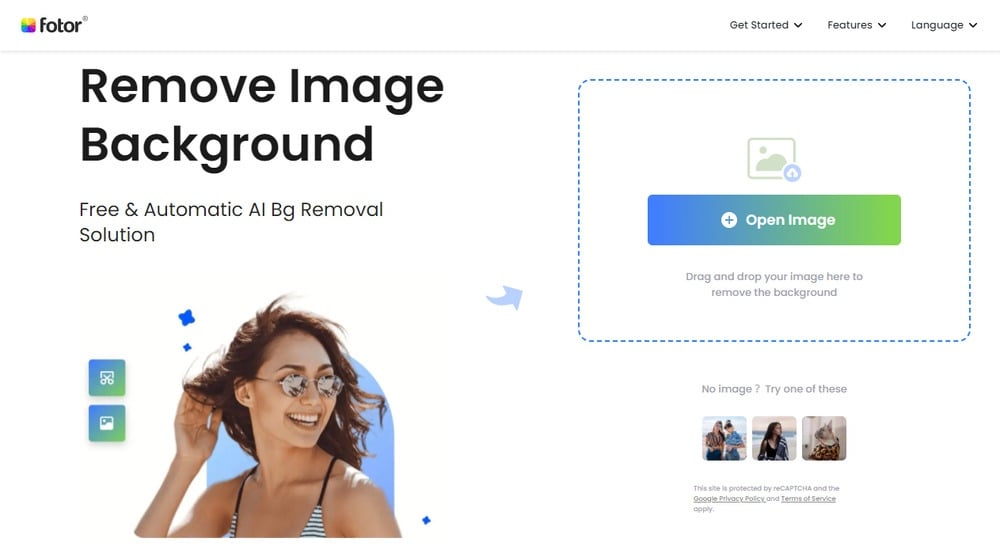
In just a few seconds, Fotor will automatically remove the background from your signature, and make it transparent.
The process is quick and the result is accurate. If you want, you can also make adjustments to the signature cutout using the "Erase/Restore" tool. This tool allows you to edit out any unwanted part of your signature and restore any missing details.
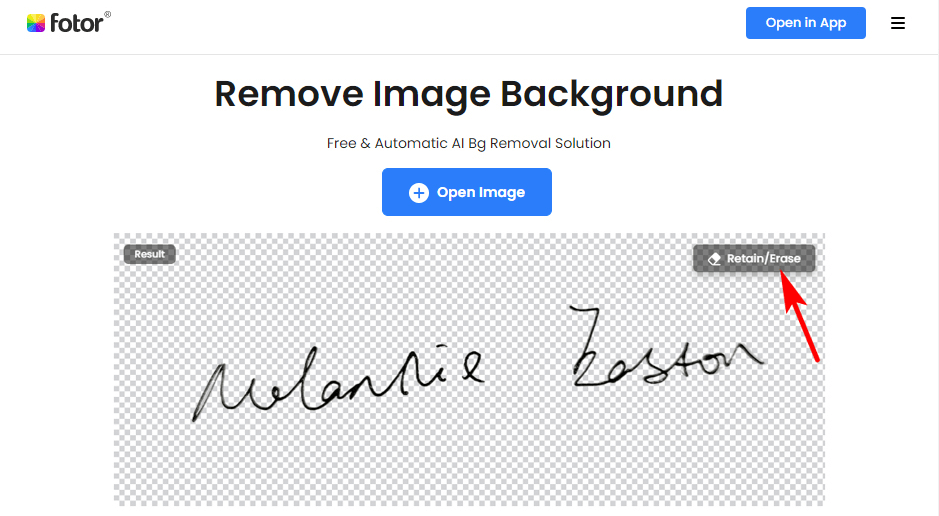
Step 4: Download Your Signature
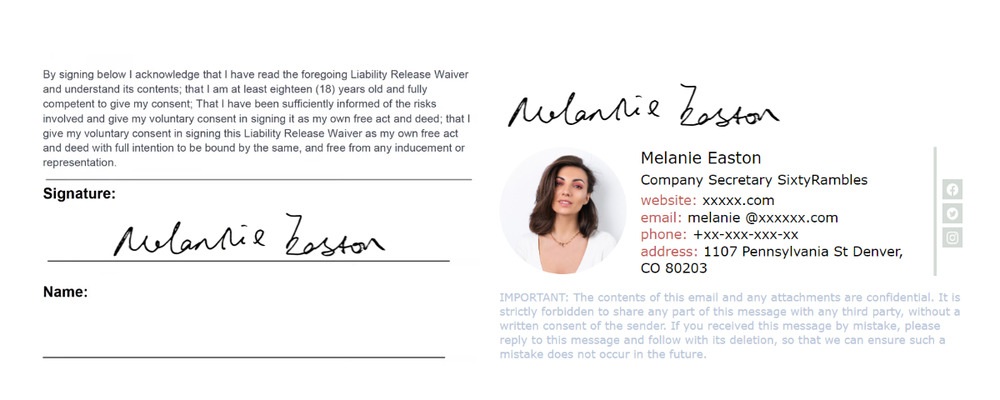
When you’re satisfied with the signature, click “Download” to download a PNG version of your signature with a transparent background.
That’s it. Now you have a professional-looking digital signature that can be used for any purpose!
Pros
- Fast, easy, and free
- Ability to create an authentic, handwritten signature that is unique to you
Create a Digital Signature Online With Signaturely
Signaturely is a web-based signature generator. With it, you can easily create a signature online to sign contracts and legal documents in a matter of minutes. Follow the steps on how to create an electronic signature:
Step 1: Open Signaturely
Go to signaturely official website.
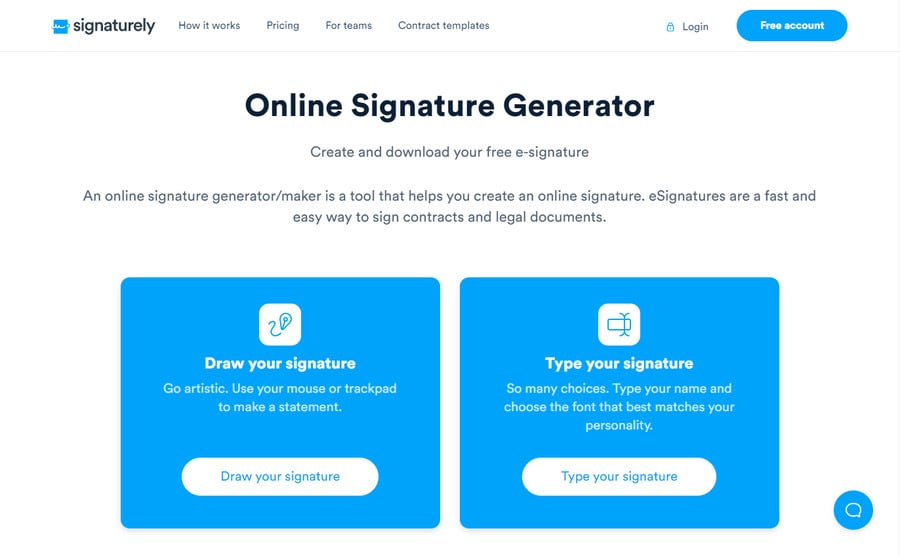
Step 2: Type or Draw Your Signature
You’ll see two options here- Draw your signature and Type your signature.
● Draw your signature:
Use your mouse to write your signature.
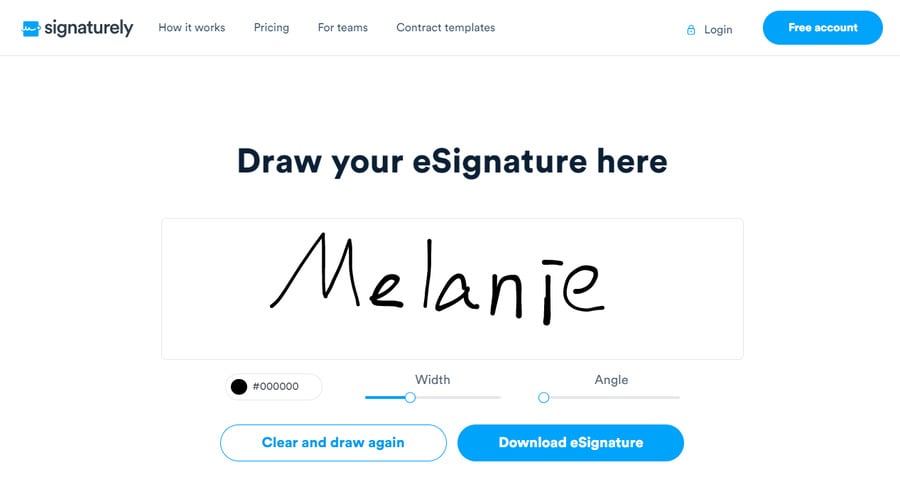
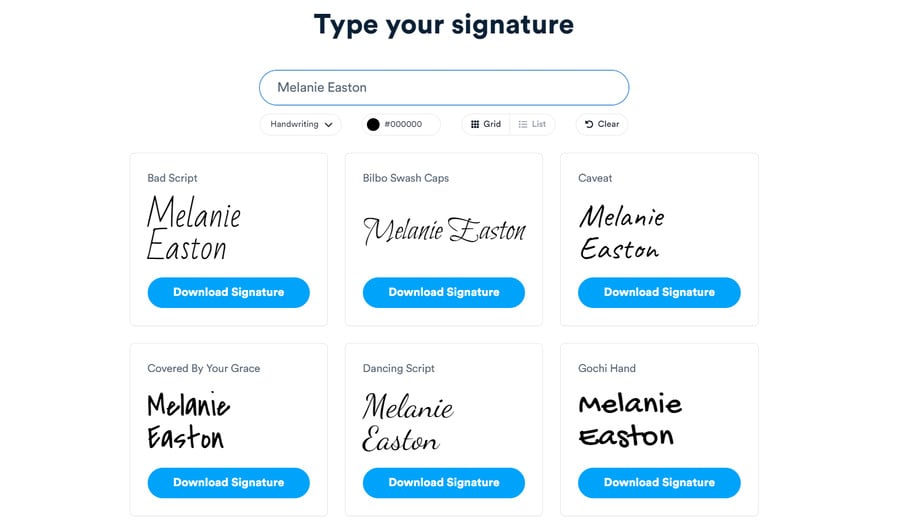
● Type your signature:
Type your name and choose the font that best matches your personality.
Choose whichever option is most comfortable for you to create an electronic signature.
Step 3: Download Your Signature
Once done, click the “Download” button to download your digital signature to your computer.
Pros
- Fast, easy, and free
- All signatures created with Signaturely are legally binding
How to Create a Digital Signature on a Phone?
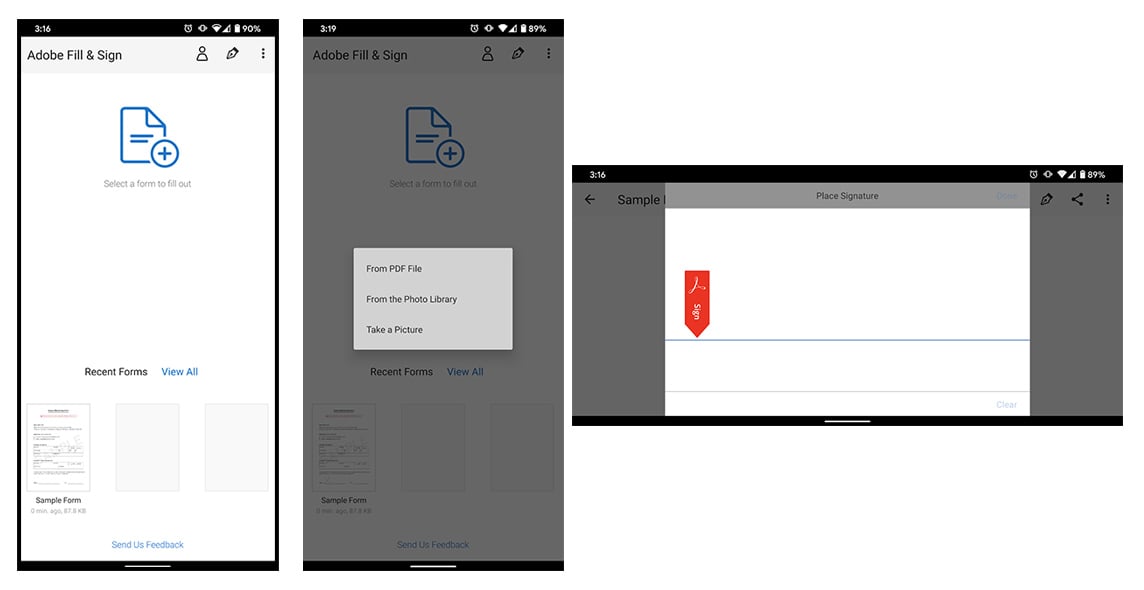
If you’re away from your computer, do not worry, you can easily create a signature on your phone with the Adobe Fill & Sign app. This app is one of the best electronic signature apps. With it, you can create and manage electronic signatures easily.
Step 1: Download and Install Adobe Sign App
You can download Adobe Fill & Sign app for free from the App Store or Google Play.
Step 2: Create or Select a Document
To create an electronic signature, simply open the Adobe app, select a document from recent forms or click the + button to add a form.
Step 3: Create a New Signature
Then click the sign button which looks like the tip of an ink fountain pen. Then draw your signature using your finger.
Step 4: Add Your Signature to the Document
Once done, click the sign button again to save your signature. Then click on your signature to place it onto the document. You can also adjust the size and position of the signature as needed. It’s that simple!
How to Create an Electronic Signature in Word
It’s easy and fast to create an electronic signature in a Word document using the Draw tool. Follow the steps below:
Step 1: Open the Word Document
First, open a Word document and click anywhere you want to insert a signature.
Step 2: Click on Draw Tool
Next, click “on the Insert” tab at the top of the menu bar and click “Draw” tool. Pick up a drawing tool that suits your need. Ideally, the pen tool would be best for creating an electronic signature in Word.
Step 3: Create Your Signature
Use your mouse to draw your signature. You can change the thickness and color of the line.
Step 4: Save Your Signature
After you have created your electronic signature, click “Save and Close” to add your signature to Word. Voila!
FAQs about Electronic Signatures
1. What is an electronic signature?
An electronic signature, also known as an e-signature or digital signature, is a popular alternative to traditional handwritten signatures. It is used to sign electronic documents or agreements.
2. What are the benefits of using electronic signatures?
There are many benefits of using electronic signatures. One of the most significant benefits is their flexibility. Compared with the traditional “pen and paper” method, electronic signatures enable us to sign documents remotely from anywhere as long as we have an internet connection.
Additionally, electronic signatures eliminate the need to print, sign, and scan documents. This not only saves time and resources but is also good for the environment.
3. How to add an electronic signature to PDF?
Adding an electronic signature to a PDF document is a simple and easy process. And there are various tools available to do this, including using online signature tools, PDF editors, and mobile apps. Learn more about how to add electronic signature to PDF.
Conclusion
With plenty of free and easy-to-use tools, creating an electronic signature is a simple process and can be accomplished in just a few minutes.
Now that you know how to create an electronic signature, don't wait any longer. Start signing your documents electronically today and enjoy the convenience it brings to your workflow!