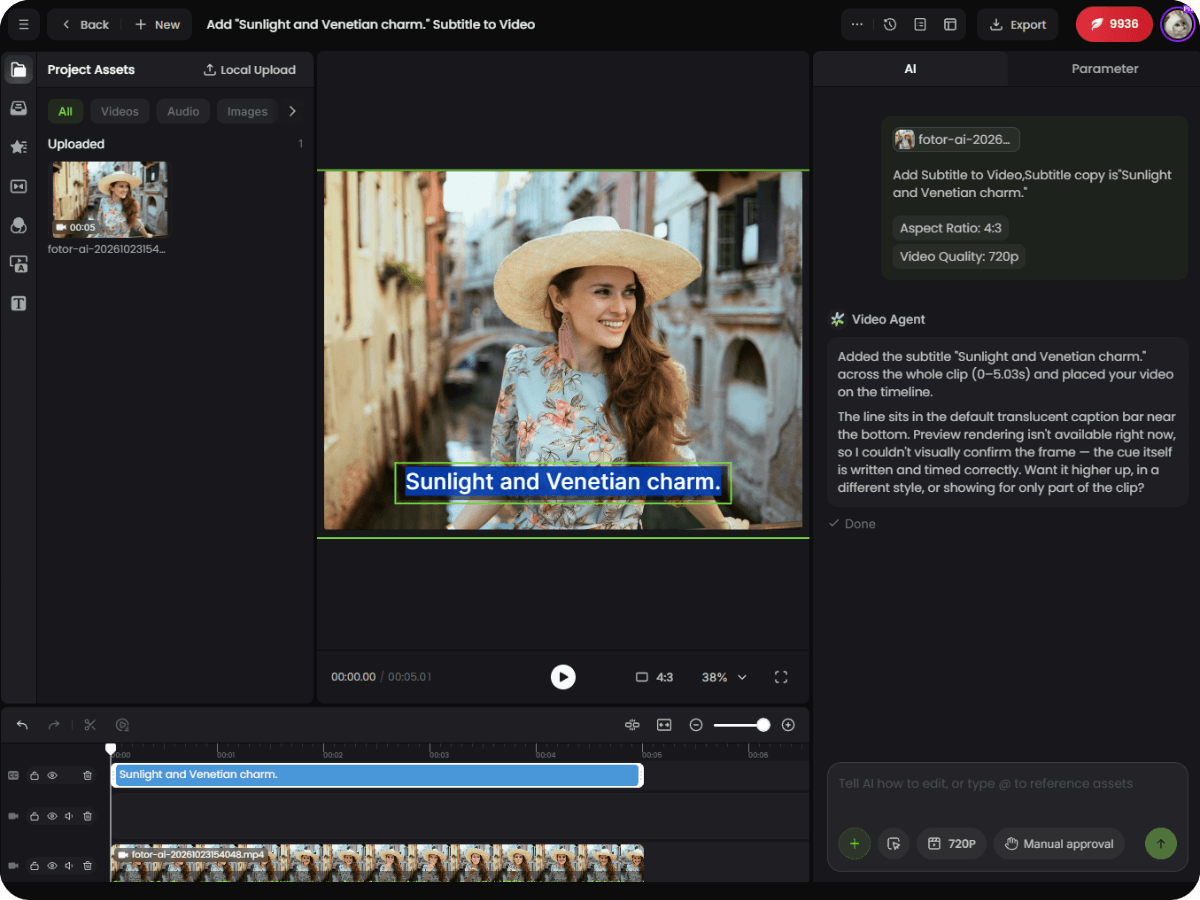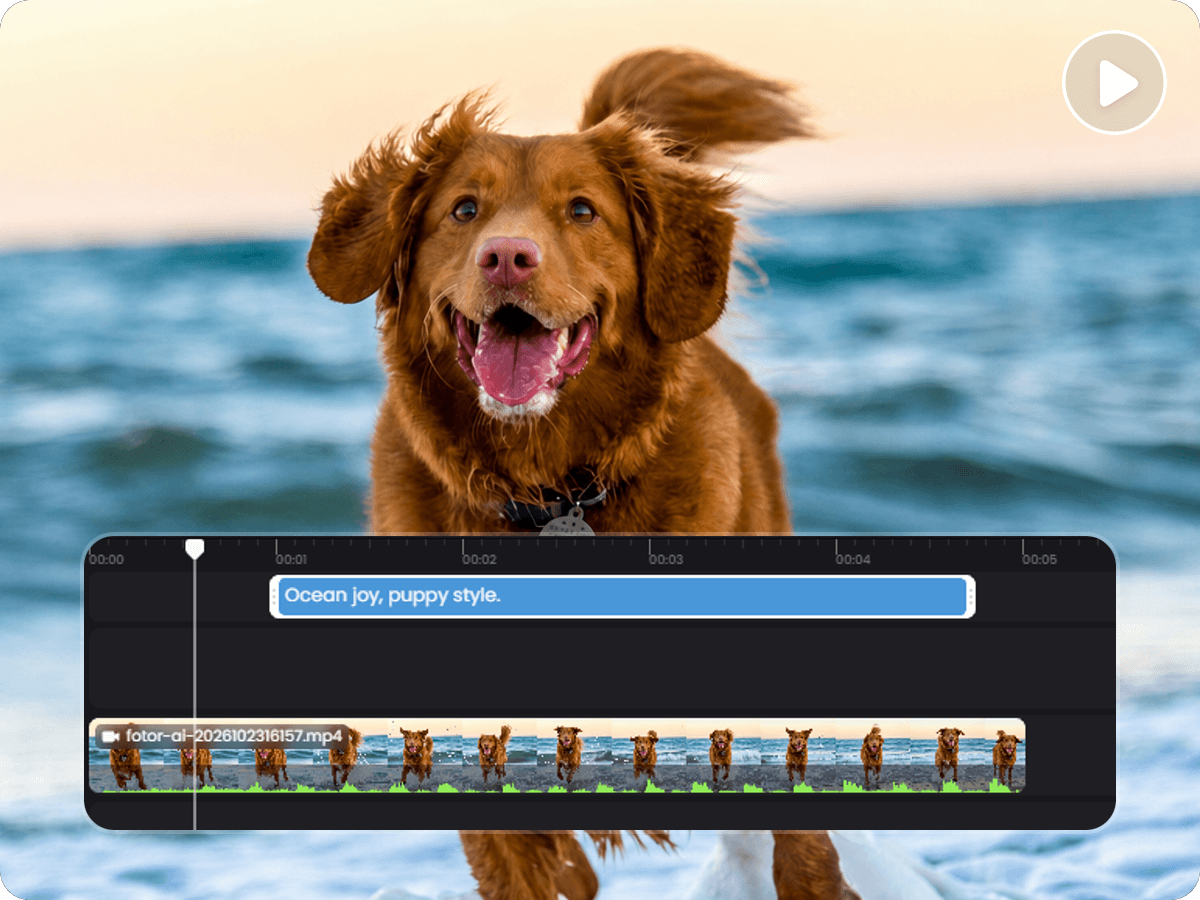
Quick and Easy Subtitle Creation
Instantly add existing subtitles without typing every line manually.


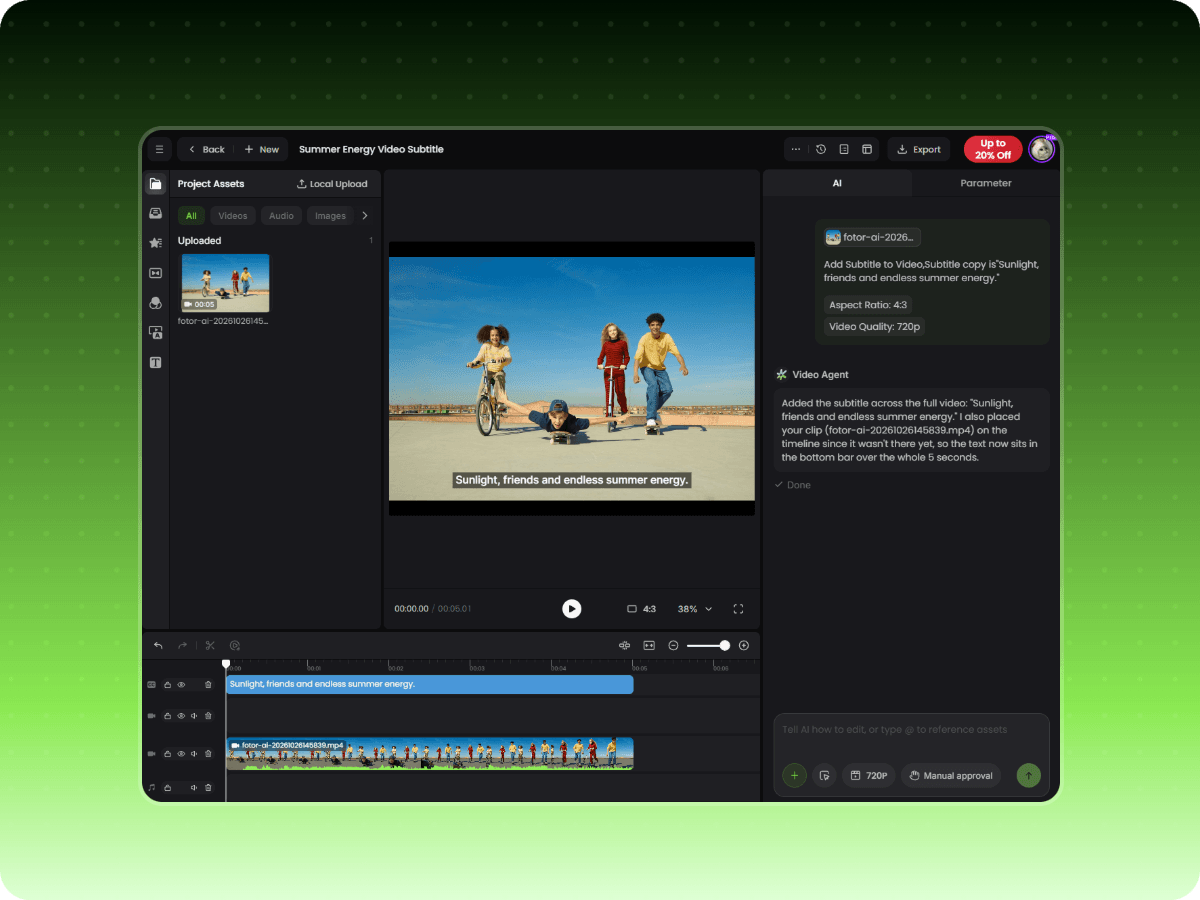
Add subtitles to video online with Fotor. Upload your own subtitle file or generate captions automatically from speech. Edit subtitle text, fix timing issues, and customize styles to make your videos easier to follow.
Instantly add existing subtitles without typing every line manually.
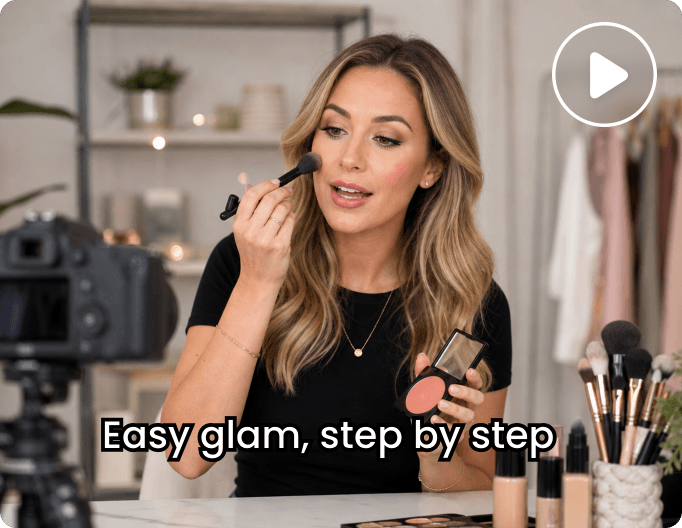
Upload an existing subtitle file or generate subtitles from your video's audio with AI.
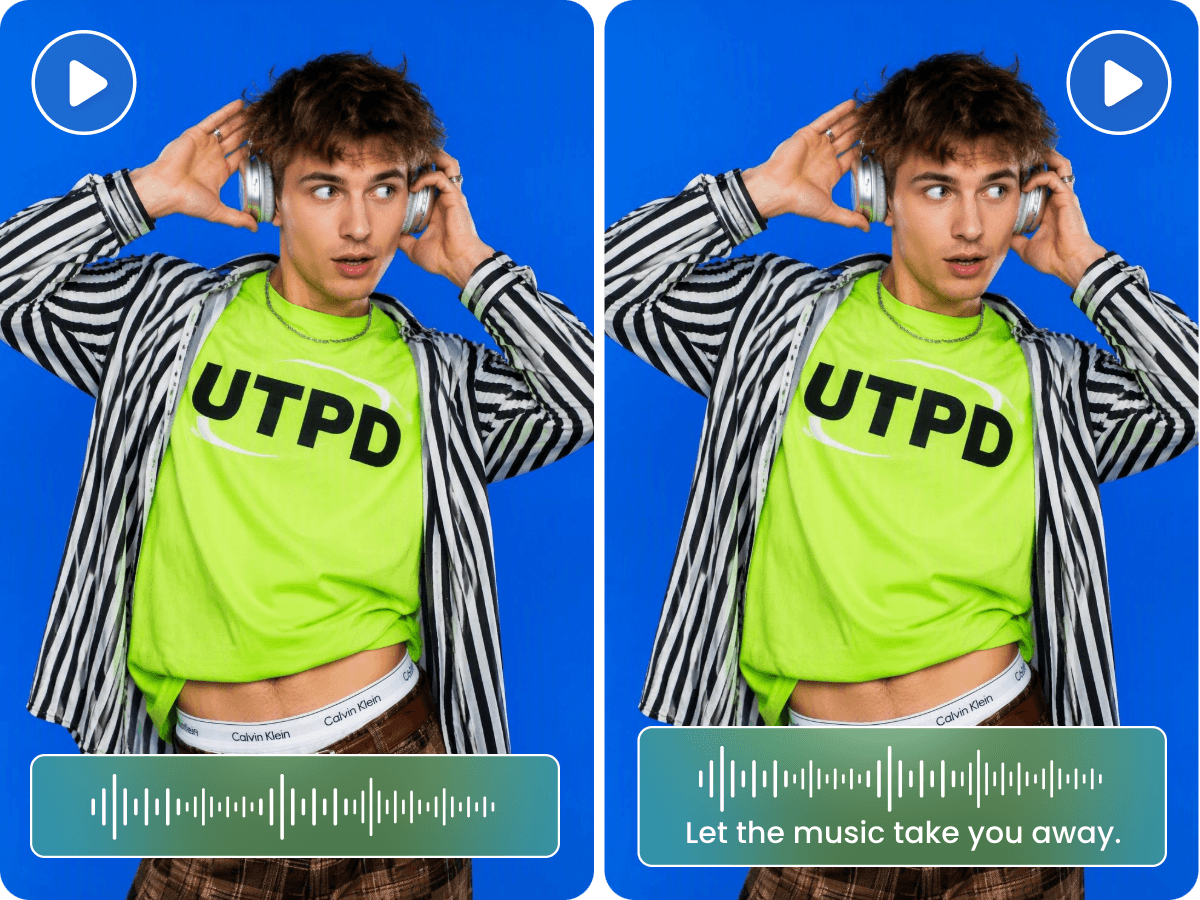
Correct text errors and adjust subtitle timing to keep captions in sync with your video.
Upload the video you want to add subtitles to. Fotor prepares your footage for subtitle editing.
Turn spoken dialogue into on-screen captions without typing out every line. Upload your video and let Fotor's AI subtitle generator recognize the speech and generate synchronized subtitles automatically. This is useful for talking-head clips, interviews, tutorials, and social videos that need captions before publishing. For projects that require a written transcript rather than timed on-screen captions, Fotor's Video to Text Converter provides an alternative way to extract spoken words into editable text.
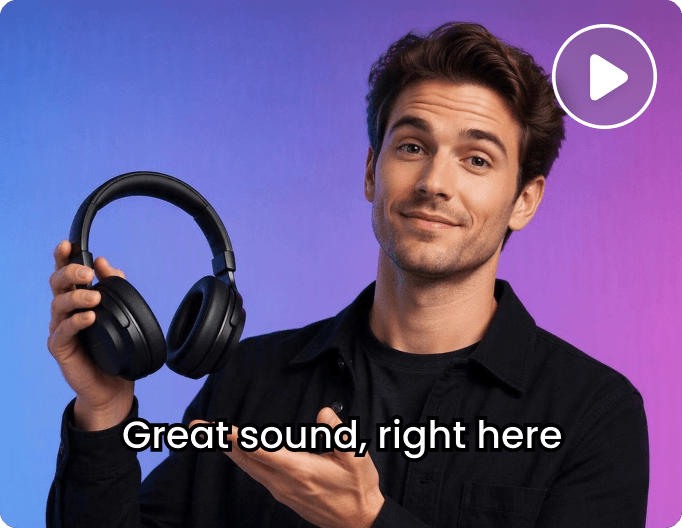
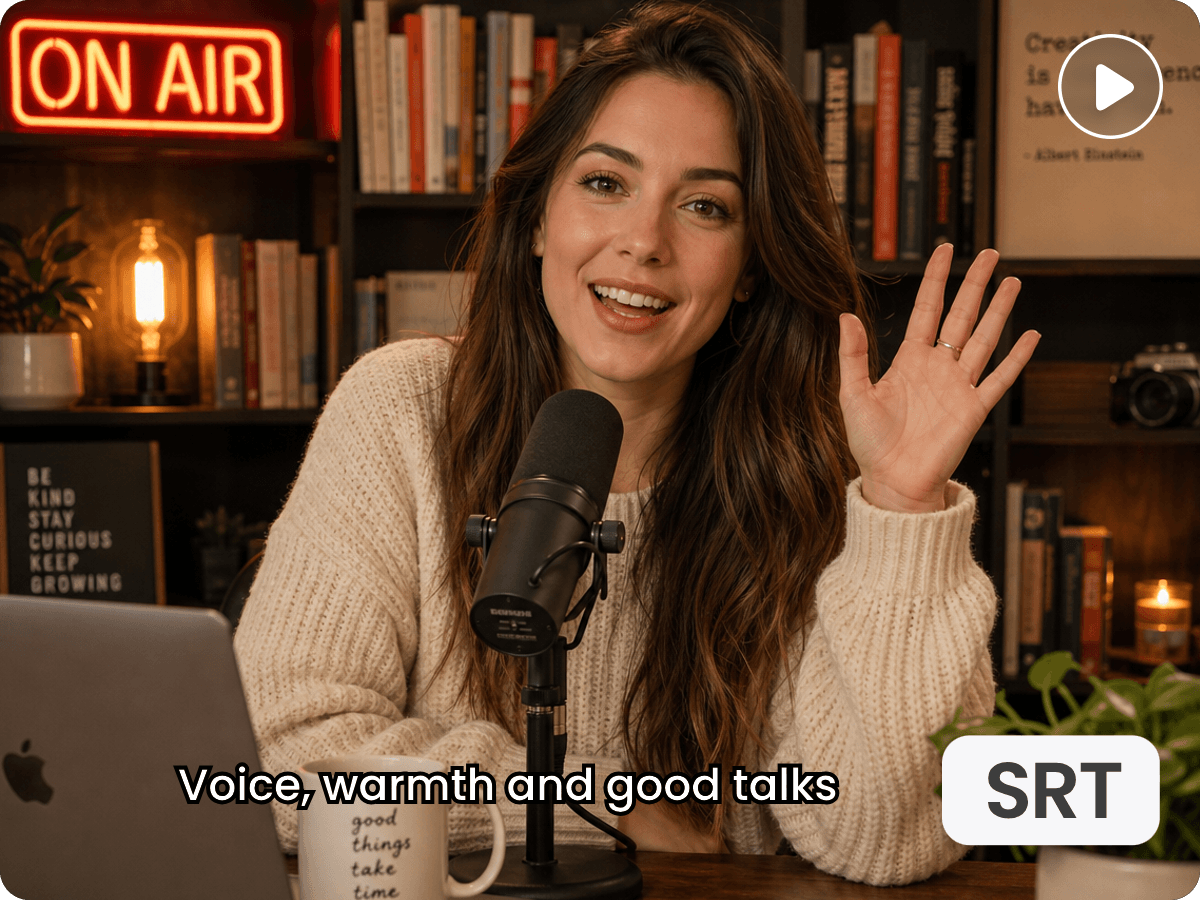
Already have a subtitle file? Upload it to your video instead of transcribing the audio again. Add your prepared captions and review how each line appears alongside the footage, keeping your existing wording without recreating every subtitle from scratch. This is especially useful for videos with approved scripts or professionally prepared translations. When creating localized versions, Fotor's AI Video Translator can also translate video subtitles and replace the original text in sync with translated audio.
AI-generated captions may contain misheard words, while existing subtitle files can include typos, outdated wording, or incorrect punctuation. Edit individual subtitle lines to correct spelling, speaker names, product terms, and other details before exporting. Whether you generate subtitles automatically or upload your own captions, reviewing and refining the text helps keep your video subtitles accurate, consistent, and faithful to the original dialogue.
Subtitles can be difficult to follow when they appear before a speaker starts talking or remain on screen after a sentence ends. Adjust the timing of individual captions so each line appears with the corresponding dialogue and disappears at the right moment. Check the changes against the audio, particularly around pauses, quick exchanges, and scene cuts. These adjustments can be reviewed alongside your footage in Fotor's AI video editor, keeping subtitle synchronization connected to the overall editing process.
Give your captions an appearance that fits the video instead of settling for a default style. Adjust subtitle fonts, text colors, sizes, and other available styling options to suit different types of content. Use clean, readable captions for tutorials and interviews, or more expressive text styles for short-form social videos. Preview the subtitles against your actual footage to check their contrast and readability, especially when backgrounds or scenes change.
Yes. Fotor provides free daily credits that you can use for video editing, including adding and editing subtitles. The available credits can be used to try supported editing features without purchasing a subscription. Credit consumption may vary depending on the editing task.
Yes. You can upload an existing subtitle file to add captions to a video without spoken dialogue. AI-generated subtitles, however, rely on speech recognition, so a video without spoken audio requires prepared subtitle content.
Yes. You can upload an English subtitle file to a video with foreign-language audio. You can also use Fotor's AI Video Translator to create translated video versions for audiences who speak different languages.
AI subtitle accuracy depends on audio clarity, pronunciation, background noise, and the use of specialized terms. Clear speech generally produces better transcriptions, while overlapping conversations or unfamiliar names may require manual corrections. Review your generated captions before exporting to keep the wording consistent with the original audio.
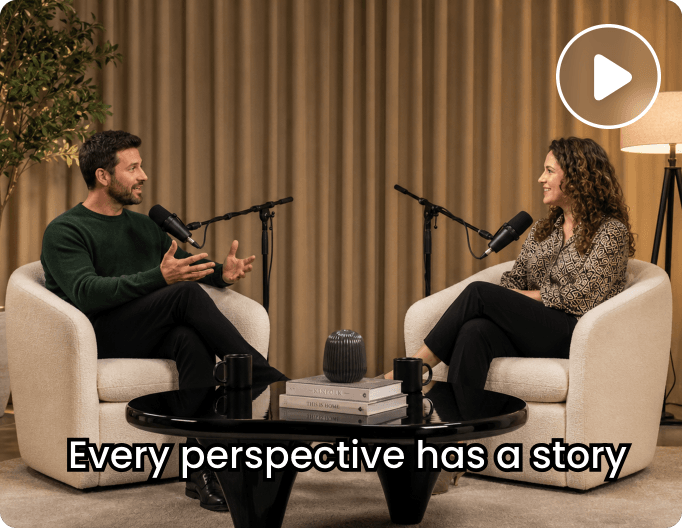
Yes. Fotor can generate subtitles from spoken dialogue in interviews, podcasts, and other multi-speaker videos. However, overlapping speech and rapid conversations may affect transcription quality, so review the generated captions to make sure each line accurately reflects the discussion.