


Keep Editing Without Source Files
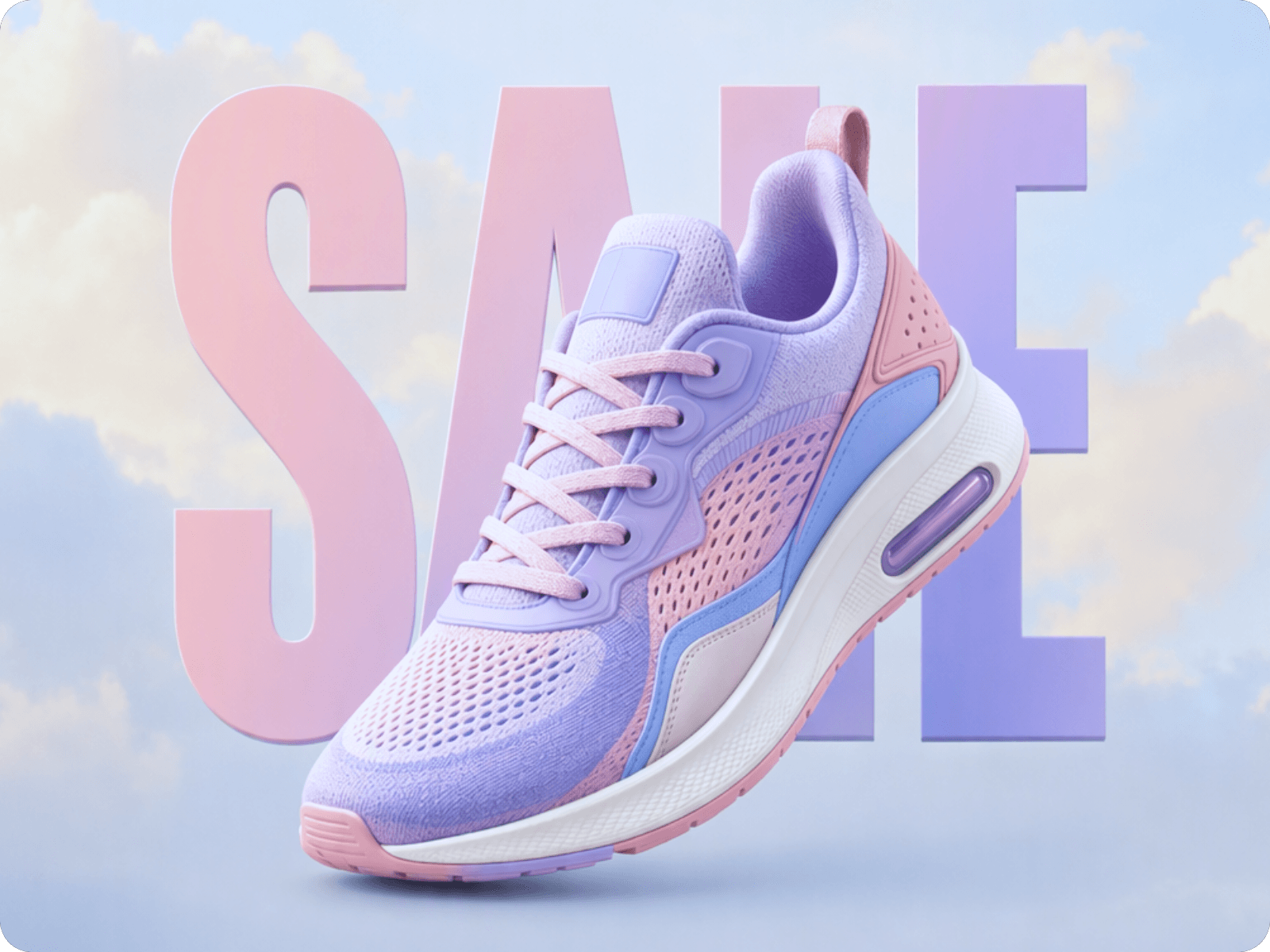
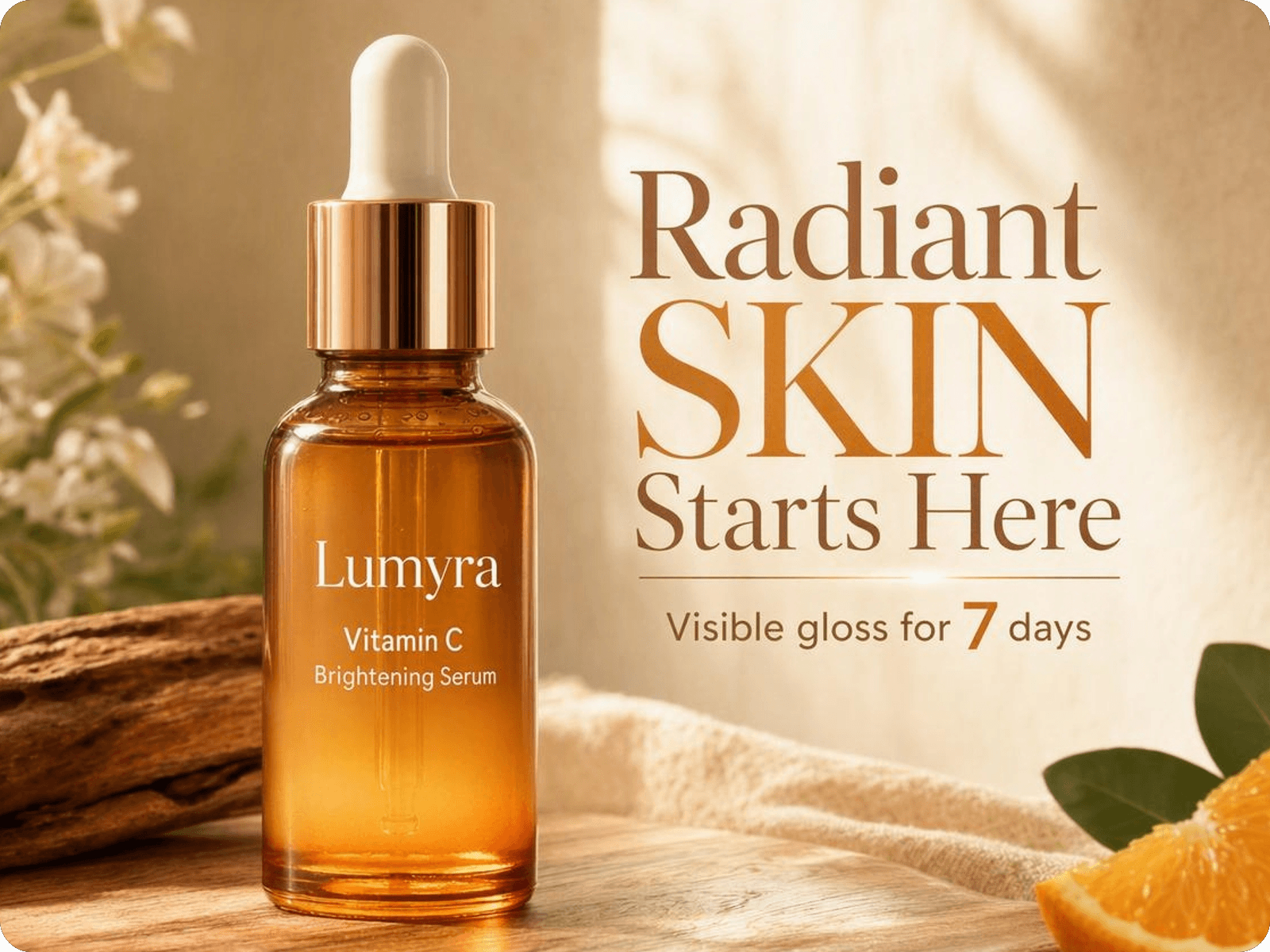
Turn a JPG, PNG, screenshot, or AI-generated image into editable layers, so you can update the design without the original PSD or source file.


Turn a flat image into editable layers with Fotor's Magic Layers without rebuilding the whole design.
✅ No Source File Needed ✅ Independent Layer Editing ✅ Faster Design Updates
Your photos are securely processed and kept private.
Your photos are securely processed and kept private.
Turn a JPG, PNG, screenshot, or AI-generated image into editable layers, so you can update the design without the original PSD or source file.
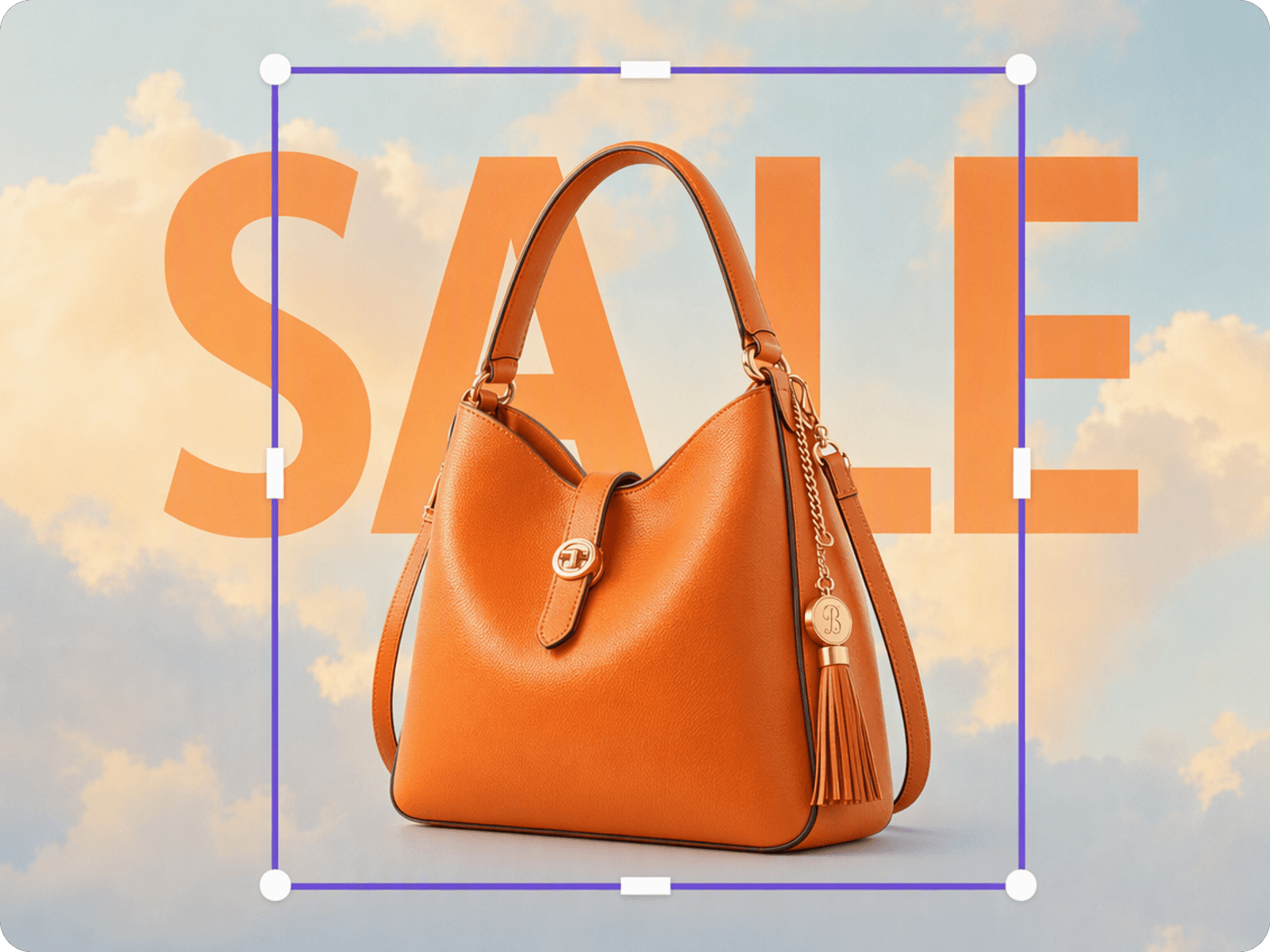
Select a specific layer to move, resize, recolor, replace, or edit a product, object, text, or background without changing the rest of the image.
Edit individual layers while keeping other elements in place, so the original composition stays intact as you update the image.
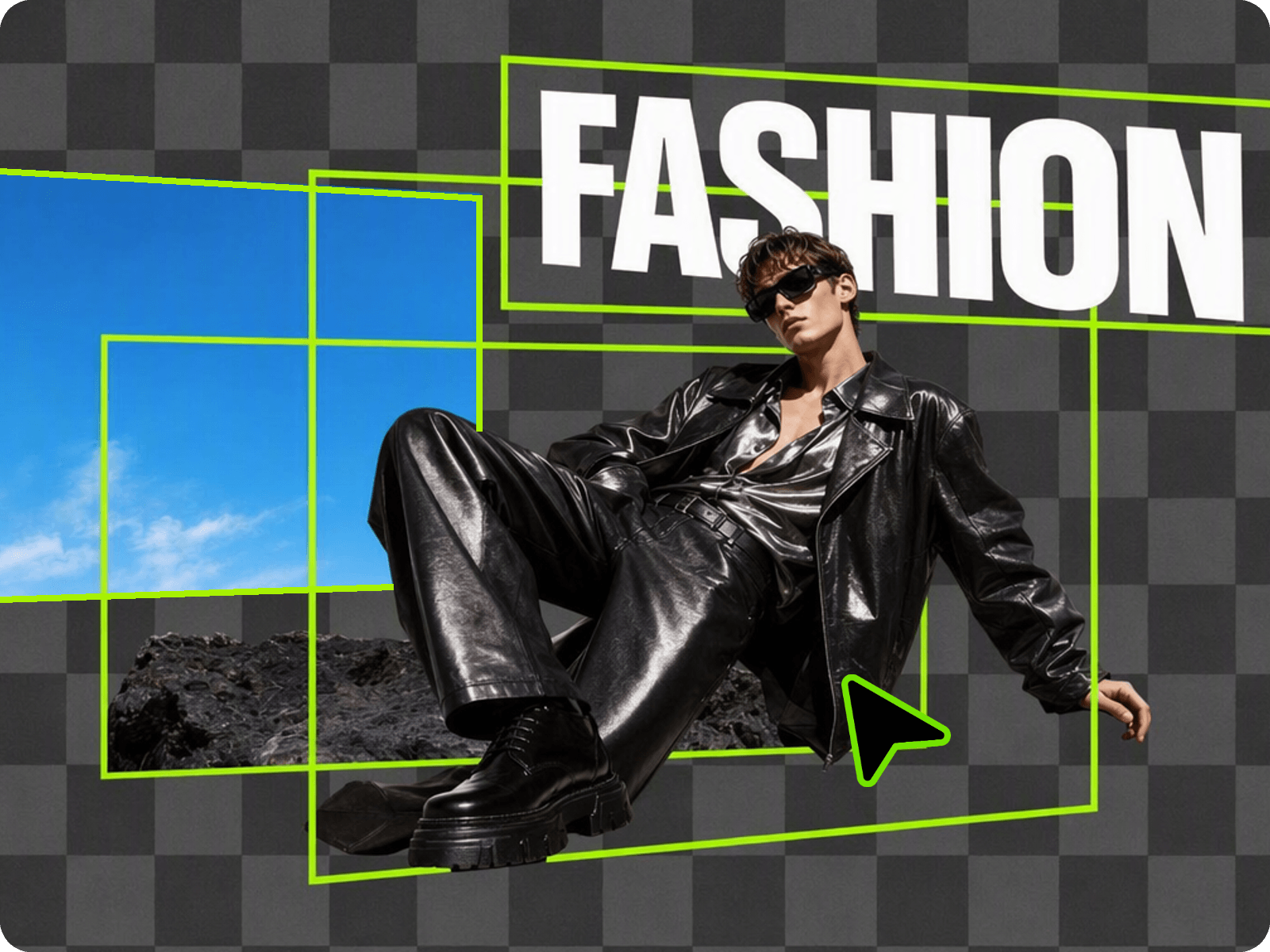
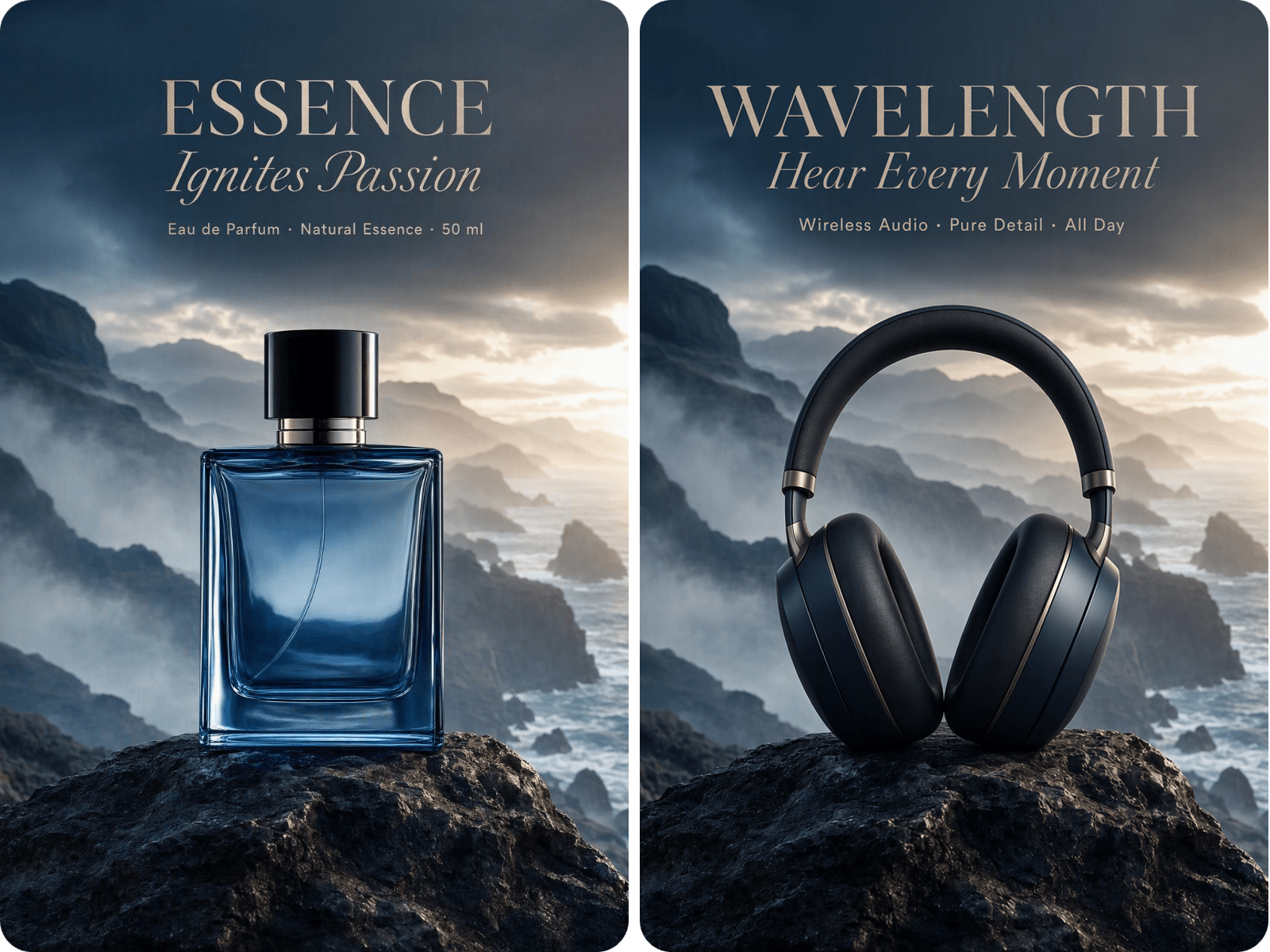
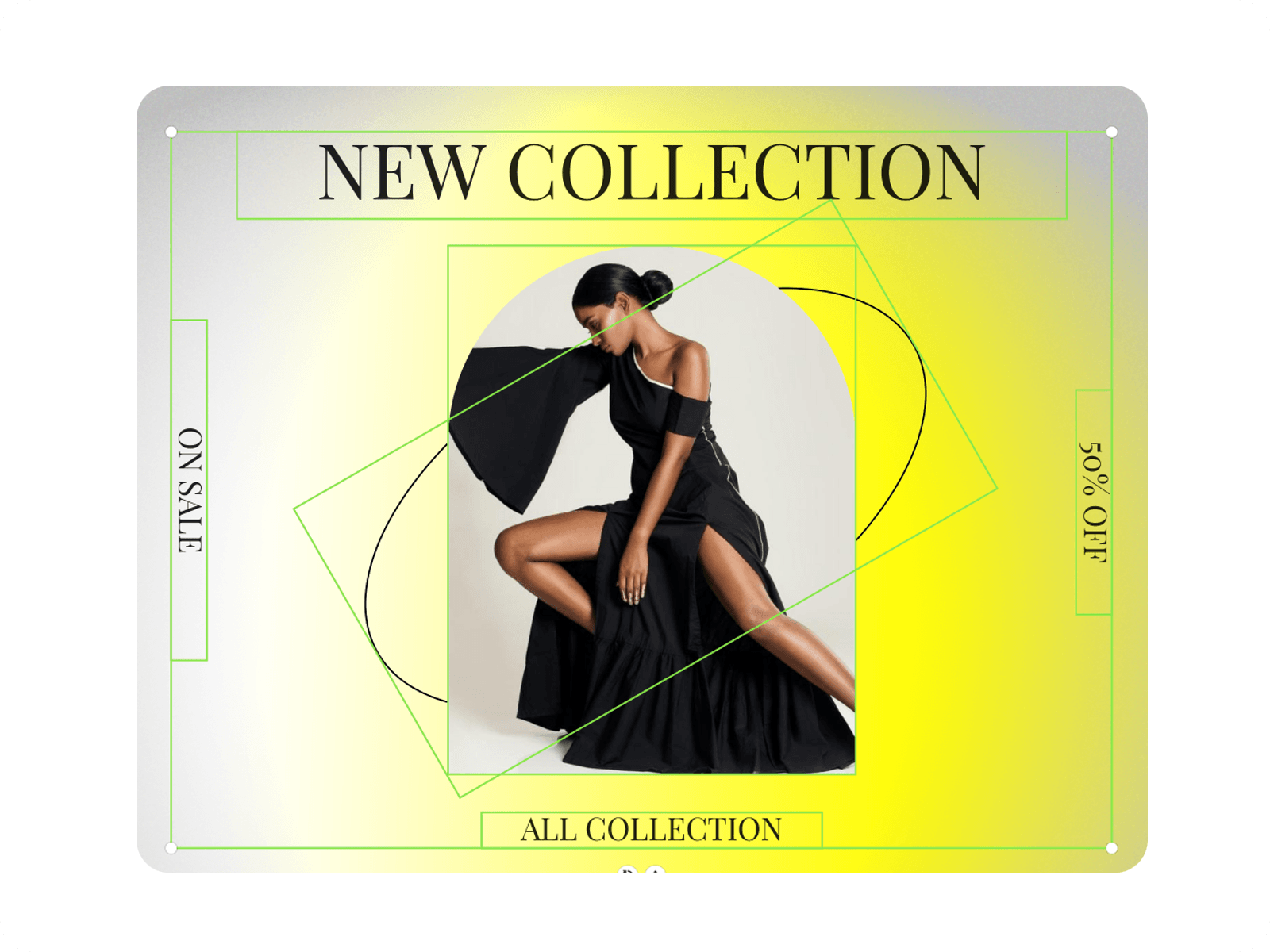
Turn a flat image into separate, editable layers with Fotor. Image to layers helps identify key elements such as people, products, objects, text, and backgrounds, then separates them into individual image layers. This makes it easier to reuse specific elements, make targeted edits, and work with a layered image without rebuilding the entire visual.
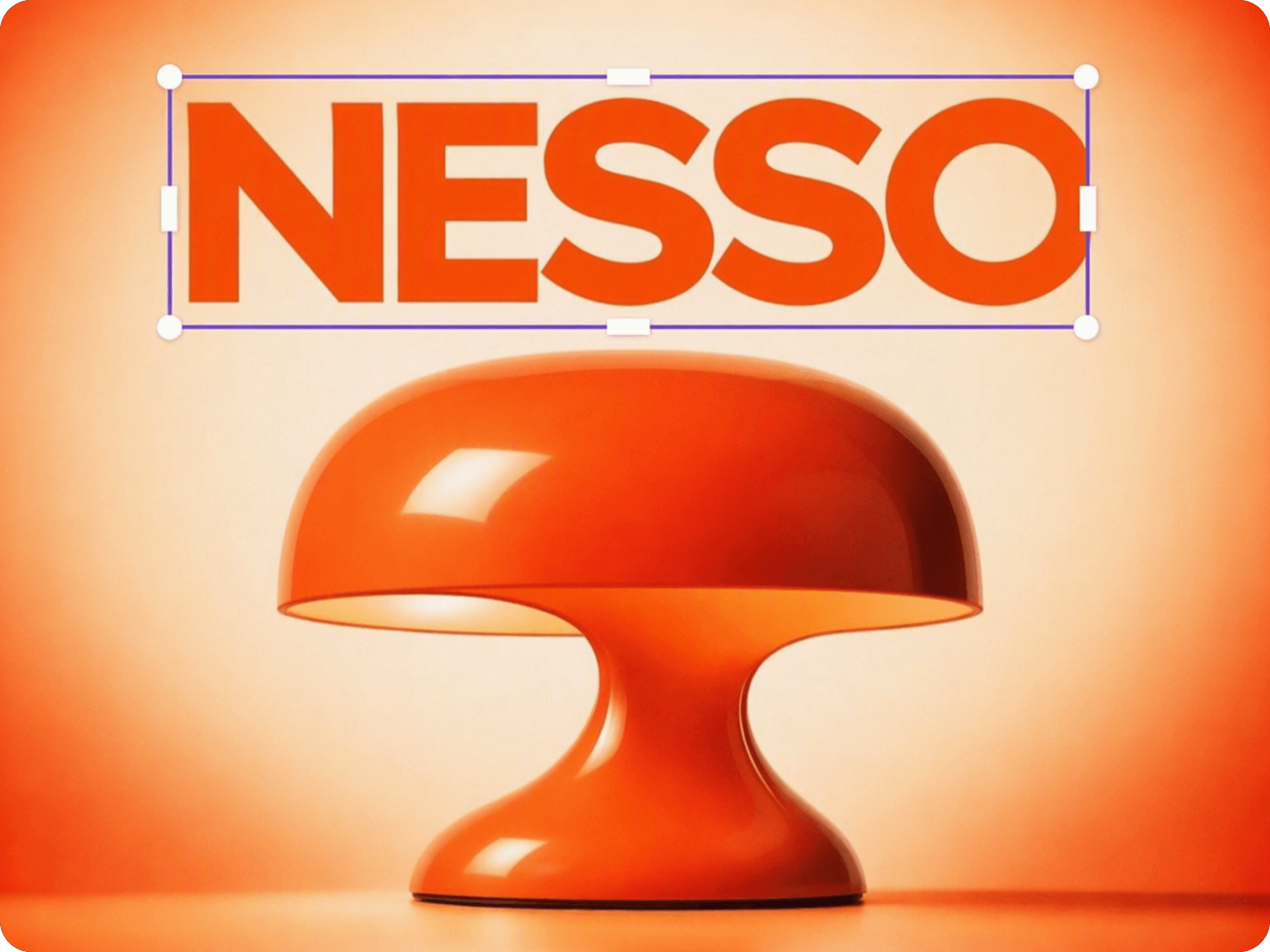
Once your image is separated into layers, you can edit each element independently instead of changing the entire image at once. Remove objects, resize products, adjust colors, or update individual parts while leaving other layers untouched. This gives you more control over your image layers and makes detailed edits much easier.
Separating an image into layers does not mean losing the look of the original design. Fotor keeps the main elements positioned within the original composition, so your layered image remains easy to understand and edit. You can work on individual layers like replacing objects while maintaining the overall placement, visual balance, and relationships between different elements in the source image.
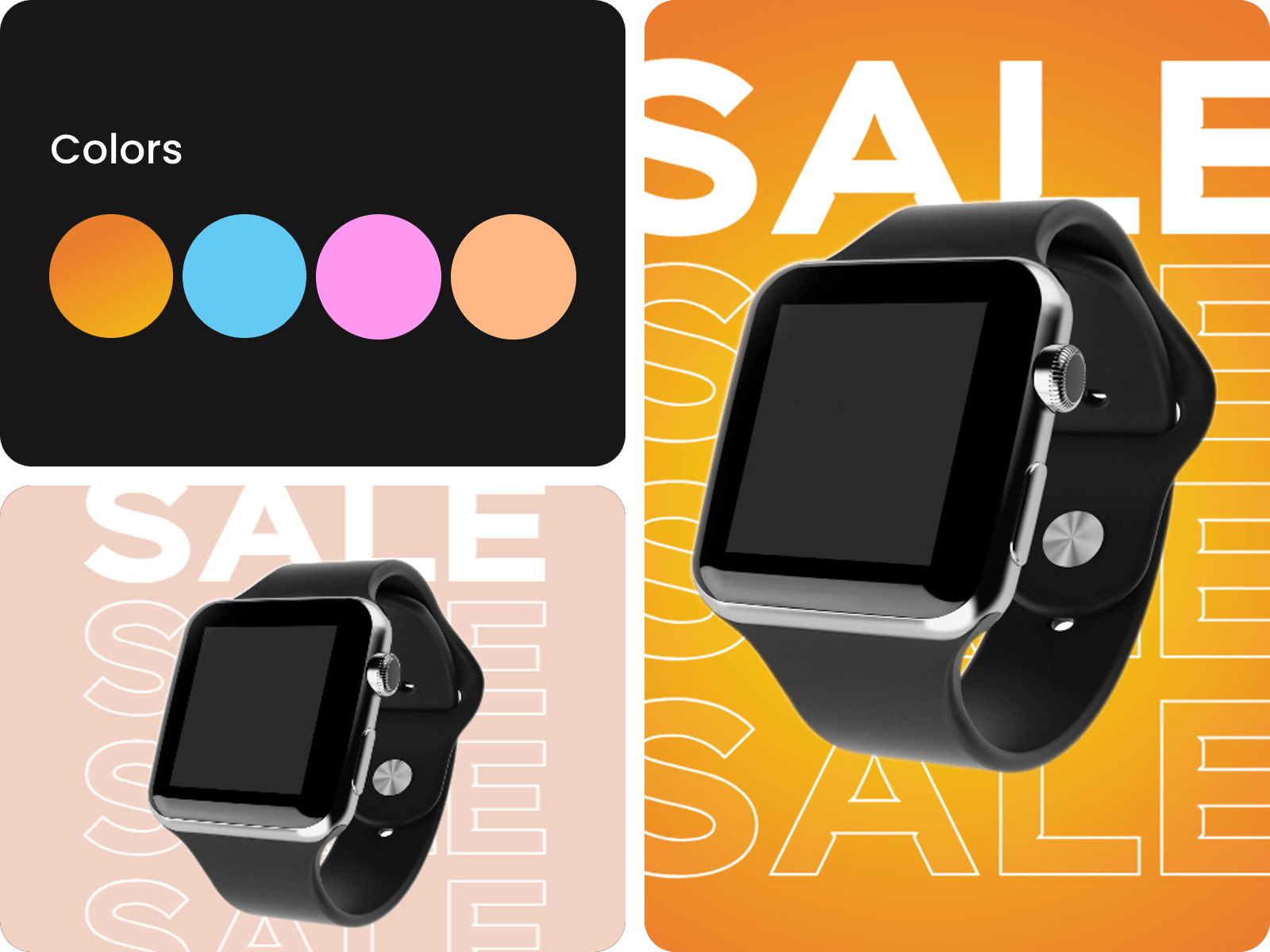
Need to change one part of an existing visual? Rework it without starting from scratch. With Fotor Magic Layers, you can replace a product, update text, move a layer, recolor an object, or remove an unwanted element while keeping the rest of the design. This makes it easier to refresh layered images and create new versions from existing visuals.
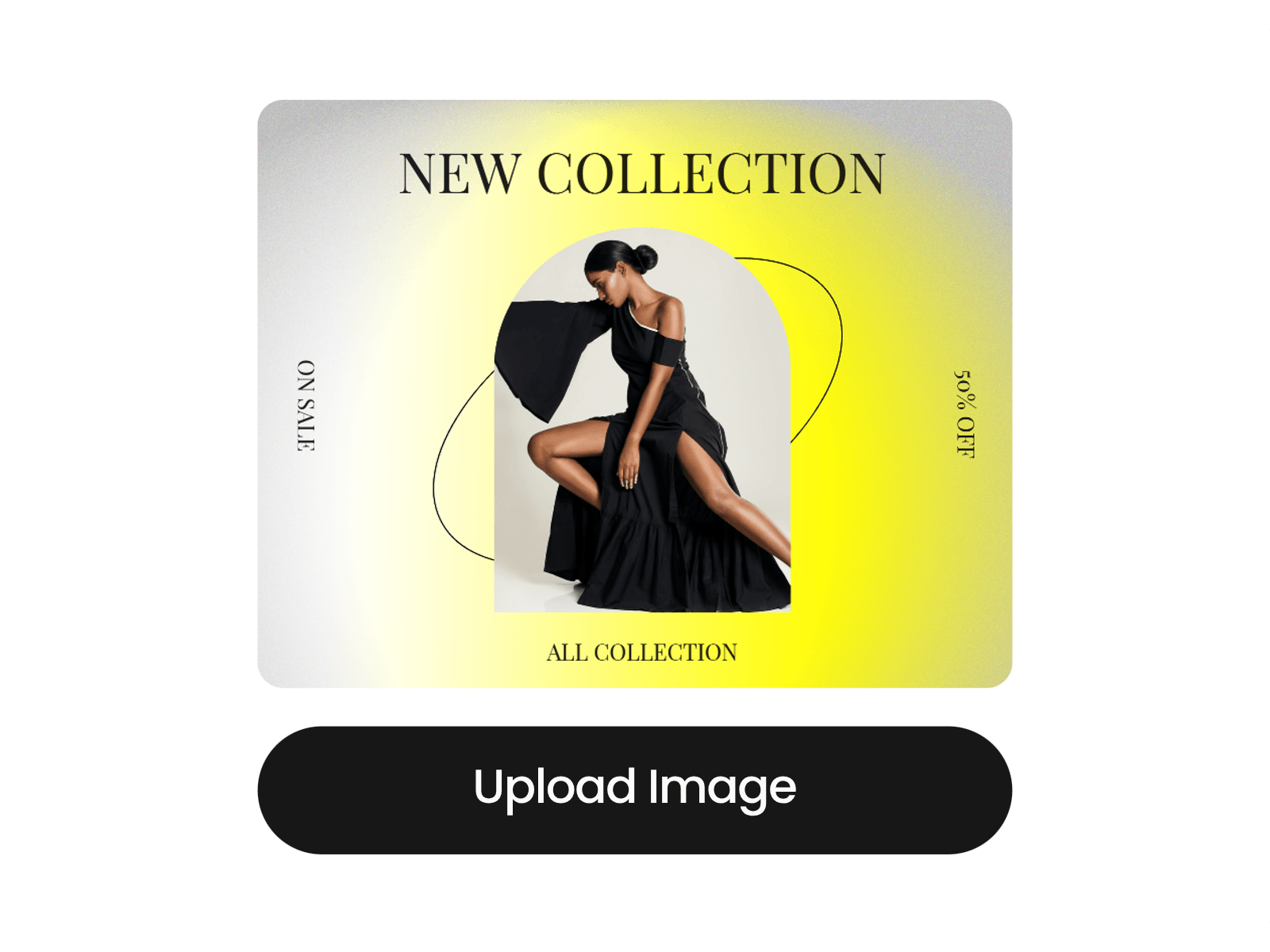
Upload a photo and start the image to layer process and separate its visual elements into editable layers.
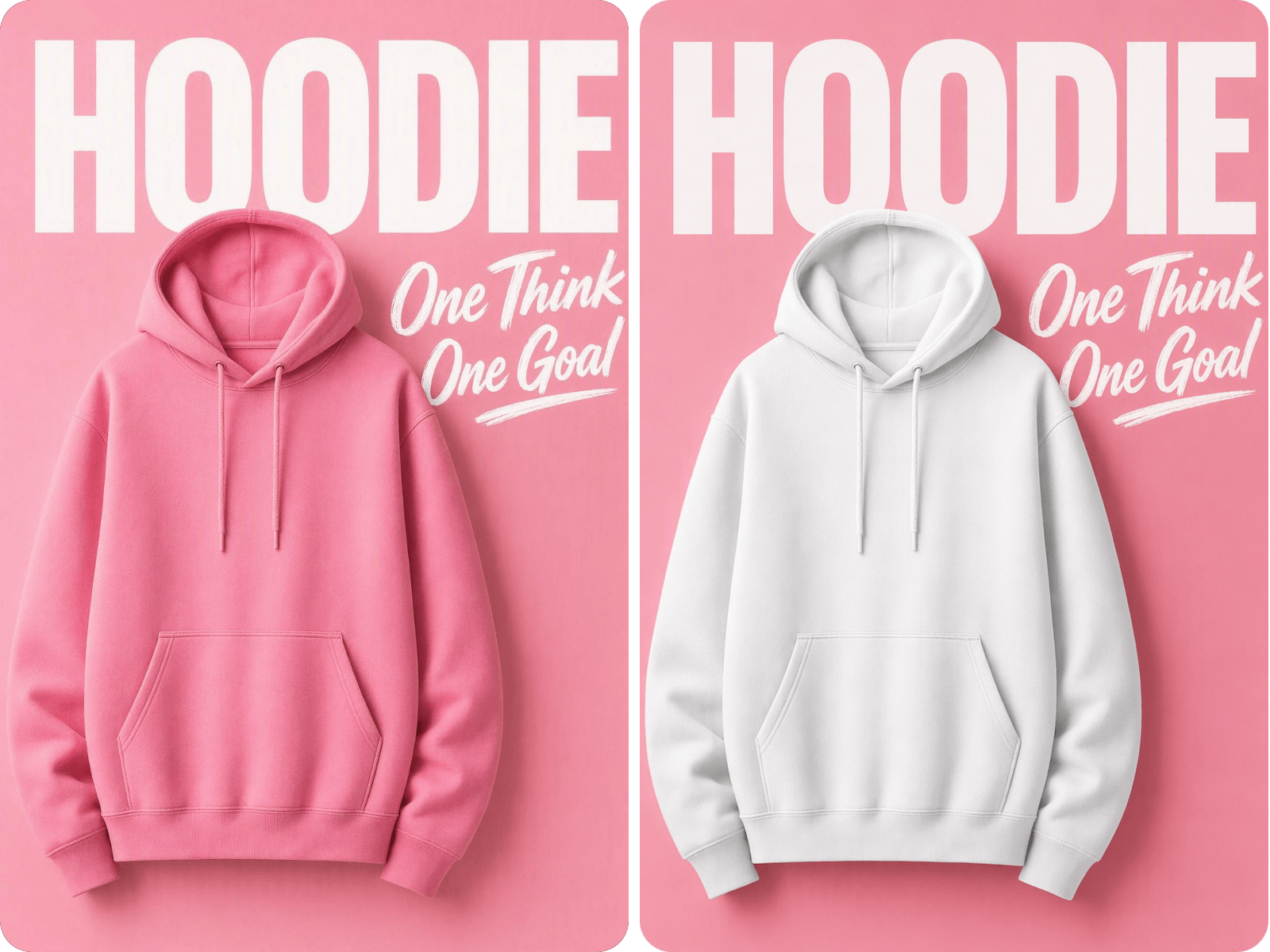
Separate products, models, props, and backgrounds into image layers. Update individual elements, adjust product placement, or create new product pictures without rebuilding the entire composition.
Yes. You can use a finished AI-generated image containing people, products, text, or other objects. The clearer each element appears in the source image, the easier it is to use image to layers for separating the visual into editable parts.
No, the image-to-Layer feature costs 20 credits per creation. You can use credits from your Fotor account, including Daily Credits earned through Fotor. Daily Credits can help cover the cost, but each creation still uses 20 credits.
It can handle images with multiple visual elements, but results vary with image complexity. Photos and designs with clearly defined subjects, objects, text, and backgrounds generally produce more distinct image layers than visuals with heavy overlap, similar colors, or fine details.
Overlapping objects can make image layer separation less precise because some parts may be hidden behind other elements. Fotor works with the visible information in the source image, so heavily covered or unclear areas may not separate as cleanly as fully visible objects.
Yes. Upload a flattened PNG and separate its visible elements into editable image layers. This comes in handy when you have the final PNG but no original working file and need to change individual products, objects, text, or backgrounds.
Yes. You can use an existing JPG or screenshot as the source when its main visual elements are clear enough to distinguish. This gives you a way to work with an image you no longer have the original layered file for.
You can, but the source image still affects the result. Higher-resolution images with clear edges and visible details usually produce cleaner layers, while blurry, heavily compressed, or very small images may contain less detail for accurate separation.
Not quite. A background remover is mainly used to isolate a subject from its background. Image to Layers takes a broader approach by separating multiple parts of a flattened image, allowing you to work with products, objects, people, text, and backgrounds as individual layers.