Easy Video Speed Control
Adjust playback speed to make your videos slower and create the slow-motion effect you want.


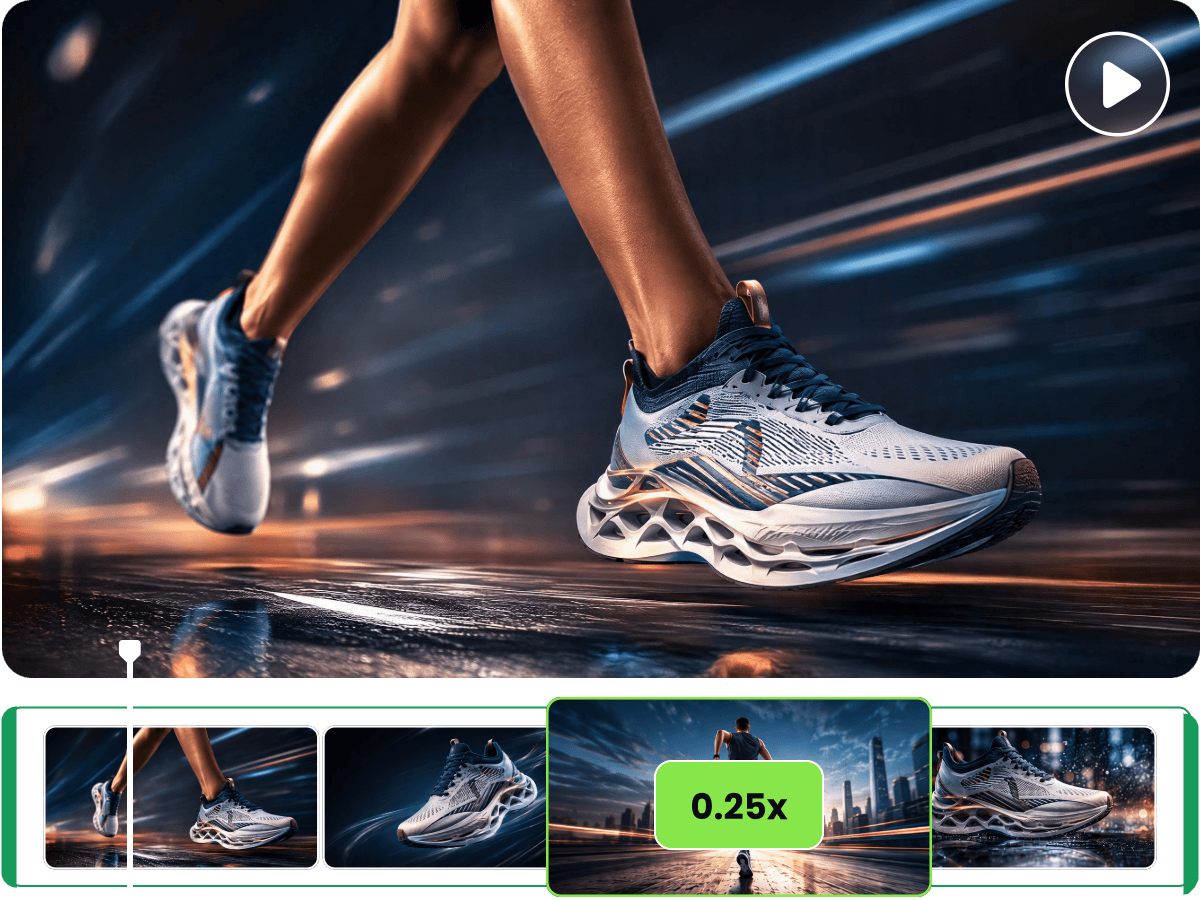
Slow down a video online with Fotor. Adjust playback speed to turn your footage into slow-motion videos, bringing more focus to fast-moving details in sports, dance, product demos, and everyday moments.
Adjust playback speed to make your videos slower and create the slow-motion effect you want.
Turn footage into slow-motion videos in your browser without installing video editing software.
Slow down fast-moving scenes to reveal subtle movements and details.
Upload the video you want to edit to Fotor's slow motion video maker.
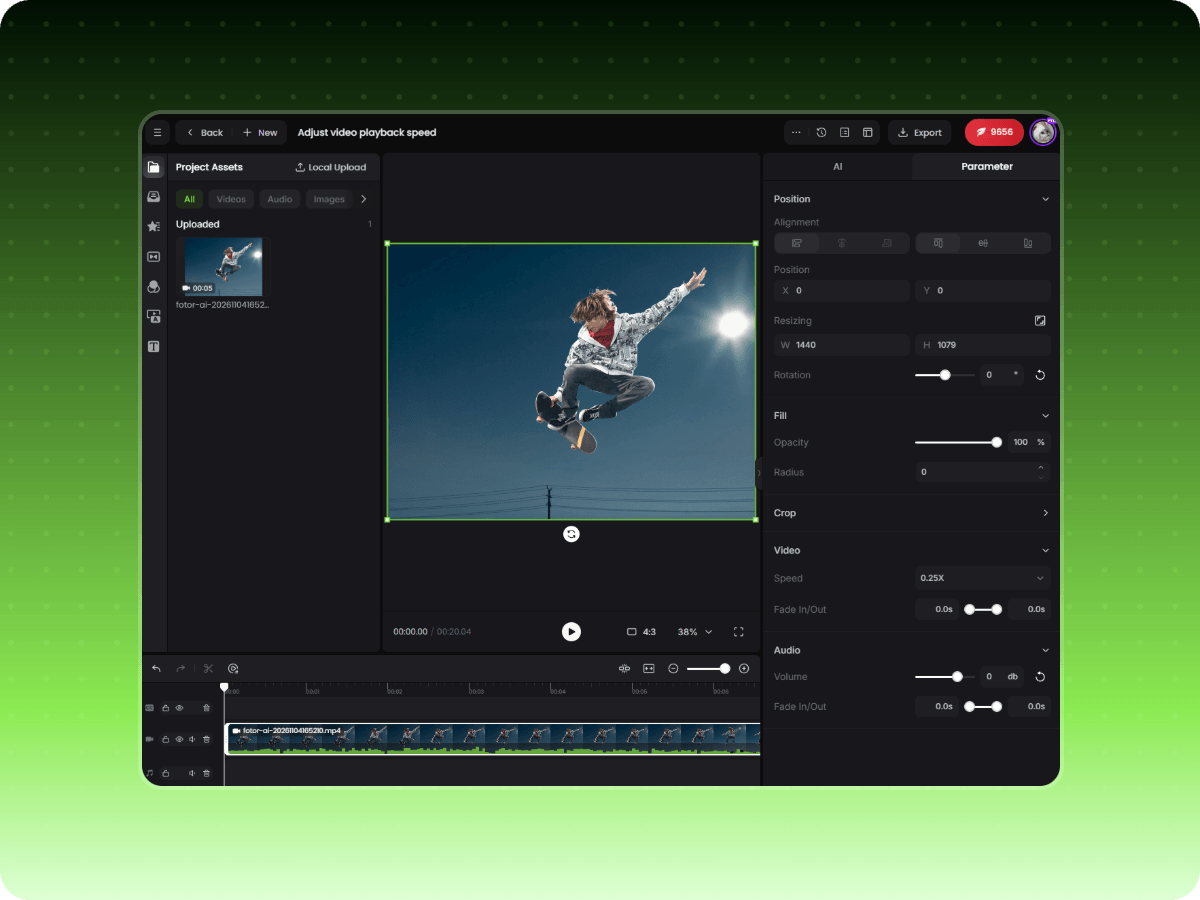
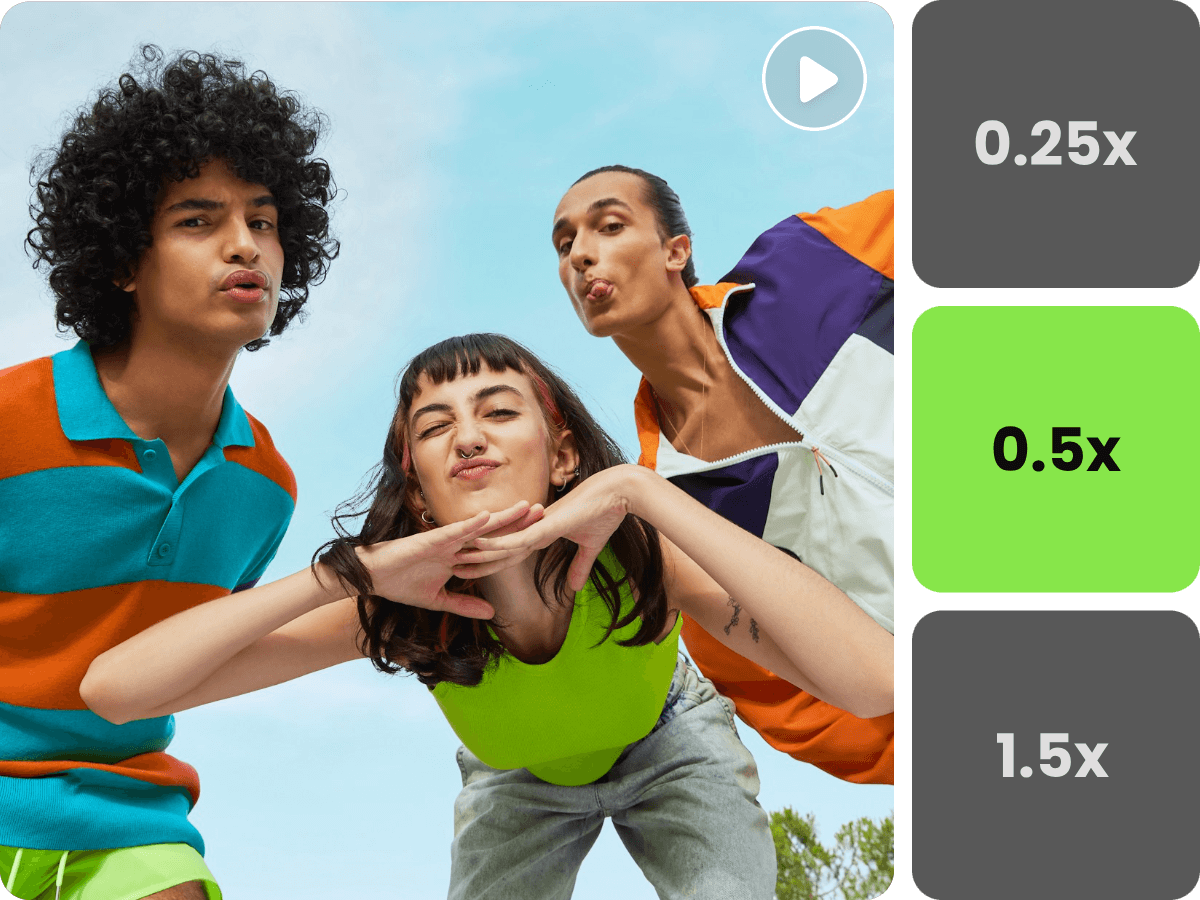
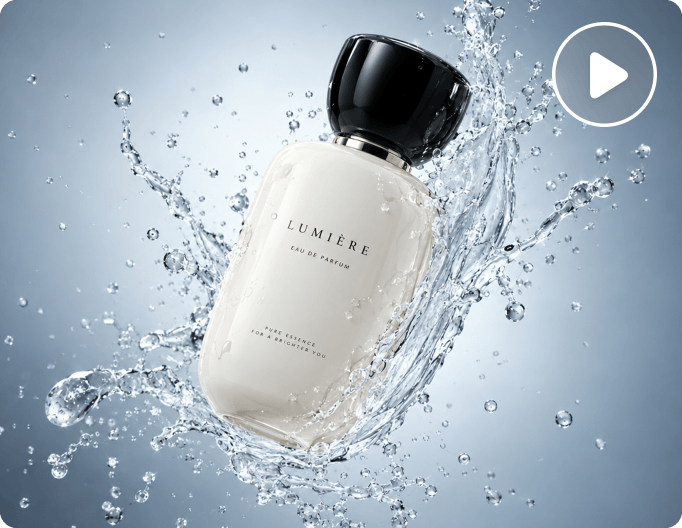
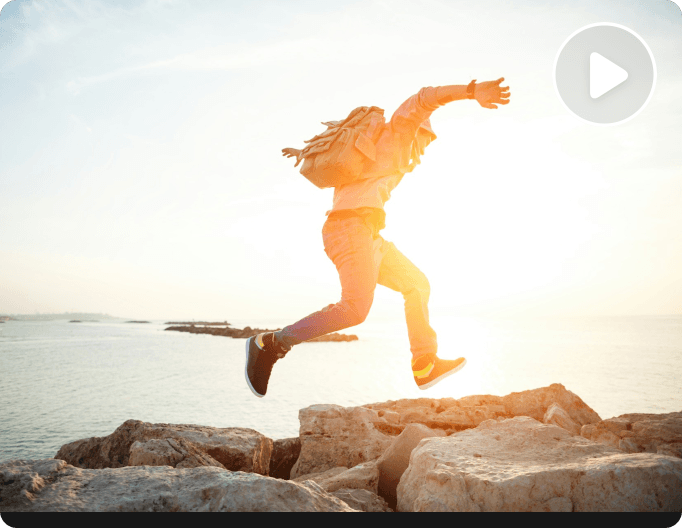
Turn regular footage into a slow-motion video by lowering its playback speed. Choose a slower rate that fits the action, whether you're drawing out a quick jump, showing the movement of a product, or giving a travel clip a more deliberate pace. Fotor's slow motion video maker gives you a direct way to slow down a video online and adjust the timing of footage you already have.
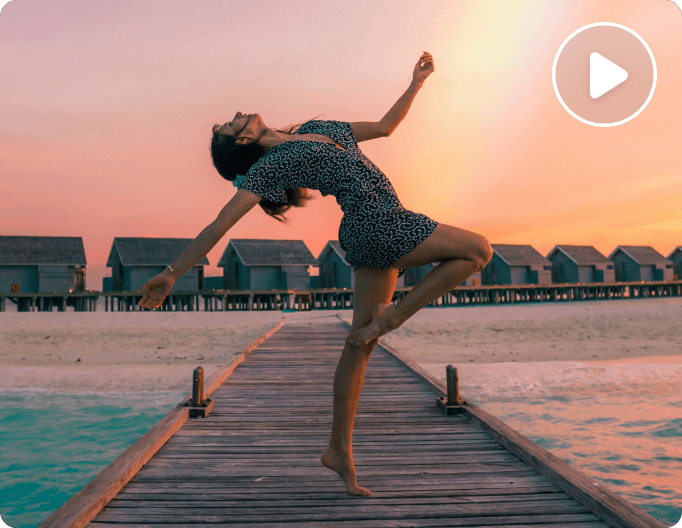
Not every moment in a video needs to move in slow motion. Select the section you want to emphasize, such as a jump, a dance move, or a product demonstration, and slow down that part while keeping the rest of the footage at its original pace. This gives you more control over how the action unfolds and helps you make a video slow motion without stretching every scene from start to finish.
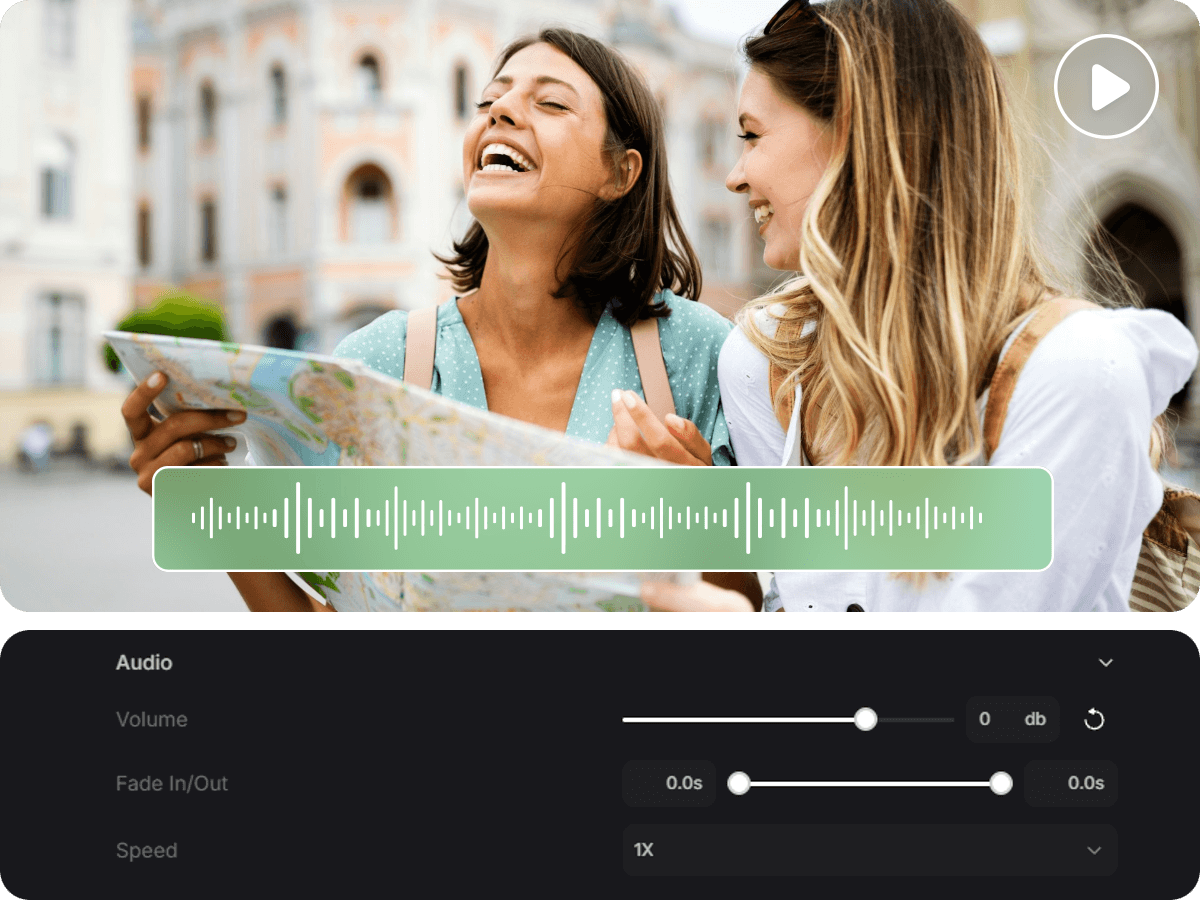
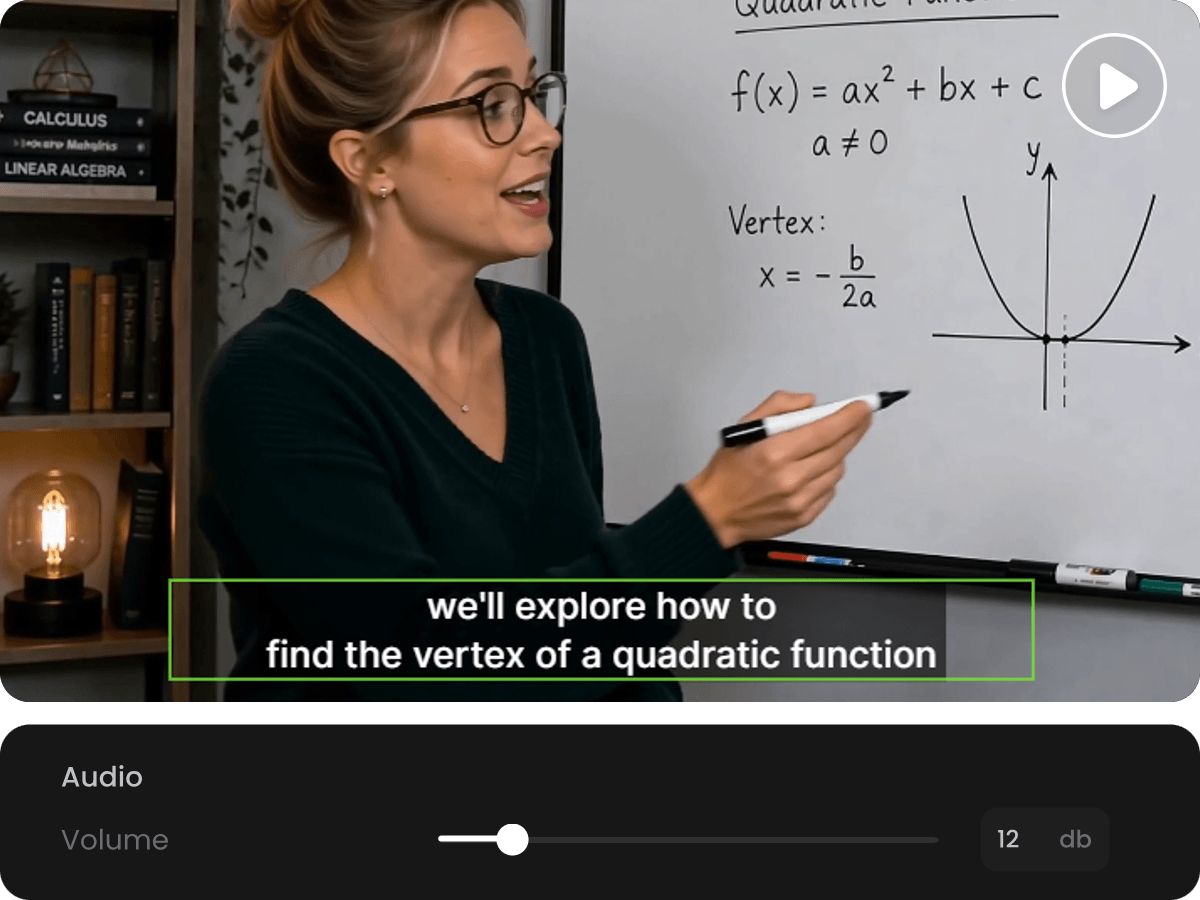
When you slow down a video, the original sound may no longer feel in step with the new pacing. Keep the source audio when it still suits the scene, or mute it and use music or a voiceover instead. For more detailed track editing, Fotor's AI Video Editor lets you work with separate video, audio, and caption tracks, mute or reposition tracks, and add music or voiceover. You can also extract audio from a video when you need the soundtrack as a separate file.
Slow motion is only one way to shape a finished video. After adjusting the pacing, you can refine the footage with Fotor's other tools: use Video Enhancer to improve clarity, brightness, and color, or Remove Objects from Video to clean up unwanted people, text, or moving distractions. For projects that need broader editing, browse Fotor's AI video tools for more ways to edit, enhance, and repurpose your clips.
Yes. Fotor provides free daily credits that you can use for video editing. Use your available credits to try AI-powered video features and create slow-motion effects.
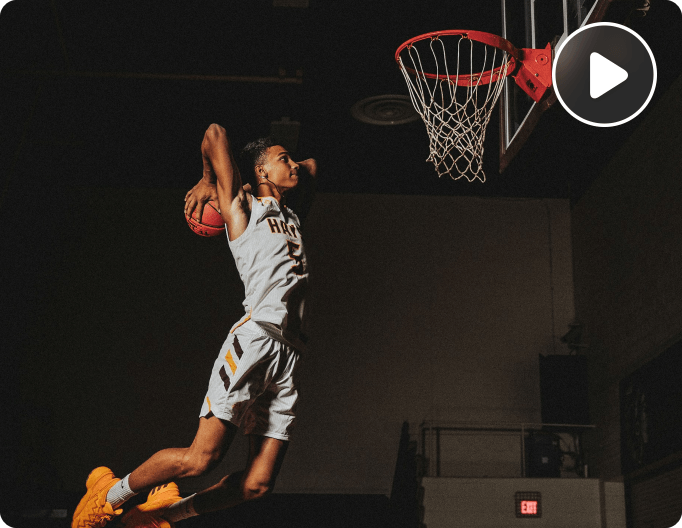
A good prompt clearly describes the movement you want to emphasize and the slow-motion effect you're looking for. For example, you can ask Fotor to slow down a dancer's movements or highlight a basketball player's jump while keeping the rest of the scene natural. Specific instructions help guide the AI toward your intended result.
Yes. Videos recorded at higher frame rates, such as 60 FPS or 120 FPS, generally contain more frames to work with and are better suited for smooth slow-motion playback. Standard-frame-rate footage can also be slowed down, but more aggressive slow-motion effects may result in less fluid movement.
Audio behavior may vary depending on the generated result. Review the edited video to check whether the original sound matches the new pacing. You can also use a separate video editor to mute the original audio or add background music and voiceovers.
No. Applying a slow-motion effect does not automatically remove motion blur, camera shake, or low-resolution details. For better results, start with clear, well-lit footage that captures the movement you want to highlight.
AI video editing interprets your uploaded footage and text instructions to generate the requested effect, rather than simply changing a numerical playback-speed setting. Complex movements, camera angles, and unclear prompts can influence the result. Try refining your instructions and using clearer source footage to get closer to your intended outcome.