Remove Audio Quickly
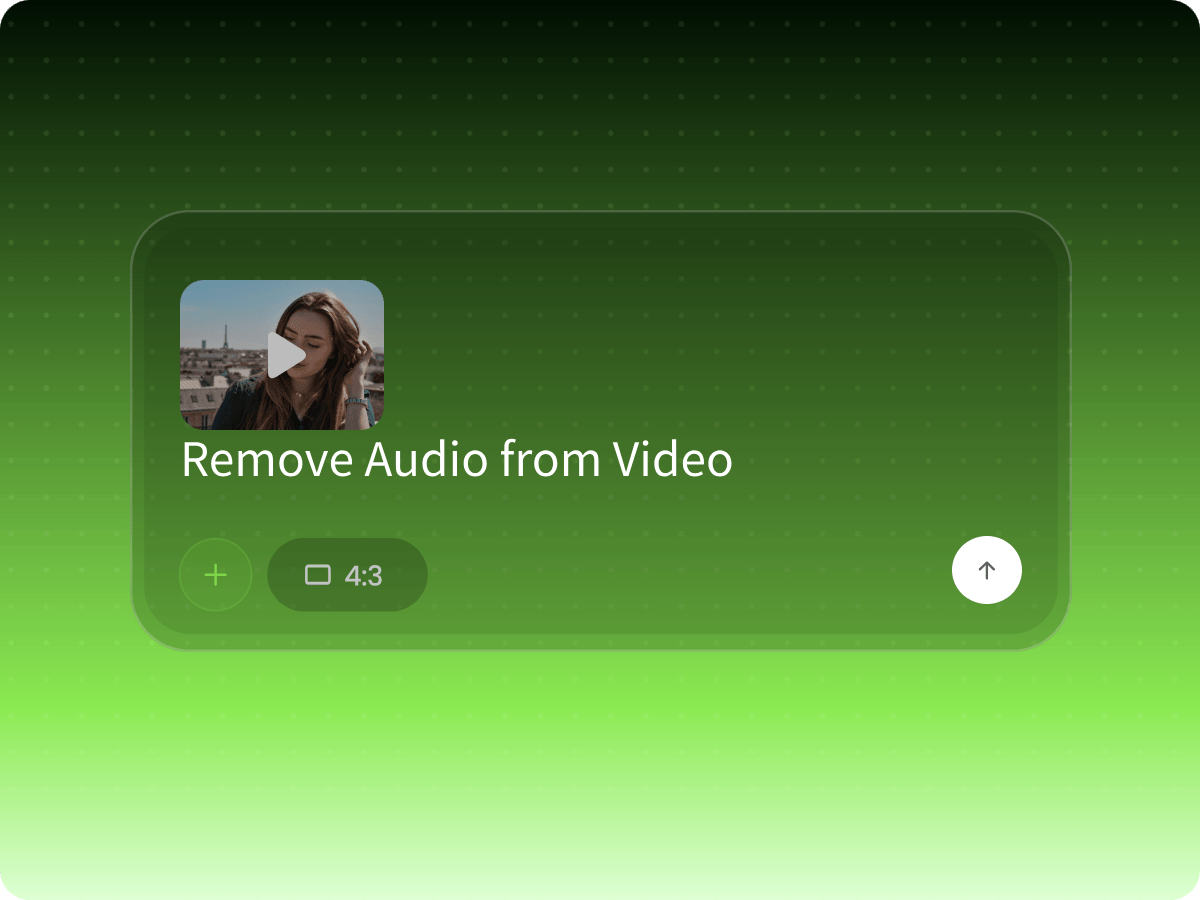
Mute your video's original audio in just a few clicks, with no complicated editing steps.


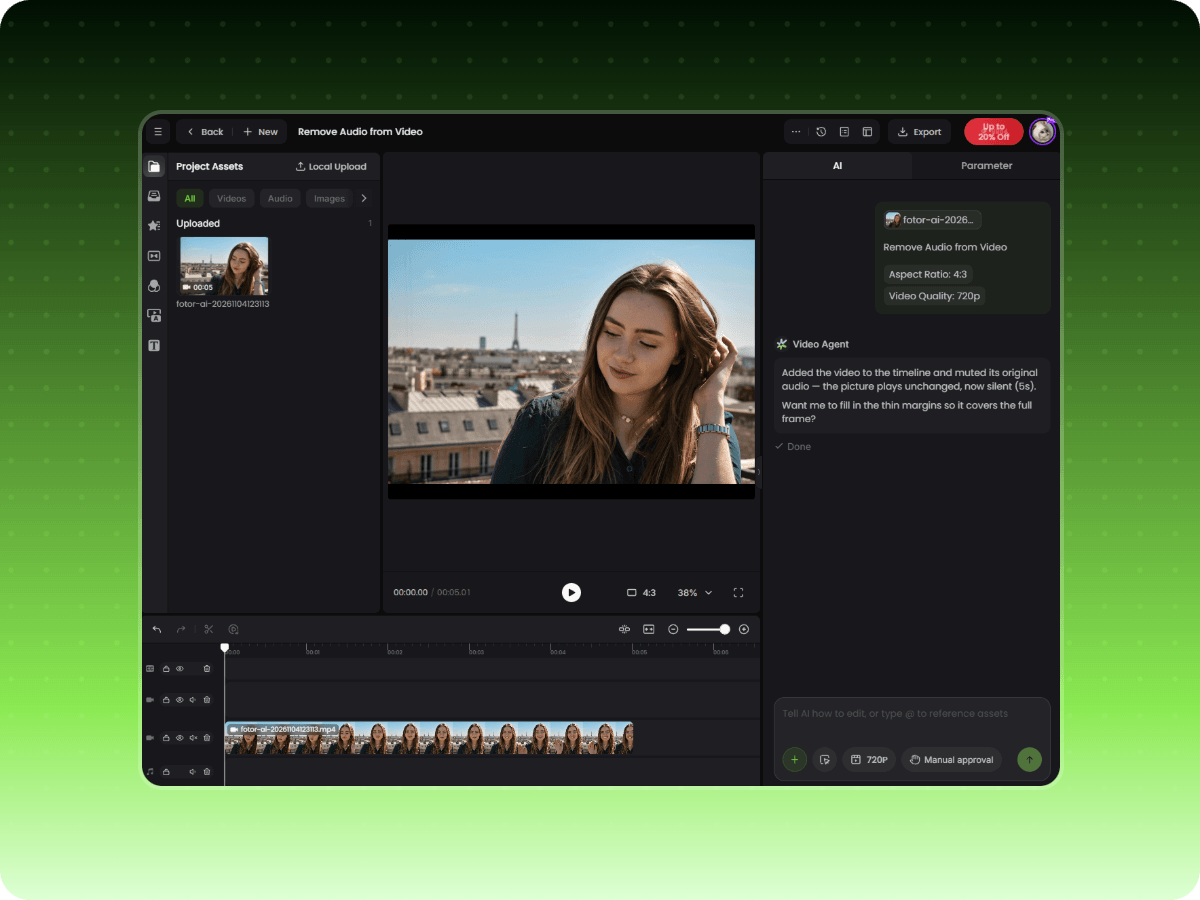
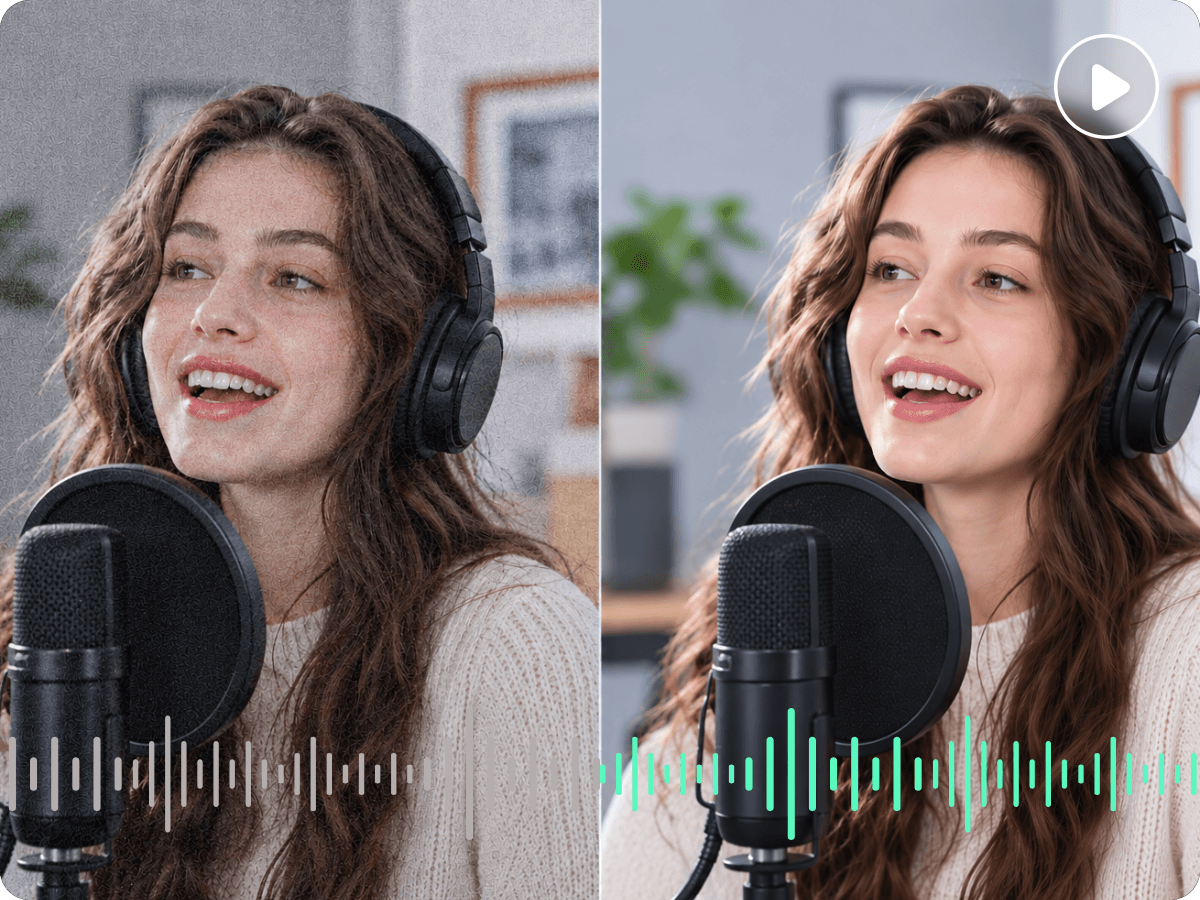
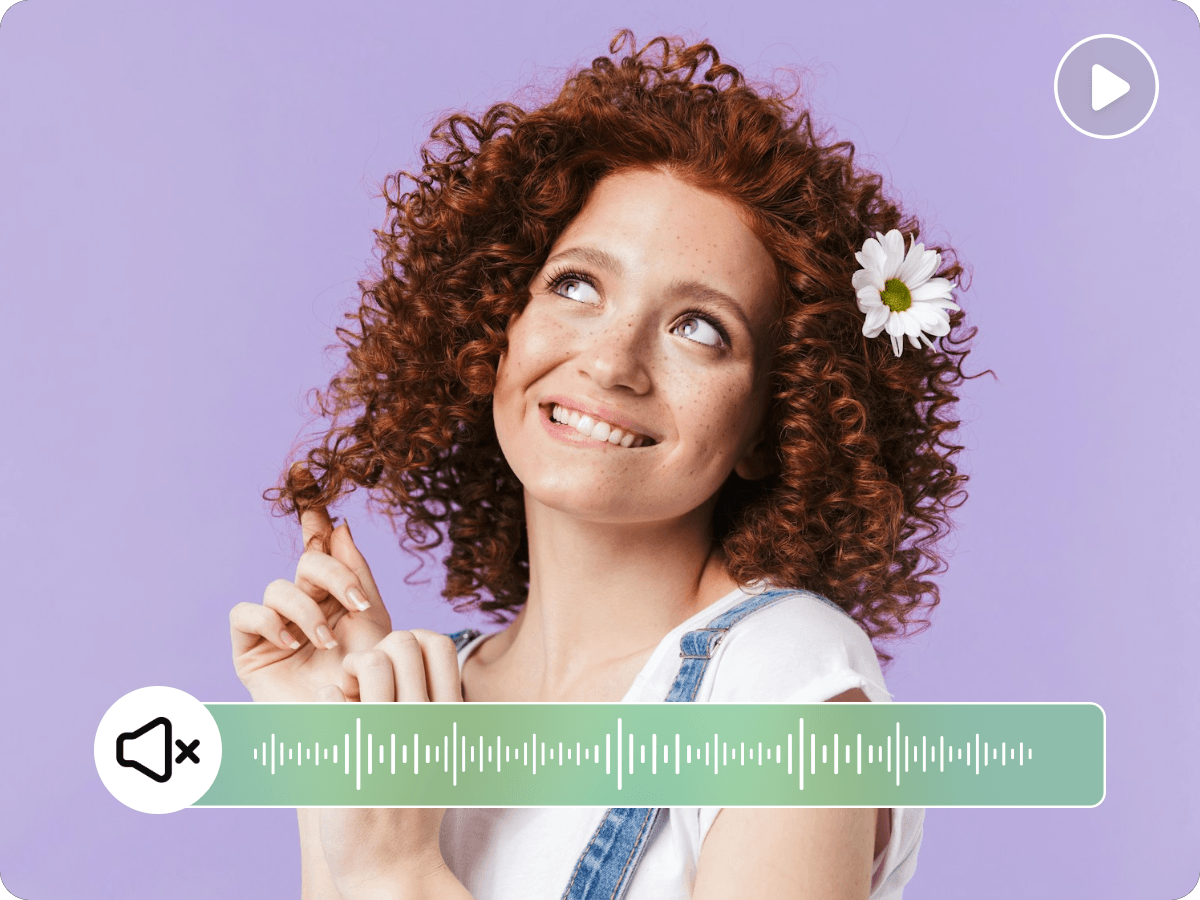
Remove audio from video online with Fotor's easy-to-use audio remover. Mute the original sound in your video while keeping the visuals intact. Preview your video and export it without the original audio.
Mute your video's original audio in just a few clicks, with no complicated editing steps.
Add music or a voiceover, adjust audio timing, and export your video in one editor.
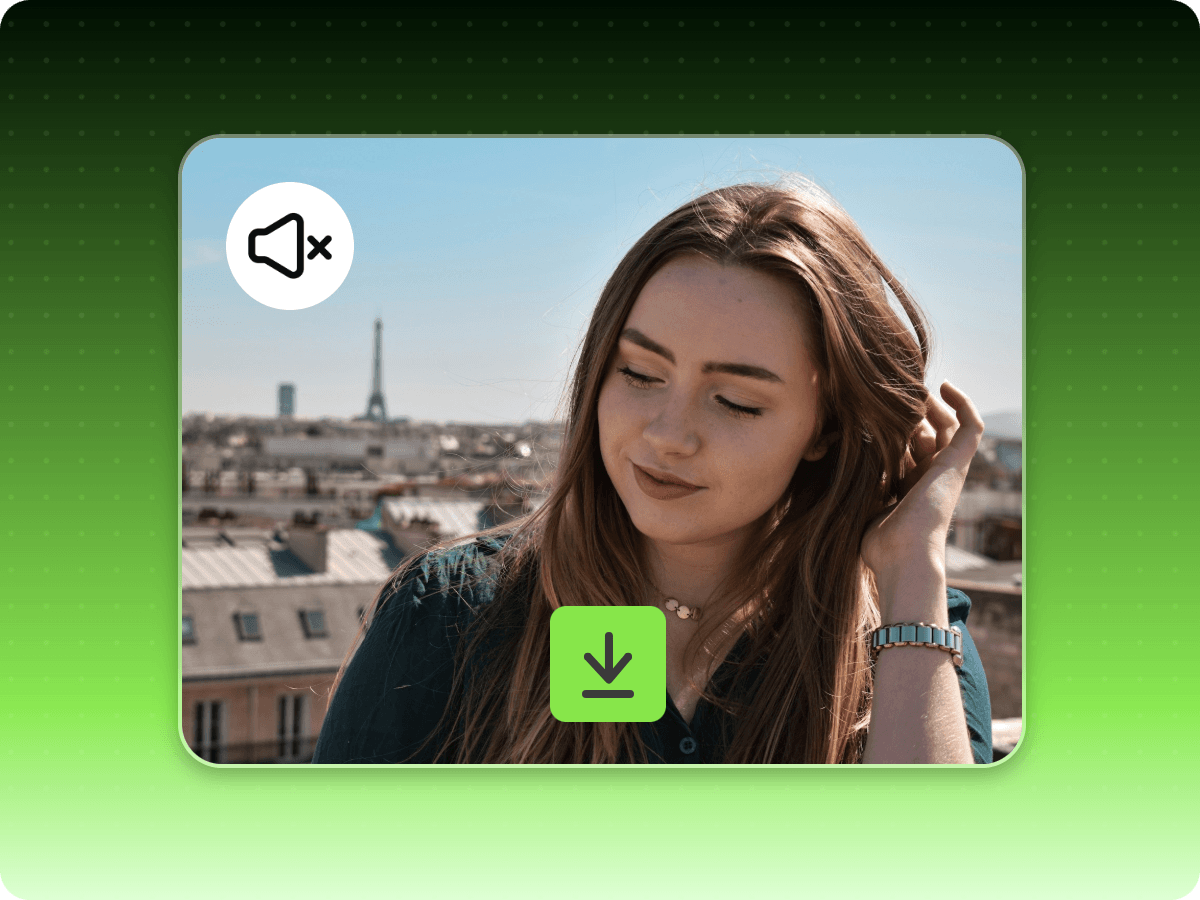
Remove the audio while keeping your footage, scenes, and framing unchanged.
Upload the video you want to mute. Your footage is ready for AI-powered editing.
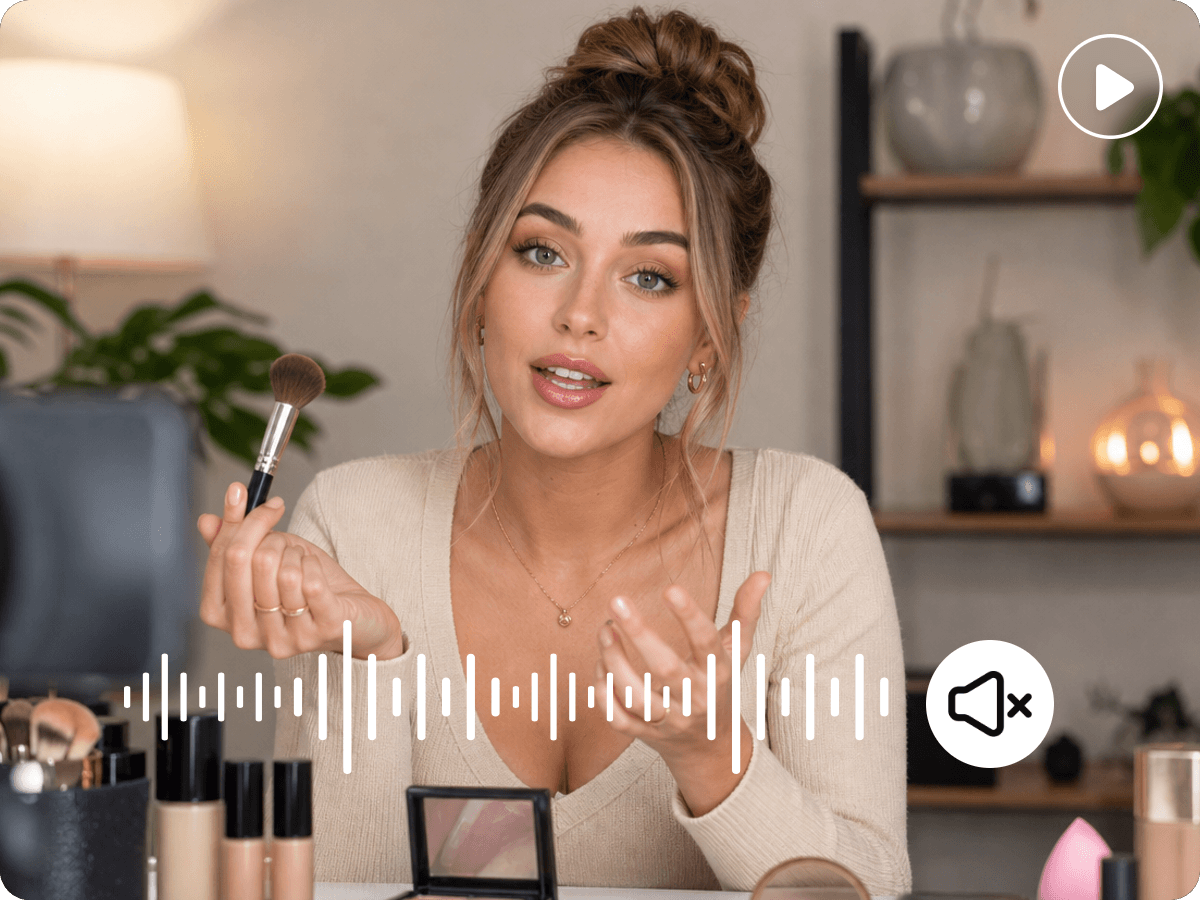
Need a silent copy of your clip? Fotor lets you remove audio from video online by muting the original audio track while keeping the footage, scene order, and framing intact. This is useful when you want to remove sound from a video for a presentation, product page, or social post, or when recorded speech, background music, and ambient sounds do not belong in the final cut. The entire original audio track is muted rather than separating voices and music into individual elements.
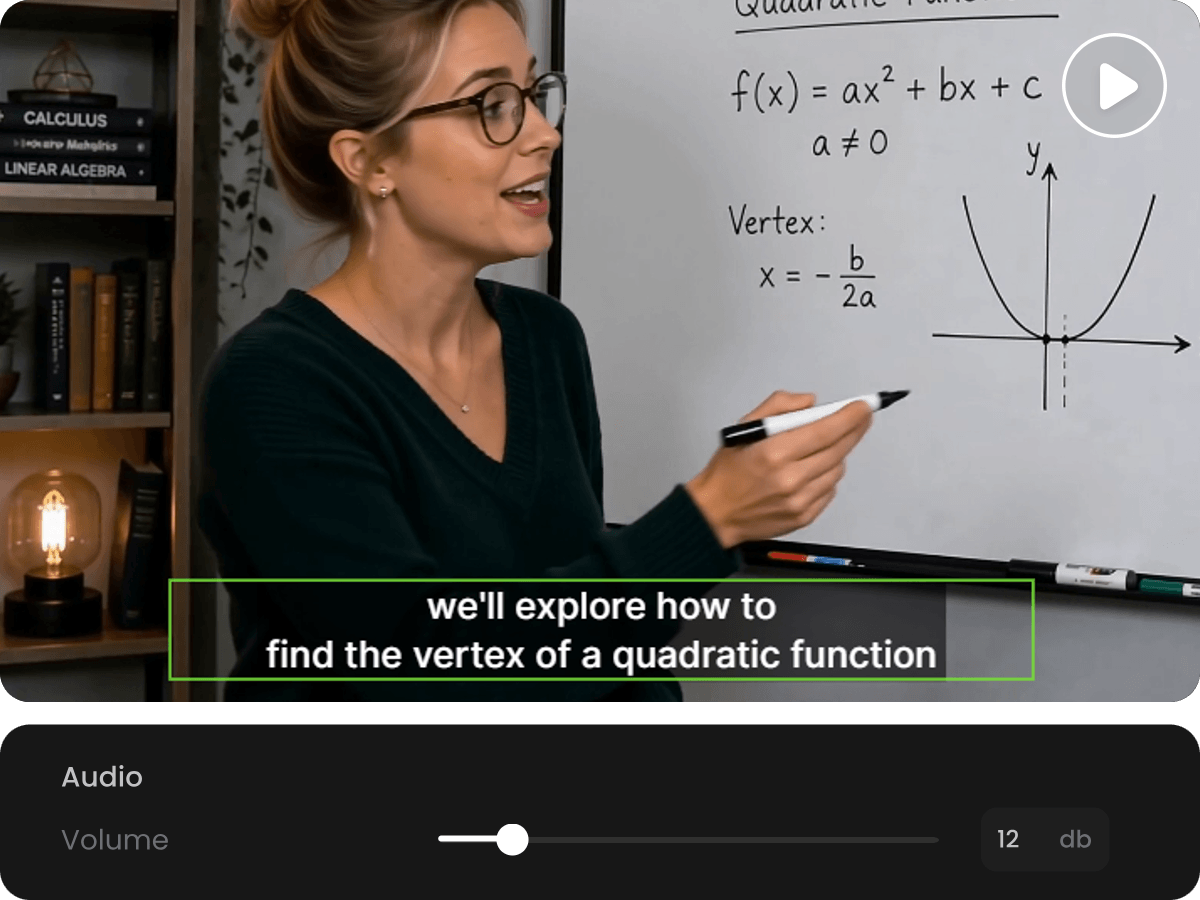
Once the original audio is muted, you can give your video a different soundtrack instead of leaving it silent. It keeps video, audio, and captions on separate tracks, so you can add a replacement music track or voiceover and adjust its position to match the footage. Create a new soundtrack with the AI Music Generator or generate spoken narration with Text to Speech, then import the audio into your project and preview the timing before exporting.
Removing audio is just one part of editing a video. Fotor also provides tools to trim and split clips, rearrange scenes, add subtitles, and incorporate B-roll or motion graphics into your footage. For more automated editing, try the Auto Video Editor to select highlights, trim and merge clips, generate captions, and adjust video dimensions for different platforms. Continue refining your footage in Fotor instead of starting your editing process over in another application.
Yes. Fotor provides free daily credits that you can use with Video Agent to process videos and remove unwanted audio without an initial payment.
Removing background music while keeping dialogue requires separating different audio sources. Muting the entire original audio track will remove both speech and music.
Removing wind, traffic, or microphone noise while keeping speech requires audio noise reduction rather than full-track muting. The result depends on the audio processing capabilities available in Video Agent.
No. On-screen text, subtitles, and other visual elements are separate from the audio track. You can also instruct Video Agent to keep these visual elements unchanged.
Yes. You can enter additional prompts in Video Agent to request further adjustments to your processed video. Preview the updated result before exporting your final clip.
Yes. Sign in to your Fotor account and open Workbench in Video mode to find your previous Agent projects and reopen them for further editing.