99.9%
Character Consistency
4.6★
Rating on Capterra
100%
Commercial Use
Choose the Right PixVerse AI Version for Your Workflow
Each PixVerse AI video model version is optimized for different needs—from cinematic control to faster, lightweight generation.
PixVerse V6
Advanced cinematic control
Best for: high-quality, multi-shot videos with stable characters, camera motion, and audio sync.
PixVerse V5.5
Balanced performance & speed
Best for: Delivers reliable video results with faster generation, ideal for social and ad content.
PixVerse V4
Fast & lightweight generation
Best for: Optimized for quick outputs and simple video creation with lower processing demand.
Precise Multi-shot Video Control
With PixVerse AI V6, you can easily generate 3–5 connected shots, including wide, medium, and close-up views. This reduces manual clip stitching and editing time by up to 70% in typical short video workflows.
Clear scene prompts improve sequencing accuracy, while overly complex narratives may still require prompt refinement.
Smooth Real-World Motion Rendering
Pixverse AI video generator delivers smoother motion across common scenarios like walking, product rotation, and camera tracking. In most test cases, visible motion artifacts are reduced compared to earlier versions, especially in low-to-medium speed scenes.
While high-speed or complex interactions may still show minor inconsistencies, output quality is stable enough for social videos and ad creatives.
Consistent Characters Across Scenes
Character consistency improves significantly in V6, with identity preserved across 3–4 consecutive shots in most generation cases. Facial structure, hairstyle, and clothing remain stable, especially when starting from a reference image or first frame.
Minor variation can still occur in long sequences, but consistency is sufficient for storytelling and branded content.
Lifelike Facial Expression Details
Pixverse AI video generator enhances micro-expressions such as eye movement, subtle smiles, and natural facial transitions. In close-up shots, expressions appear more fluid and less rigid compared to earlier outputs.
Best performance is achieved with simple emotional cues, complex or rapidly changing expressions may still lead to slight inconsistencies.
Turn Ideas into Videos Across Every Use Case
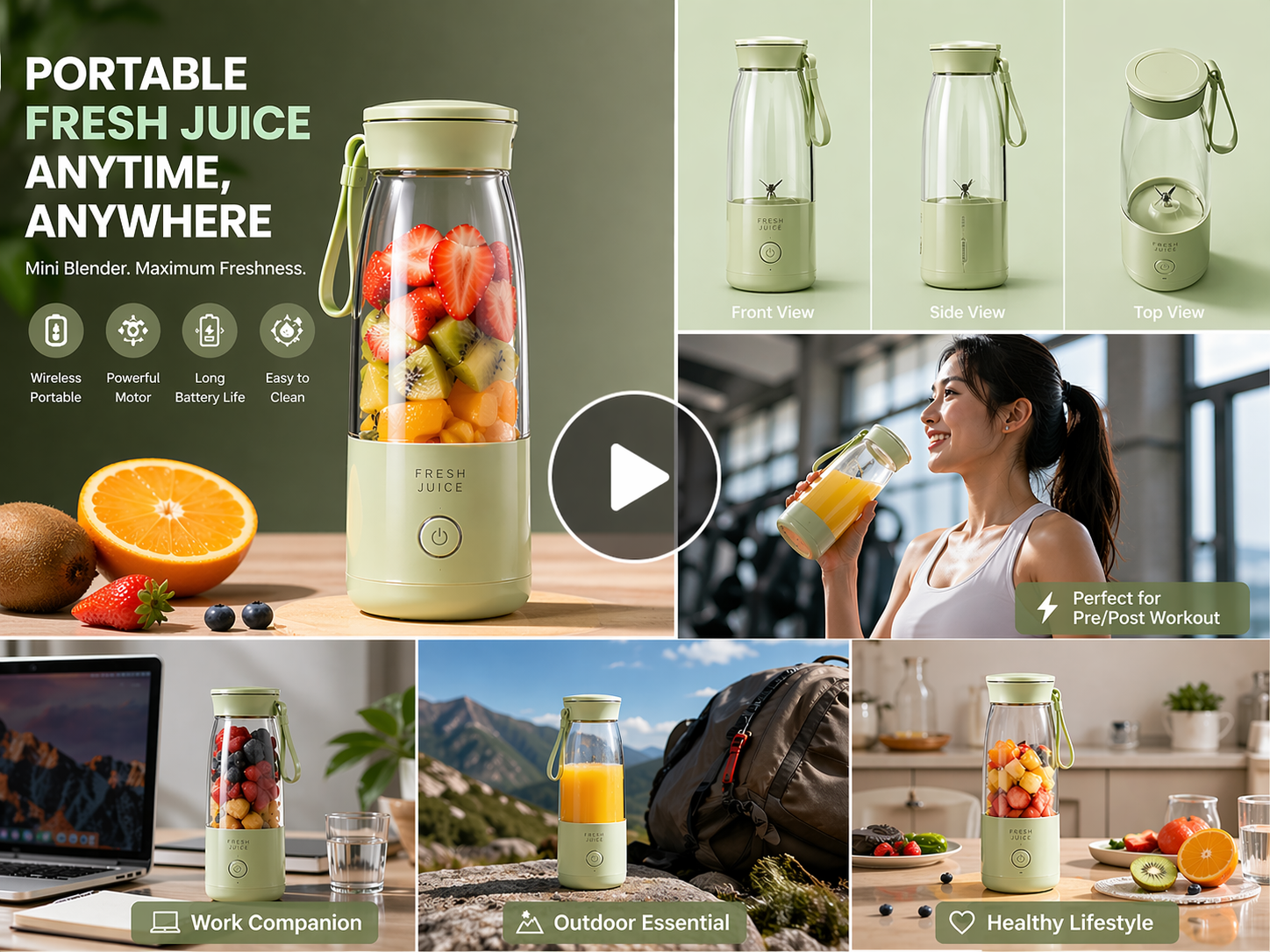
Create High-Converting Product Videos
Turn product images into multi-angle videos for e-commerce ads without traditional filming.
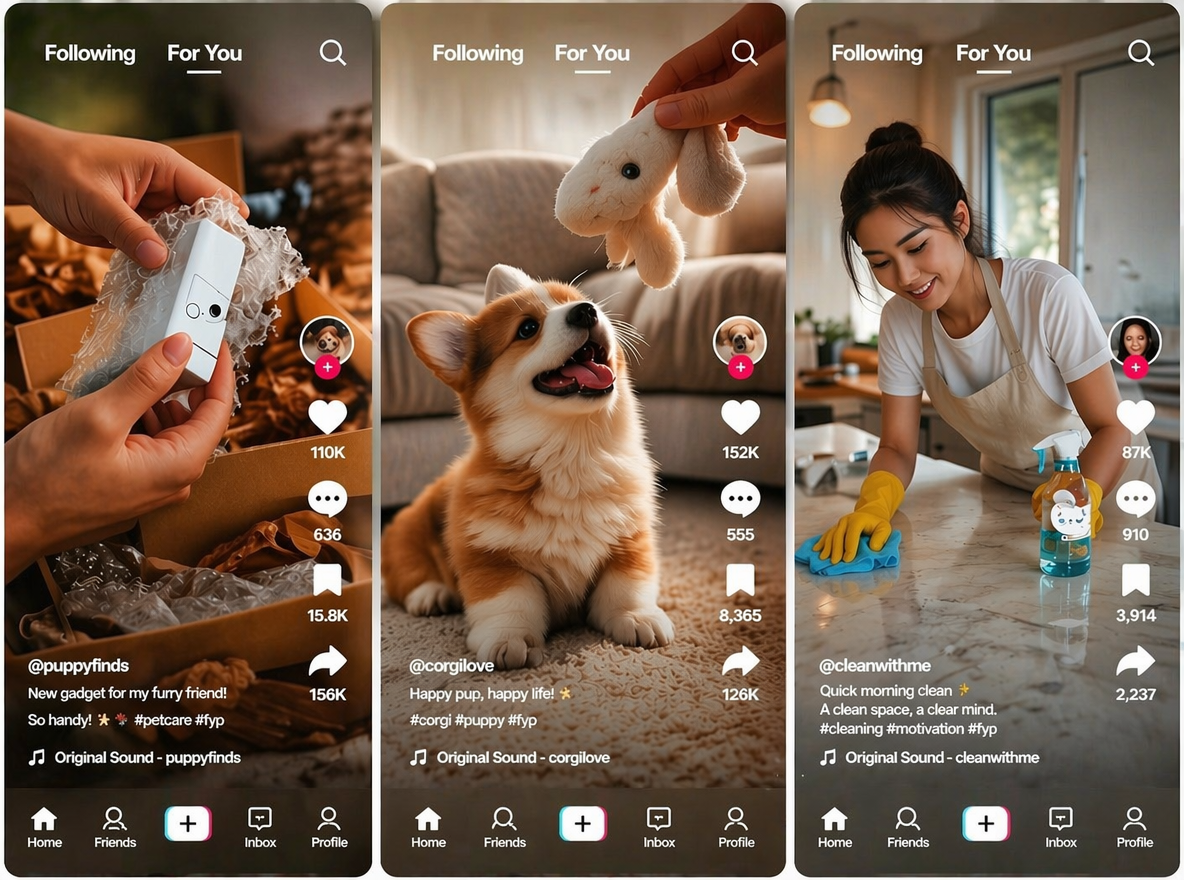
Generate TikTok-Ready Short Videos
Create vertical videos from prompts or images for TikTok and Reels content.
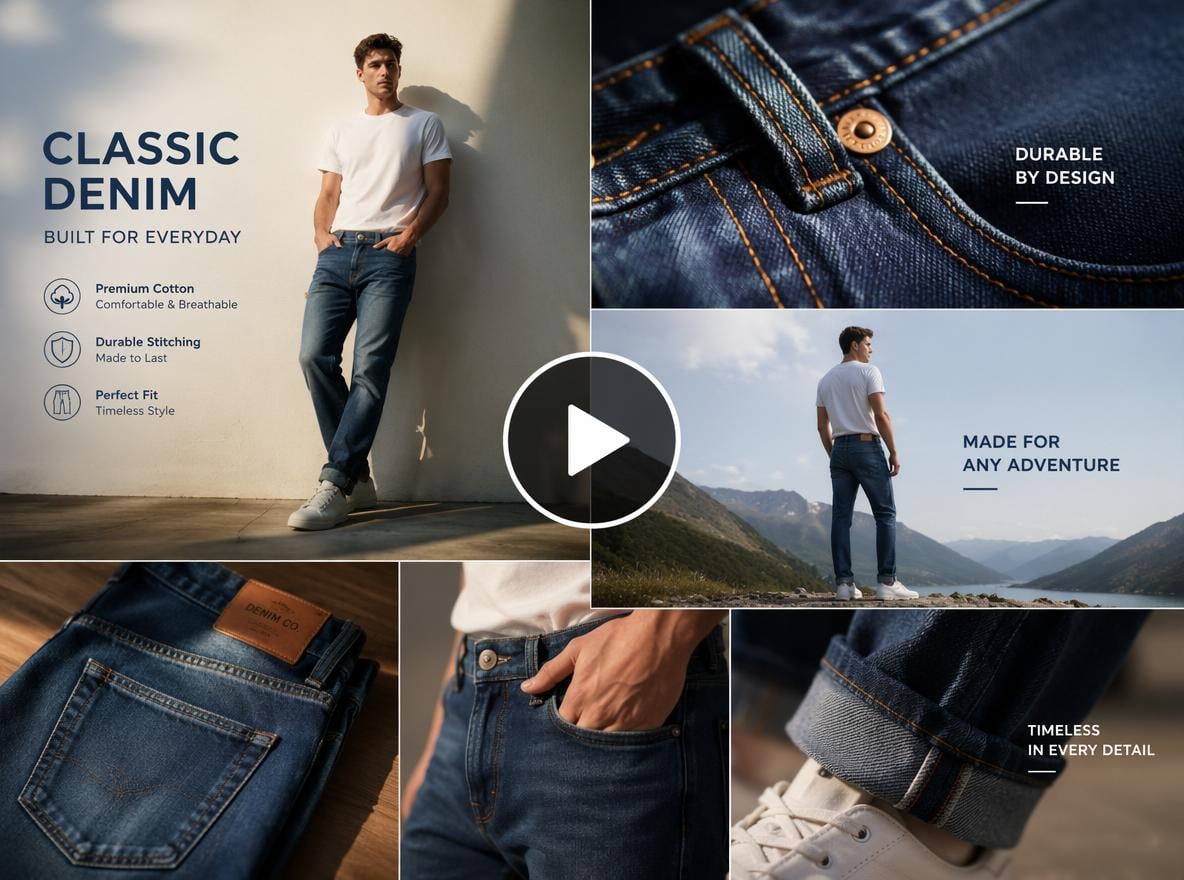
Produce High-Quality Horizontal Ad Videos
Generate widescreen videos for ads, landing pages, and brand storytelling campaigns.
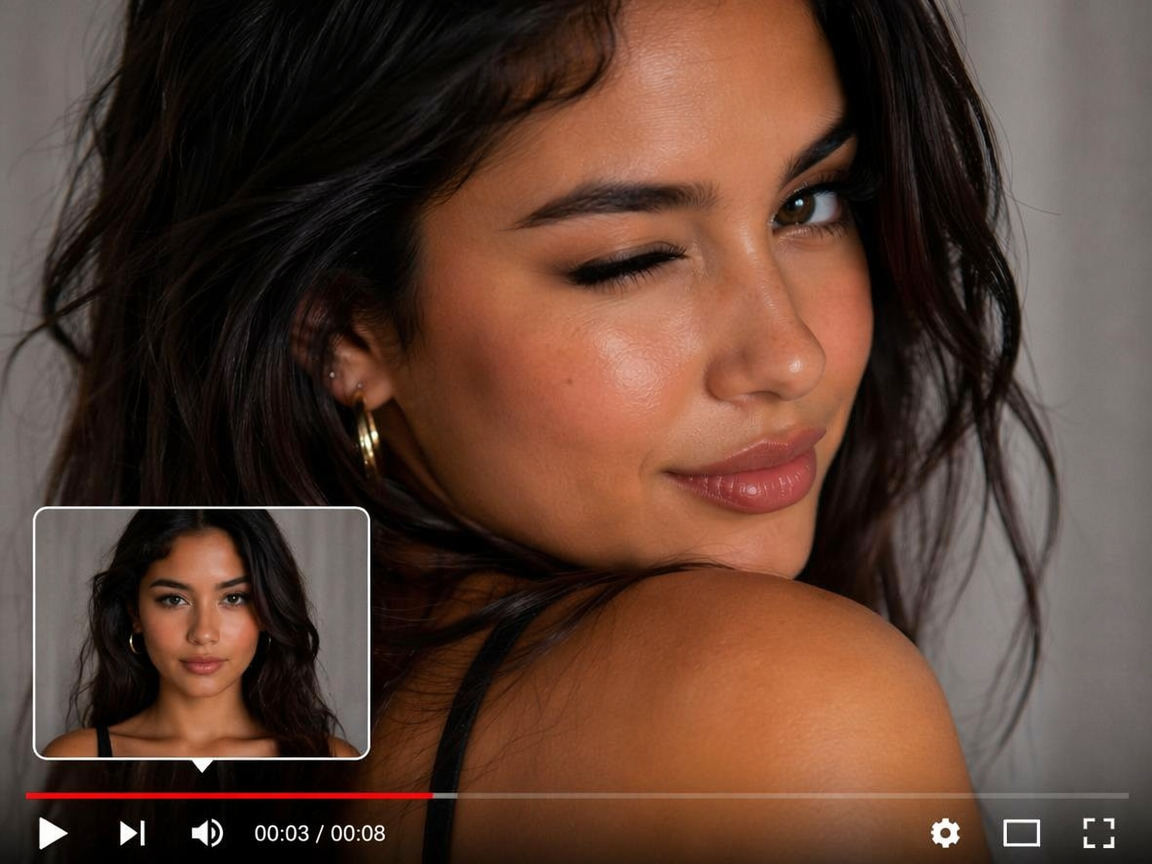
Generate Detailed Character Close-Up Videos
Create close-up videos with stable faces and natural expressions for storytelling content.
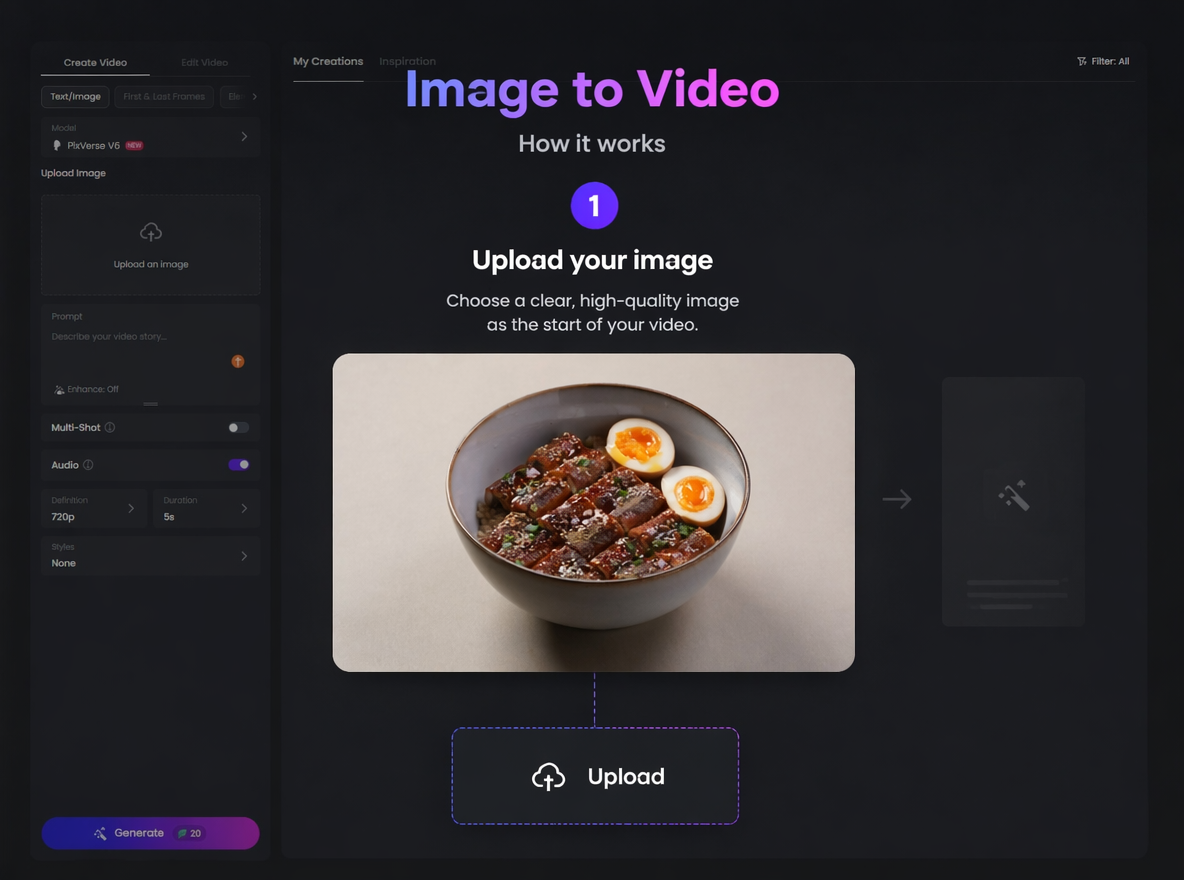
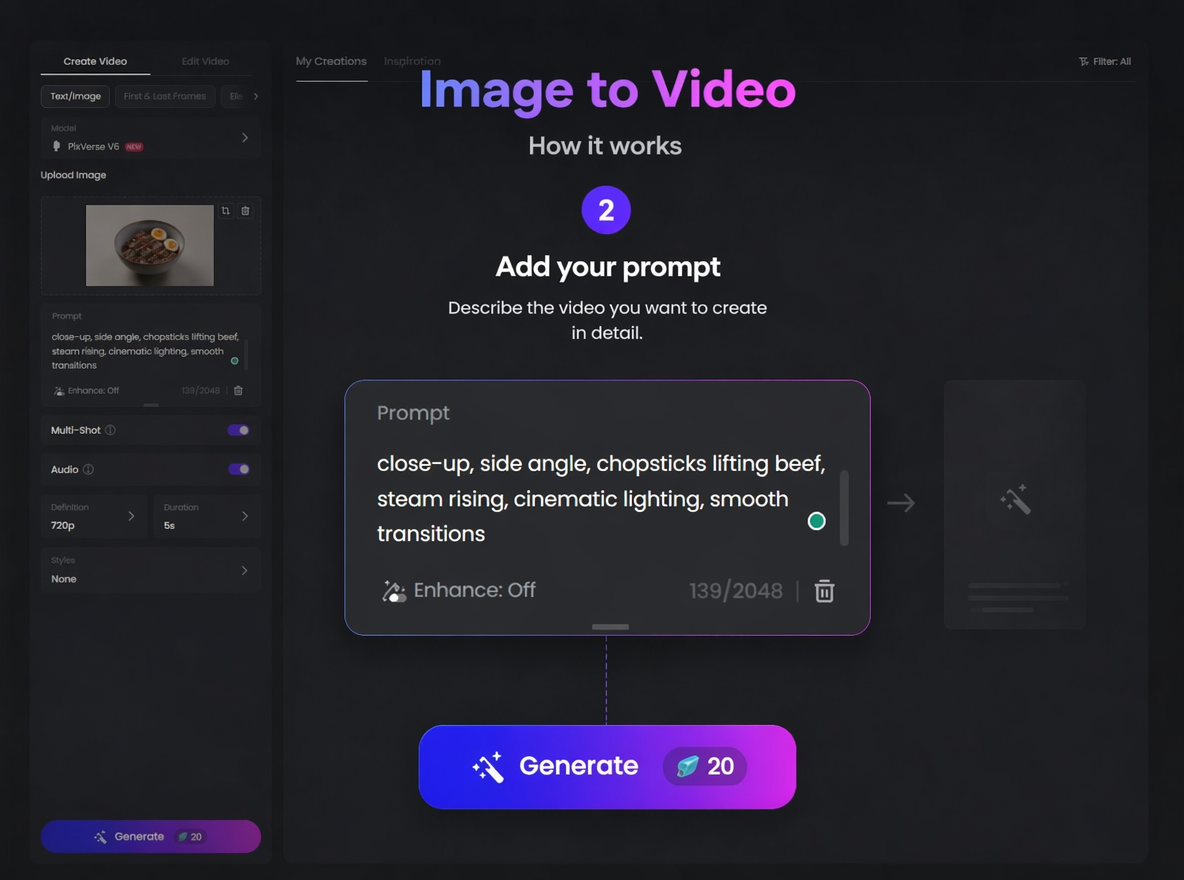
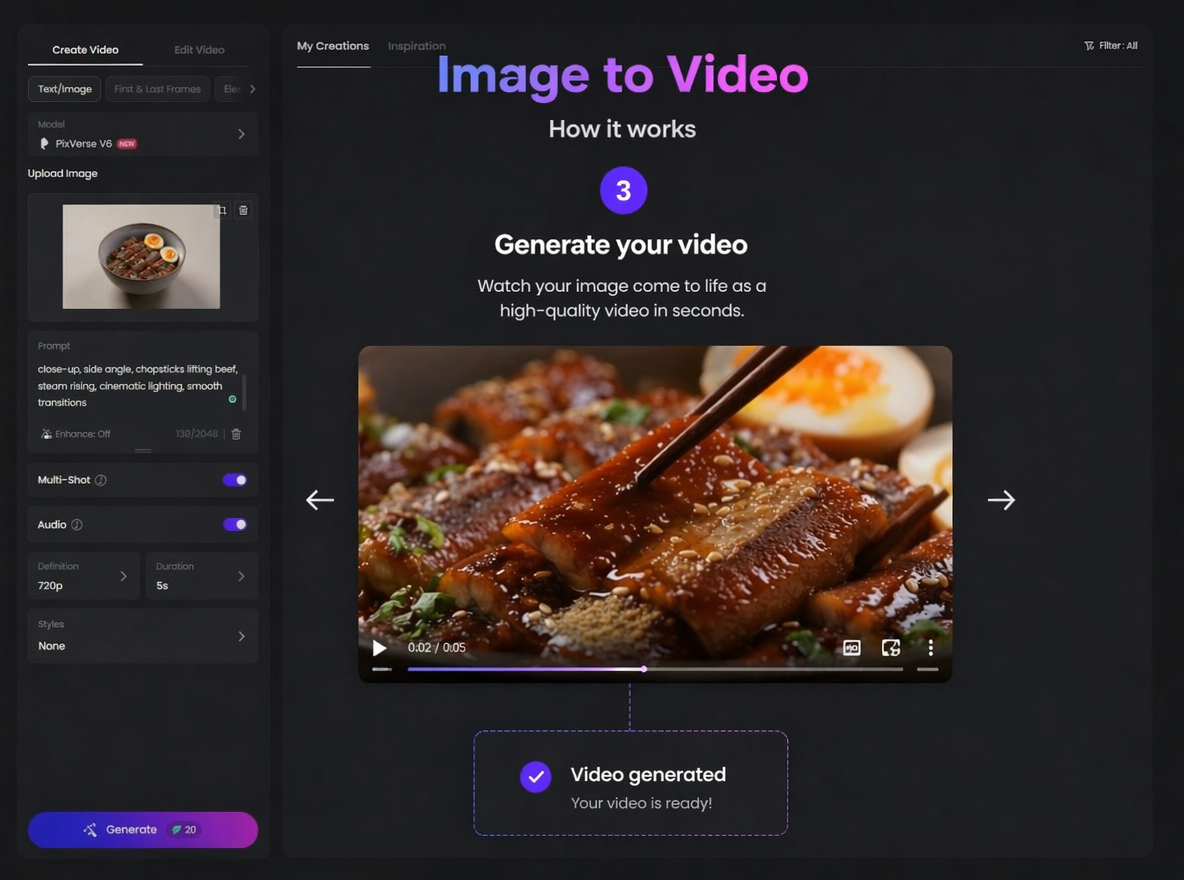
How to Create Videos with Pixverse AI in 3 Steps
Upload a Reference Image
Upload a clear portrait or reference image into PixVerse AI video generator to improve motion stability and character consistency.
Enter Prompt and Generate
Preview and Download
Why Use Pixverse AI for Video Creation?
![AI auto deblur]()
Easy to Start
Create videos with PixVerse AI using simple prompts or images, with no timeline editing or professional video skills required.
![Custom image generation based on prompt icon]()
Accessible Across Devices
Generate and preview videos smoothly on desktop and mobile browsers, making it convenient to create content anytime without installing complex software.
![Icon for fast and easy to create images with AI]()
Fast Creative Generation
Quickly regenerate and refine videos in seconds, allowing users to test multiple ideas efficiently during early-stage content or ad creative development.


Fotor AI Video Generator Reviewed By


Video creation is often a complex and professional process, but Fotor simplifies the steps. You simply need to describe your creative ideas in written form and select your preferred style. AI will automatically analyze and generate a video you’ll be satisfied with.

Fotor’s AI video generator is a tool designed to transform users’ text descriptions or imported photos into short video clips. This tool gives users an intuitive interface with easy-to-spot settings. With its help, you don’t need to be tech-savvy to create your own short videos. You can effortlessly expect a high-quality video with lifelike movements based on your text prompts.

Fotor AI video generator is a powerful tool to create high-quality videos without any skills. All you have to do is select whether you want to make a video from the command prompt or an image. It will take only a few minutes, and your video will be ready to download. You can redefine the video with Fotor’s built-in video editing feature.