Edit Videos via Conversation
Modify details and maintain scene consistency across multi-turn prompts.


Modify details and maintain scene consistency across multi-turn prompts.
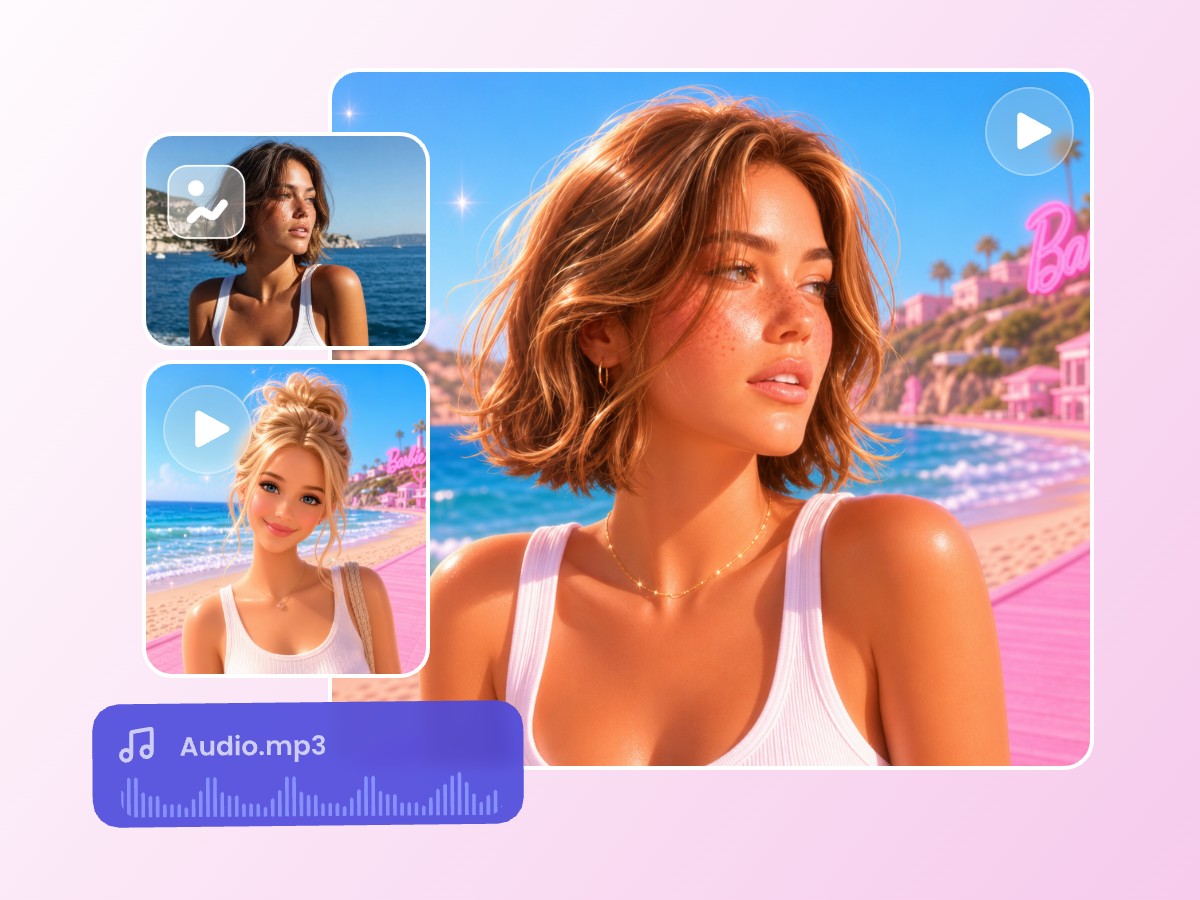
Combine text, images, and audio natively to produce cohesive videos.
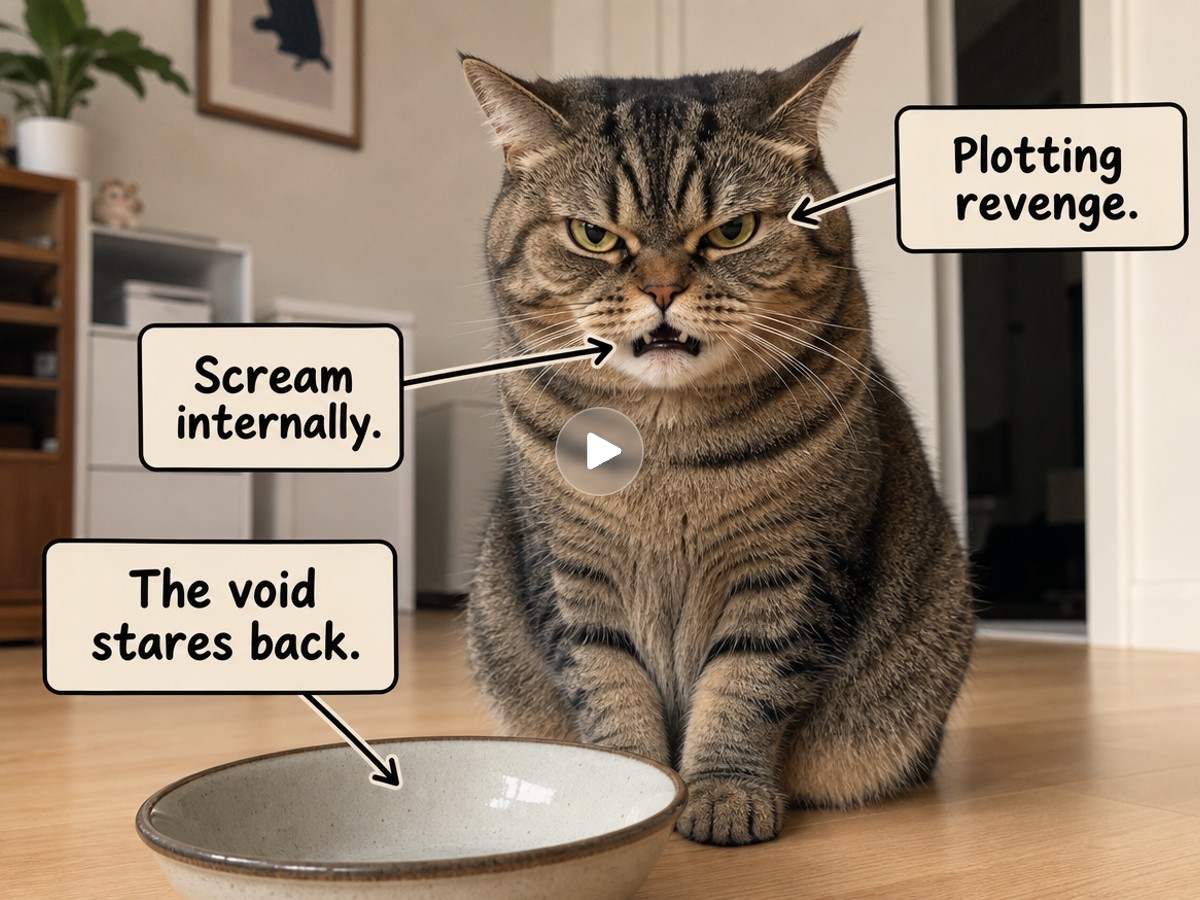
Overlay sharp onscreen captions that track and move with your visuals.
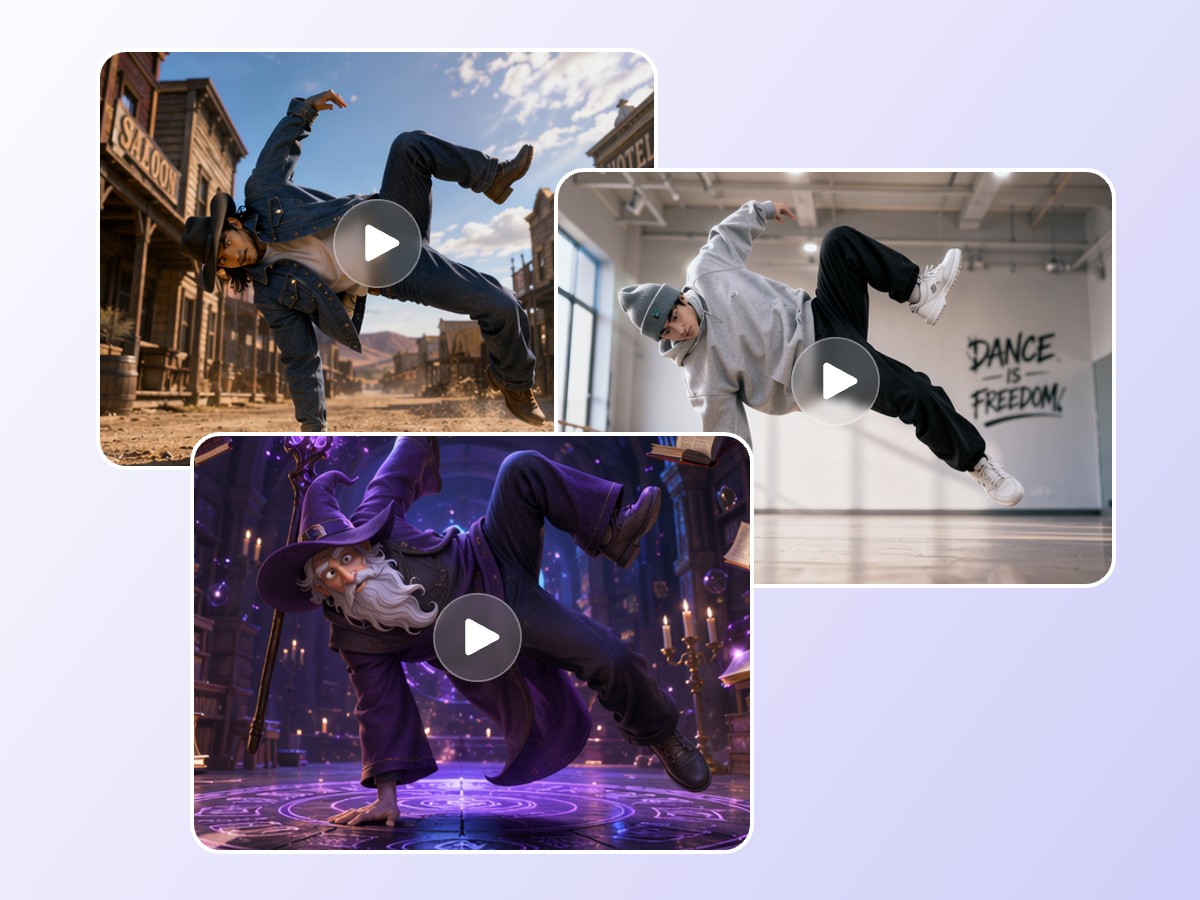
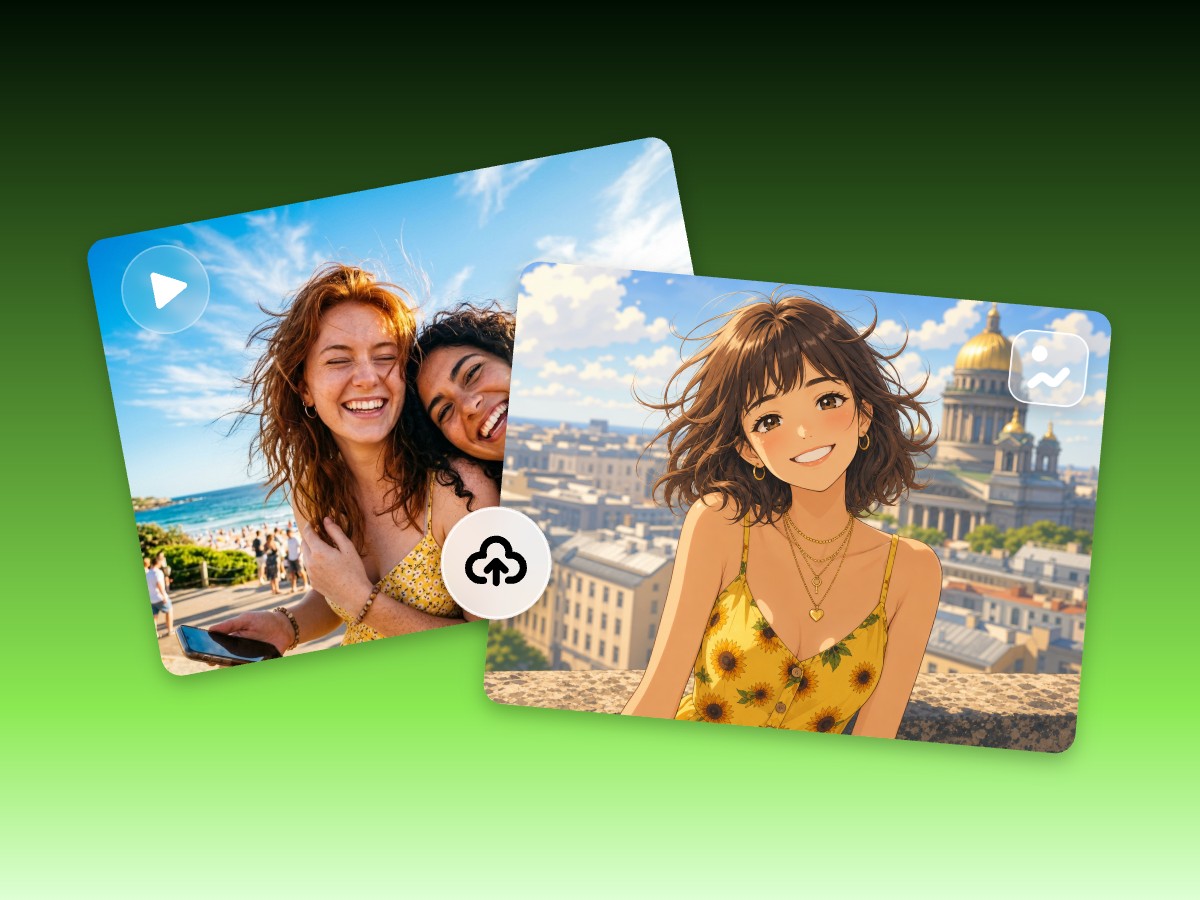
Combine static concept design with advanced scene animation in one streamlined workflow.
Gemini Omni Flash is Google DeepMind's premier video generation and editing model. It natively executes both multimodal AI video generation and conversational video editing to redefine how creators produce and refine cinematic assets.
Traditional AI tools force you to restart if a video generation fails. But Google Gemini Omni lets you edit video through conversation and plain language to fix specific details. What's better, this model excels at multi-turn video editing, ensuring that the details remain consistent whether you change the environment, camera angle, arstic style, or objects.
Whether you are building a cohesive brand story or a complex personal narrative, this iterative approach inspires you to evolve your vision from a rough idea into a polished final project without the frustration of constant restarts.
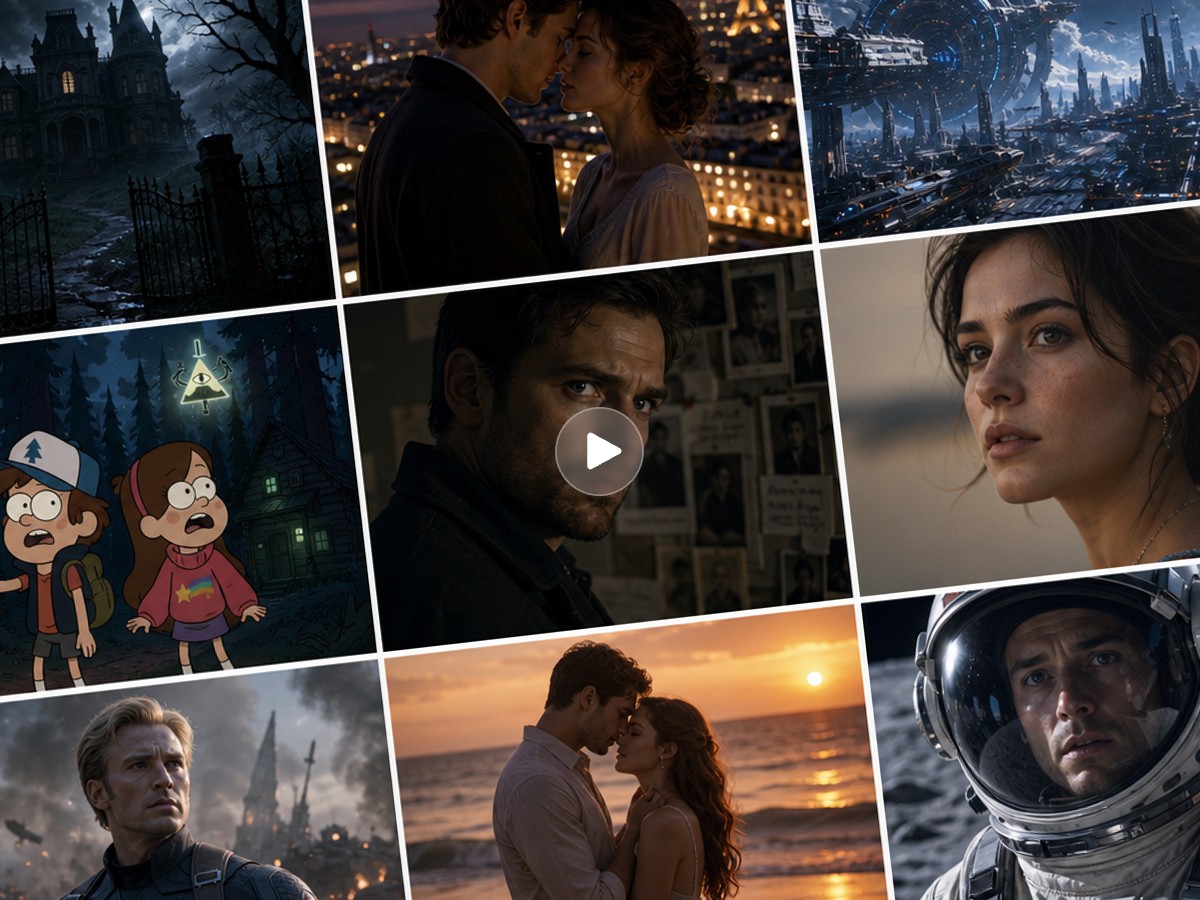
Multimodal AI video generation integrates text, imagery, and audio tracks to define your project. Input your mixed references, and Gemini Omni will align visual elements with your specific audio beats and imagery.
This AI model offers your a toolkit for transforming brand assets into ads videos with just one click. Simply upload your product or model photos, brand logo, a reference audio track, or reference videos. The AI then generates professional-grade ad content that stays true to your unique brand identity.
With clear text rendering, every character appears sharp and readable. Combined with dynamic text syncing, your onscreen text perfectly matches the movement and rhythm of the visuals. With Gemini Omni Flash AI video generator, you don't even need to learn AE to make animated characters.
Elevate your instructional videos by transforming dry facts into dynamic visual lessons. Use Google Gemini Omni to overlay captions and graphics that appear in harmony with your visual demonstrations.
By chaining Nano Banana 2 Lite and Gemini Omni, you create a streamlined bridge between static vision and dynamic motion. This powerful combination optimizes your AI creation process, ensuring that high-quality visual concepts are transformed into moving stories with absolute creative control.
If you plan to make an AI film, you can start by generating detailed character or product concepts with Nano Banana to define your visual style. Then, let Omni handle the complex task of scene-based animation. This complete workflow can be done in one place with Fotor.
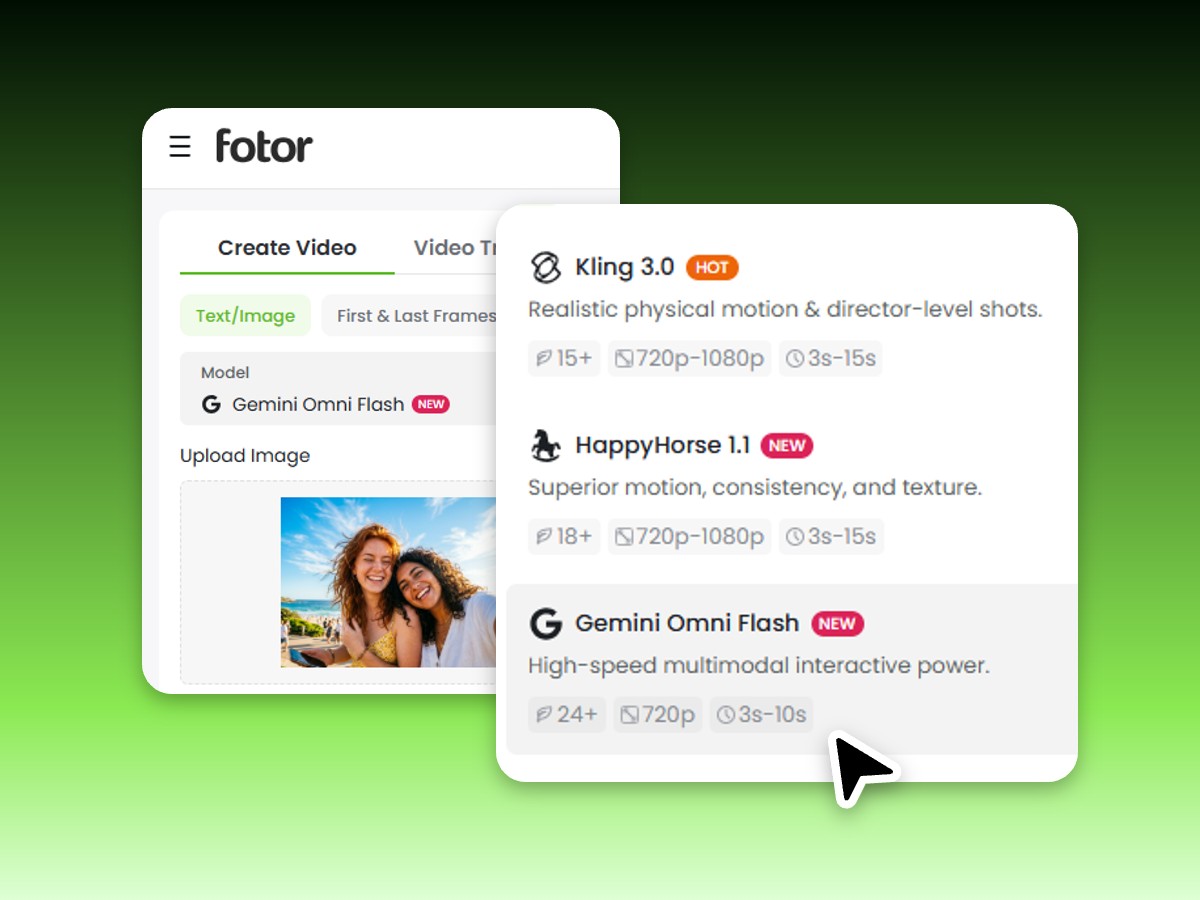
Upload your source files to Fotor. You can mix and match different reference assets, such as static images, brand logos, and source videos.
Gemini Omni Flash combines multimodal references by flattening text, image, and video inputs into a single, interleaved sequence of tokens. During execution, the model projects these diverse inputs into a shared embedding space, allowing the neural network to analyze pixels and text semantics simultaneously.
Fotor lets you use Gemini Omni Flash to create videos from 3 to 10 seconds long. Once generated, you can use our AI video extender to extend your video.
On Fotor, the Gemini Omni Flash modle outputs video at a native resolution of 720p, providing an optimal balance between visual fidelity, file size, and cross-platform compatibility.
The primary difference lies in their design architecture: Gemini Omni is a unified, multimodal generalist model, whereas Google Veo is a dedicated, specialized video generation engine.
Gemini Omni Flash processes text, image, audio, and video inputs natively within a single mode. In contrast, Google Veo focuses exclusively on deep video synthesis, prioritizing raw cinematic realism, complex camera movements, and high-fidelity texture.
Gemini Omni: Best for conversational iteration, multi-turn video editing, and native, frame-accurate audio-visual synchronization.
Kling: Best for cinematic photorealism, complex real-world physics simulation, and advanced character-to-environment interactions.
Seedance: Best for targeted stylized aesthetics, consistent character rendering across multiple scenes, and rapid short-form content creation.
The credit cost depends entirely on how long your video is, with a flat starting price of 24 credits per generation.
Gemini Omni Flash is engineered for precision modifications and is highly effective at executing the following types of visual edits:
The most effective way to edit videos through conversation is to make iterative, single-variable changes.