
Multi-Track Timeline
Different types of assets like videos, audio, and subtitles sit on separate tracks. Drag, trim, and arrange every asset with frame-accurate control on an intuitive timeline.


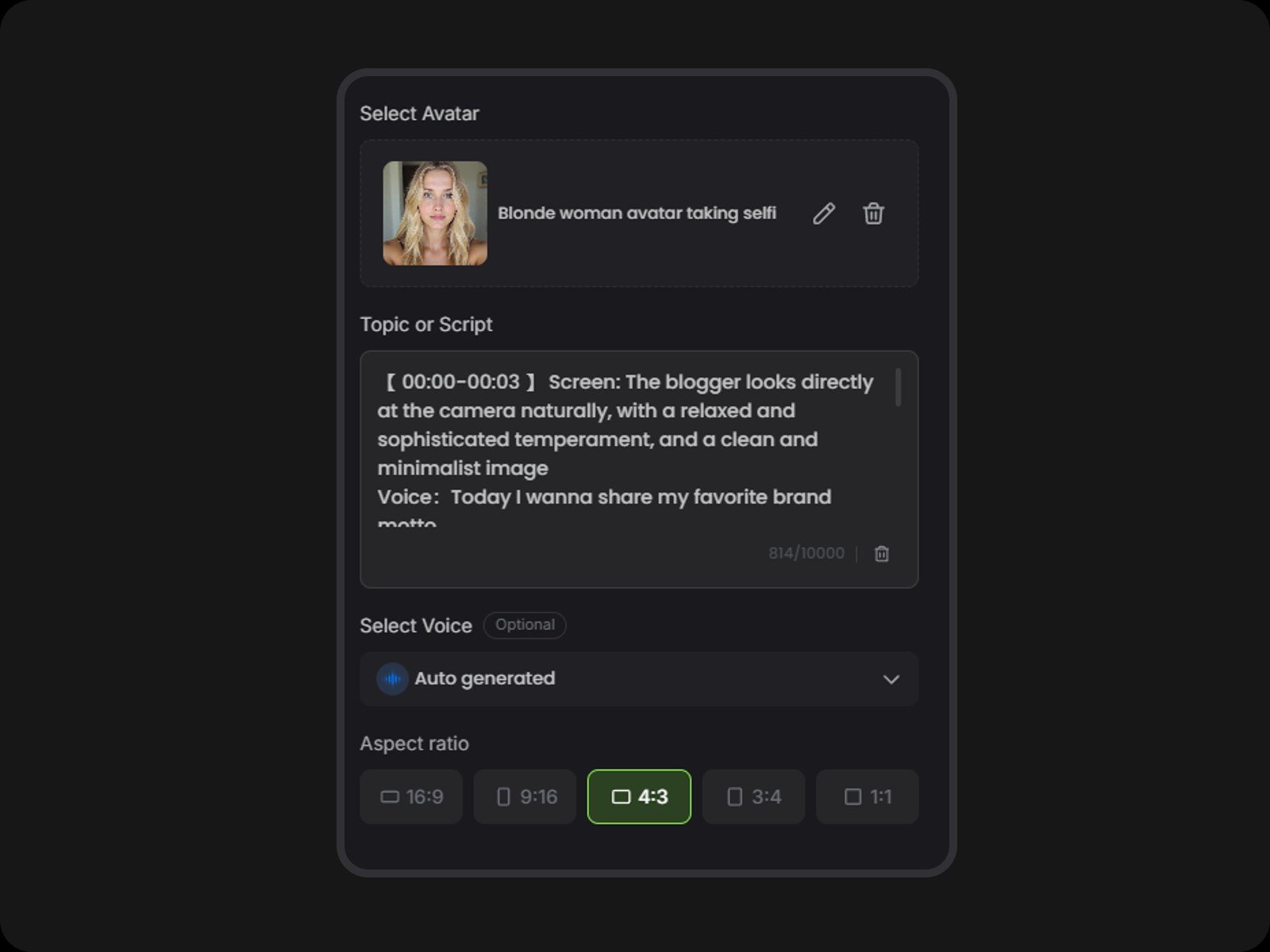
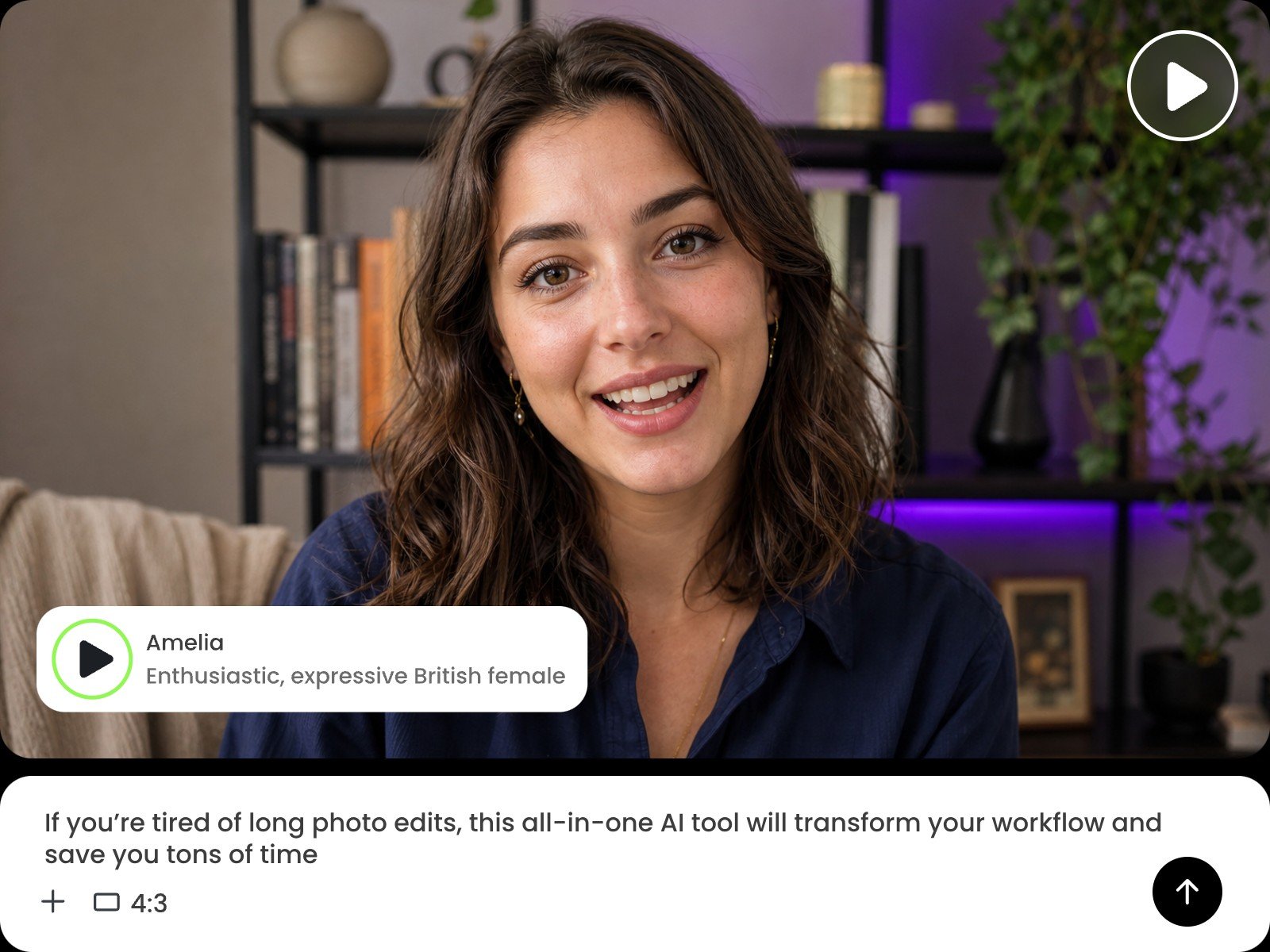
Create a lifelike AI talking avatar from a script and a photo with Fotor online for free. Choose from diverse preset models and voices, upload a custom photo, clone your voice, or generate auto-subtitles instantly with our AI talking avatar video generator.
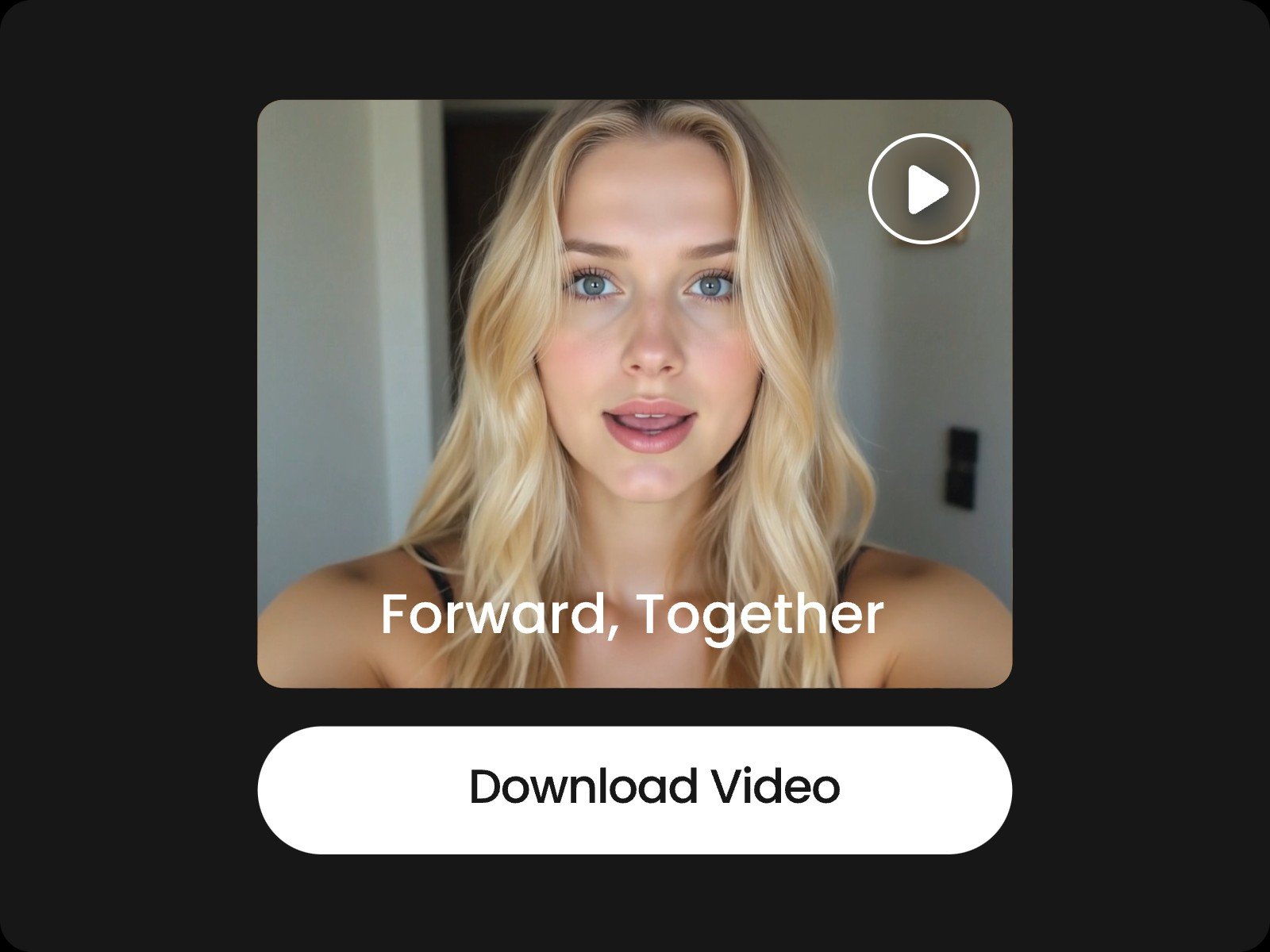
Input a script and a photo into Fotor, and it generates a lifelike AI talking avatar video with hyper-realistic details covering speech, expressions, lip-syncing, gestures, and body movements. If you don't have any existing script, just enter a topic and let the AI write the speech for you.
Powered by a deep learning model and text-to-speech technology, our talking avatar software produces natural-sounding audio, analyzes the avatar photo, and animates it to match the speech's lip movements.
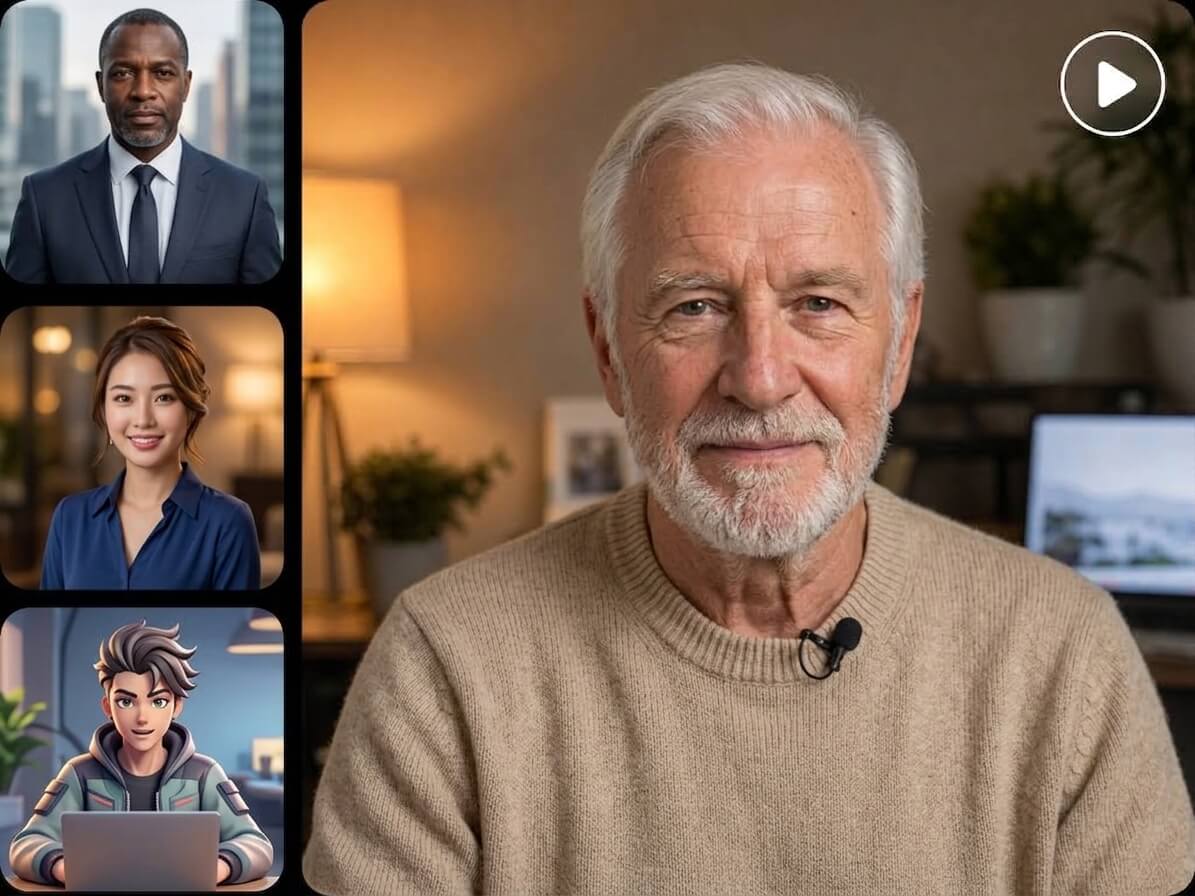
Our free AI talking avatar tool lets you customize both your presenter and their voice by selecting from diverse presets or uploading your own assets.
Whether you need a speaking character across different ages and skin tones, stylized anime avatars, or even talking pets, Fotor brings them to life seamlessly. For voice selection, pick from a wide array of built-in tones, or upload an audio clip to clone your voice.
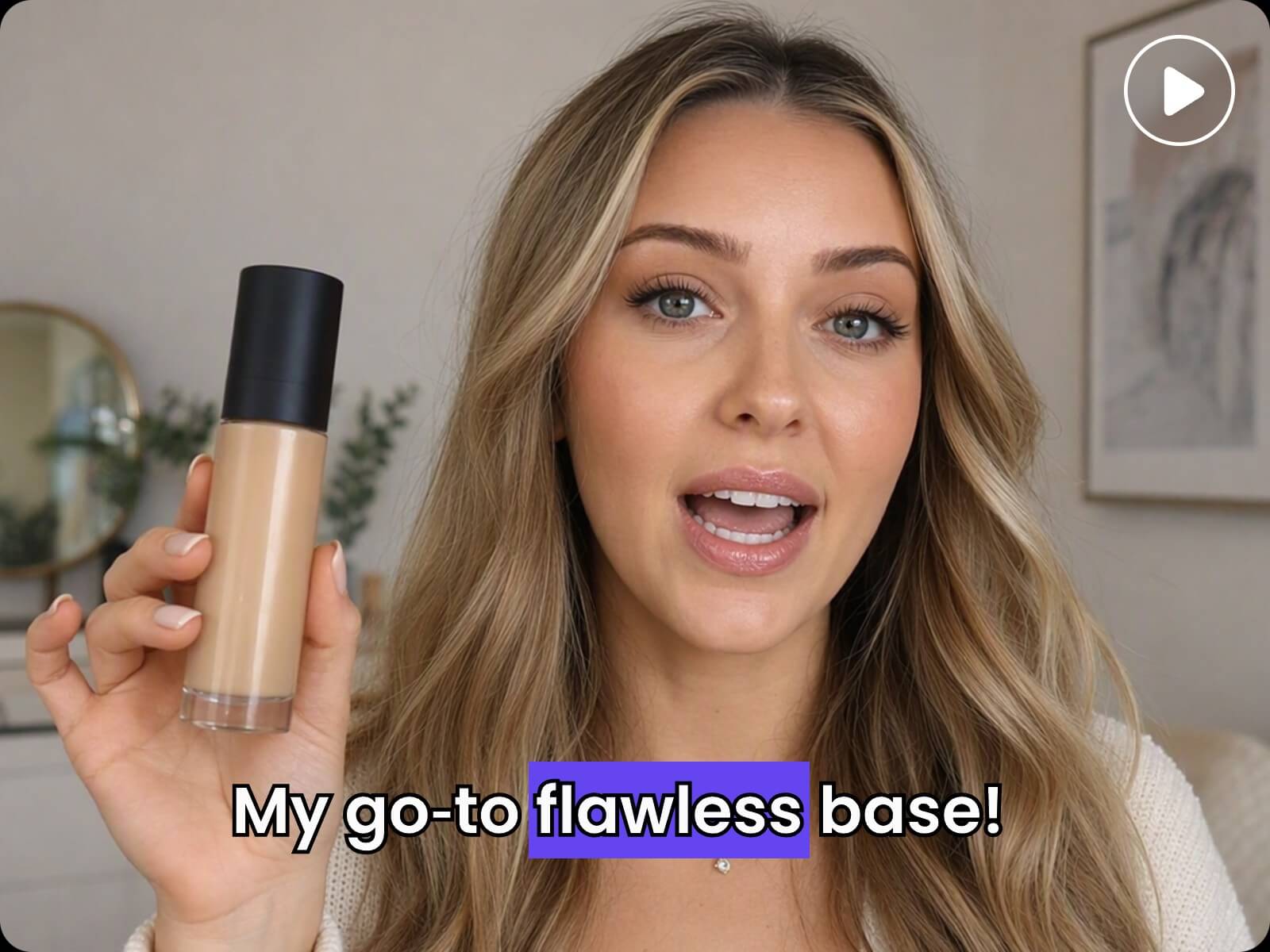
Adding subtitles manually is often the most tedious part of making talking avatar videos. Let us do this heavy lifting for you. Fotor's AI talking avatar video generator automatically adds captions that sync with the frame and the result is ready to publish, saving you hours of manual clipping and typing.
Personalize the font, size, and color of subtitles by using the parameter toolbar, or customize text animations via simple prompts. Because subtitles sit on dedicated text tracks separate from your main video, you can freely drag, resize, and rotate text elements without disturbing the rest of the timeline.
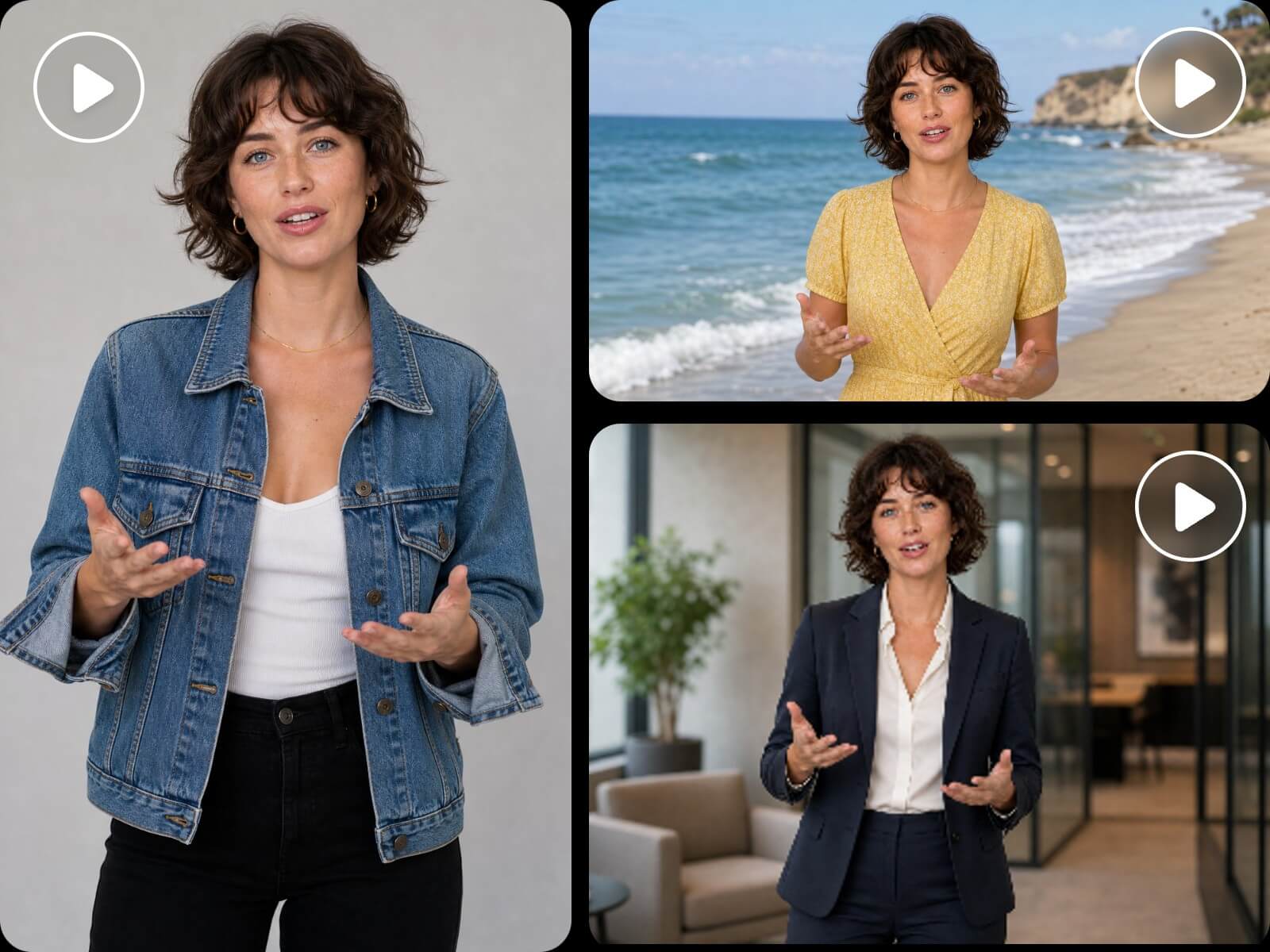
Character inconsistency can instantly ruin the realism and quality of a talking avatar video. Fotor ensures the talking character maintains precise facial identity across various outfits, styling changes, backgrounds, and camera angles.
Powered by advanced facial recognition technology, our AI talking avatar generator detects and preserves key facial features, keeping your speaking avatar recognizable throughout the entire video.
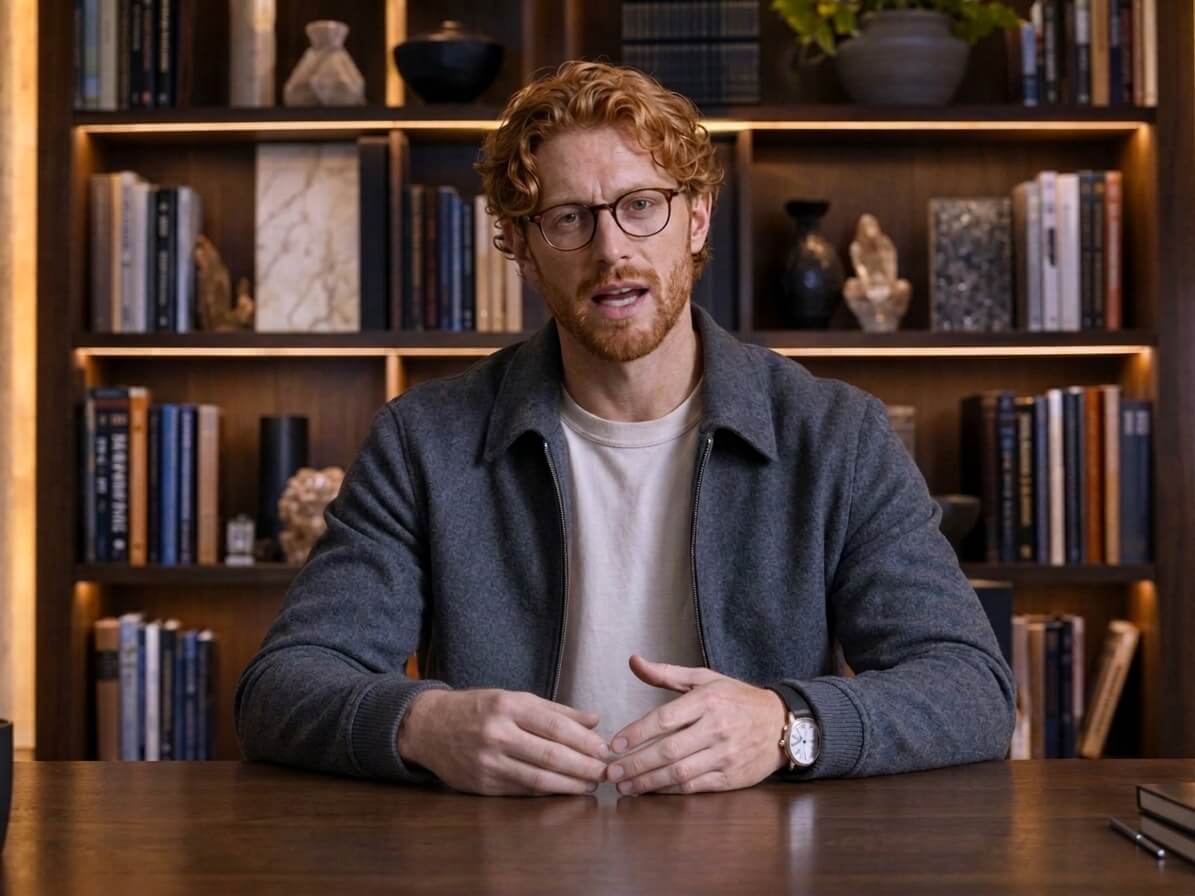
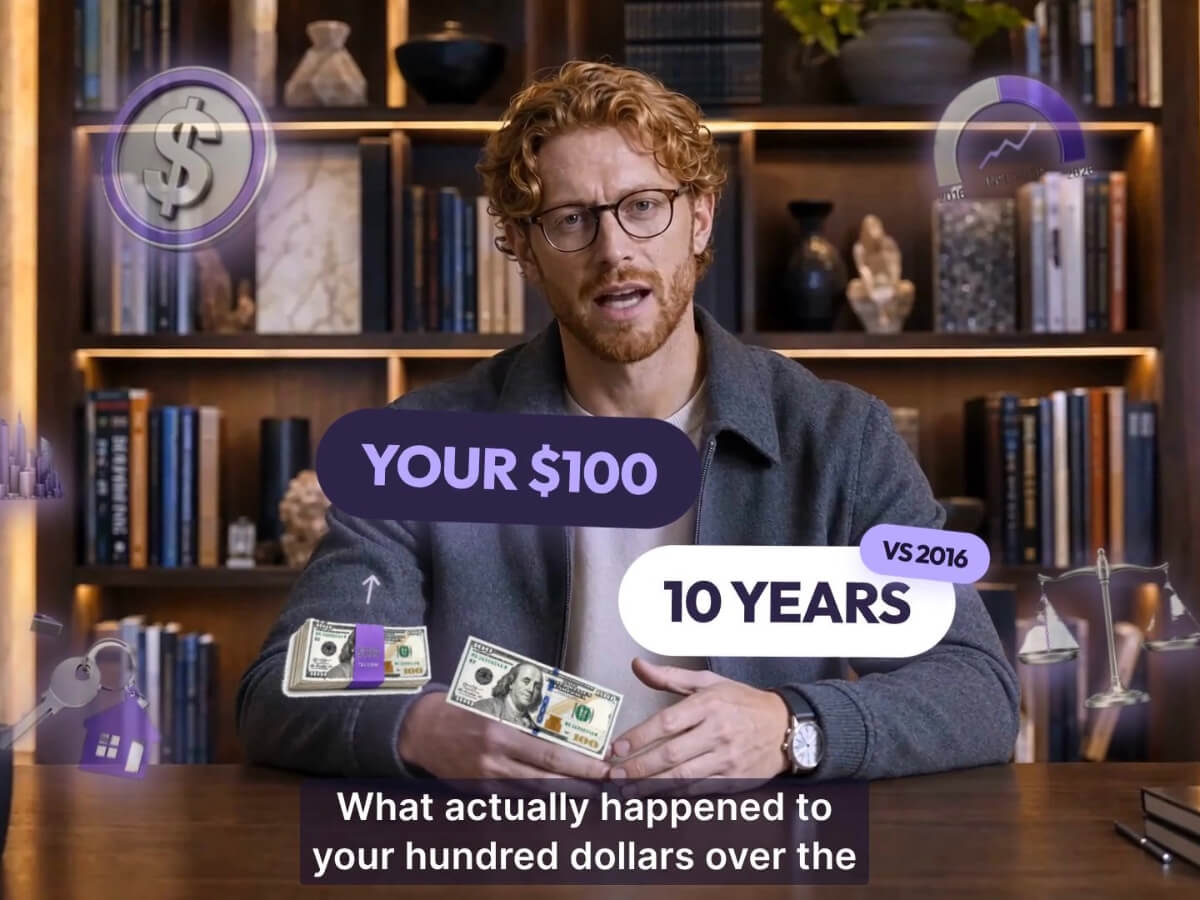
Instantly enhance your AI talking person with motion graphics and text layers using intuitive text prompts, ideal for creating talking avatar for YouTube explainers.
Use these dynamic visual elements to highlight key takeaways clearly and vividly, elevating your video’s overall production quality while boosting viewer retention.
Skip costly studio rentals and actor fees. Use Fotor to produce high-converting product videos where a realistic AI speaking avatar demonstrates your products. Easily tailor your avatar’s age, ethnicity, and accent to target your global audience.
Different types of assets like videos, audio, and subtitles sit on separate tracks. Drag, trim, and arrange every asset with frame-accurate control on an intuitive timeline.
Upload a 30s+ audio clip to create a realistic voice clone. Use this feature to translate the video into multiple foreign languages with a single click while preserving your unique tone.
Input a simple text description to let our AI generate original background music that matches the mood and add sound effects intelligently based on the video content. No more copyright concerns.
Eliminate static, single-angle fatigue. Apply cinematic camera movements via prompts to add depth and motion to your voice avatar video, while maintaining strong character consistency across different camera angles.
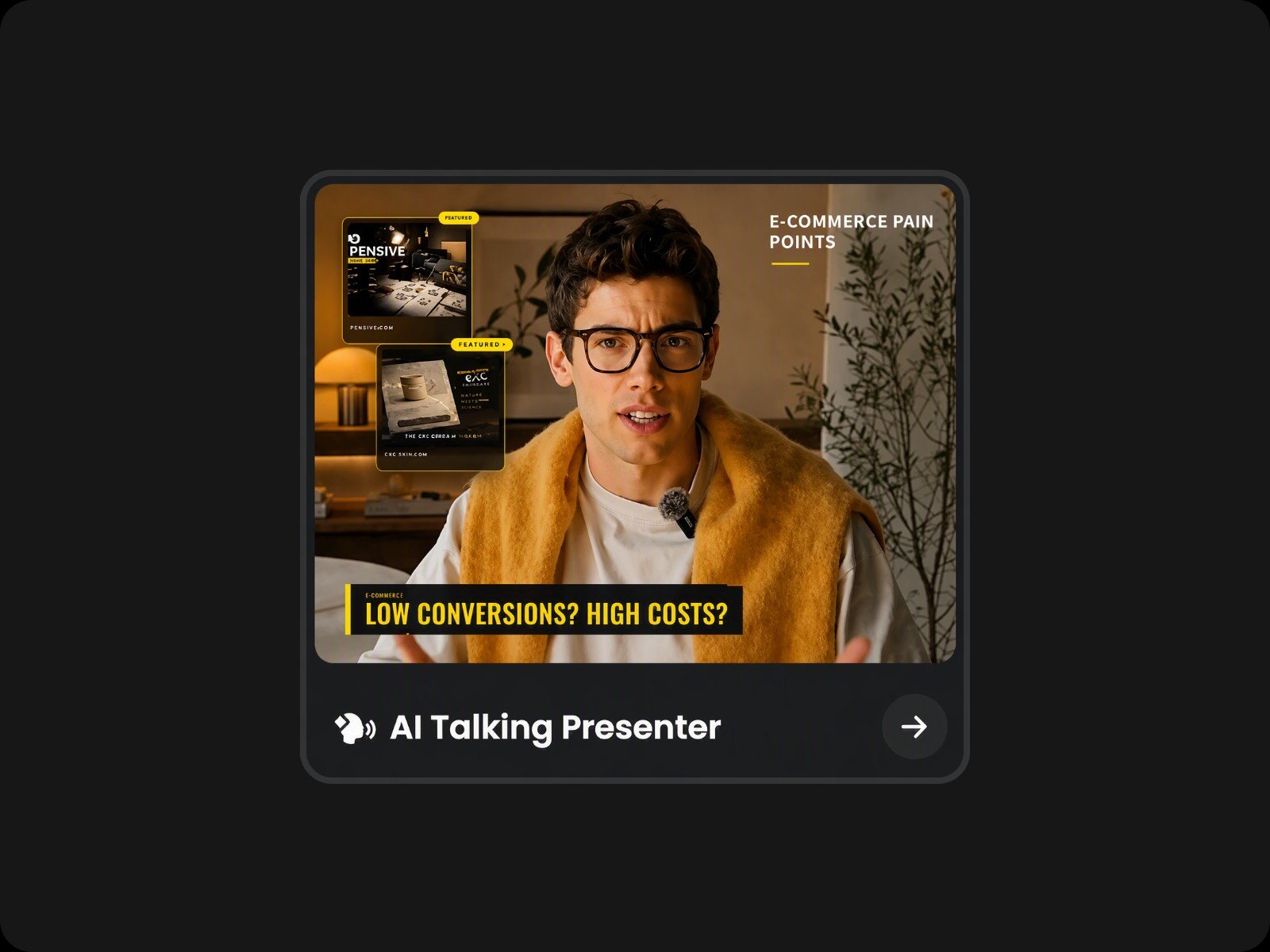
Find the "AI Talking Presenter" on Fotor's home page or start by typing in the box at the top of the page directly.
Yes. Instead of starting from the "AI Talking Presenter" preset, simply access the Agent tool from Fotor's home page and upload your audio file (up to 5GB). After uploading, choose or customize your preferred avatar, and use text prompts to guide the AI in generating the video based on your audio track. The AI will automatically sync the avatar's lip movements precisely to the speech.
To create a natural-looking AI talking avatar video, consider the following practical tips:
To clone your voice, upload a clear audio recording that is at least 30 seconds long. For the best cloning results, make sure the audio features a single speaker with minimal background noise. We support common audio formats including MP3, WAV, M4A, OGG, and more.
Note on Language Support: Voice cloning is currently available in 10 major languages: English, Chinese, Japanese, Korean, German, Italian, Portuguese, Spanish, French, and Russian. If you choose to generate audio directly using our built-in text-to-speech voices instead of cloning, a wider range of global languages is supported.
Yes. Fotor supports a wide variety of document and text file formats for script input. You can directly upload or import files in Word (.docx), Excel (.xlsx / .xls), PowerPoint (.pptx), PDF, TXT, Markdown (.md), and CSV formats, allowing the AI to extract your text and convert it into speech seamlessly.
Yes. The AI assets generated with Fotor's AI talking avatar video generator are royalty-free and safe for commercial use. But please make sure that you hold the proper rights to the uploaded assets.
Yes. You can access Fotor's AI talking avatar tool via a browser or Fotor App. Feel free to create your talking avatar anywhere, anytime.
Yes. Your uploaded photos, audio, and any other files are safe on Fotor and will not be shared with any third parties.
Fotor offers free credits for its talking avatar video generator, allowing you to experience its features. For more advanced tools, please subscribe to a premium plan.