



Removing image backgrounds is the standard step in preparing product photos for online stores and social media. Most tools now offer quick, one-click results, but the final quality still depends heavily on the type of image being processed.
To see how different tools actually perform in real use, we tested a small set of images across each platform. The test included product shots on plain backgrounds, portrait images with detailed hair edges, and more challenging cases such as reflective surfaces and low-contrast scenes.
Instead of focusing only on whether the background was removed, we looked at how clean the final cutout was and how much manual adjustment was still needed afterward. To keep the comparison consistent, every tool was tested using the same set of sample images on June 28, 2026.
What We Evaluated During This Testing
Instead of comparing feature lists, each tool was evaluated based on four key factors:
| Tool | Edge Accuracy | Complex Images | Speed | Manual Fix Needed | Overall Use Score |
| Remove.bg | ⭐⭐⭐⭐☆ | ⭐⭐☆☆☆ | ⭐⭐⭐⭐⭐ | ⭐⭐☆☆☆ | ⭐⭐⭐⭐☆ |
| Fotor | ⭐⭐⭐⭐☆ | ⭐⭐⭐☆☆ | ⭐⭐⭐⭐☆ | ⭐⭐⭐☆☆ | ⭐⭐⭐⭐☆ |
| Canva | ⭐⭐⭐☆☆ | ⭐⭐☆☆☆ | ⭐⭐⭐⭐☆ | ⭐⭐⭐☆☆ | ⭐⭐⭐☆☆ |
| Pixlr | ⭐⭐⭐☆☆ | ⭐⭐⭐☆☆ | ⭐⭐⭐☆☆ | ⭐⭐⭐⭐☆ | ⭐⭐⭐☆☆ |
| Adobe Express | ⭐⭐⭐⭐☆ | ⭐⭐⭐☆☆ | ⭐⭐⭐☆☆ | ⭐⭐⭐☆☆ | ⭐⭐⭐⭐☆ |
Ratings summarize observations from nine sample images tested on June 28, 2026. Results may vary depending on image quality, subject complexity, and future model updates.
· Edge Accuracy: how cleanly the tool preserves fine details like hair, fabric, and object boundaries without rough edges or cut-ins
· Complex Images Handling: how well it performs on challenging cases such as reflective surfaces, uneven lighting, and mixed backgrounds
· Speed: how quickly the result is generated and whether it supports fast workflows for batch or daily use
· Manual Fix Needed: how often additional editing is required before the cutout can be used in real scenarios like product listings or social posts
These four factors were used consistently across all tests to reflect real-world editing needs rather than feature descriptions. For each tool, we uploaded the original image using the default automatic background removal setting without additional manual editing before evaluating the first result. All screenshots shown below were captured during our own testing.
1. Remove.bg – Fastest for Simple Images

In our tests, Remove.bg generated results faster than the other tools we evaluated, especially with portrait photos where the subject stood out clearly from the background. In many cases, the cutout was usable right away without any adjustment, which makes it practical for quick tasks.
That said, once the images became more complex, the results were less consistent. In product shots with overlapping elements or similar tones, it sometimes trimmed parts of the subject or smoothed edges a bit too aggressively. Hair areas and semi-transparent edges were where the issues showed up most clearly.
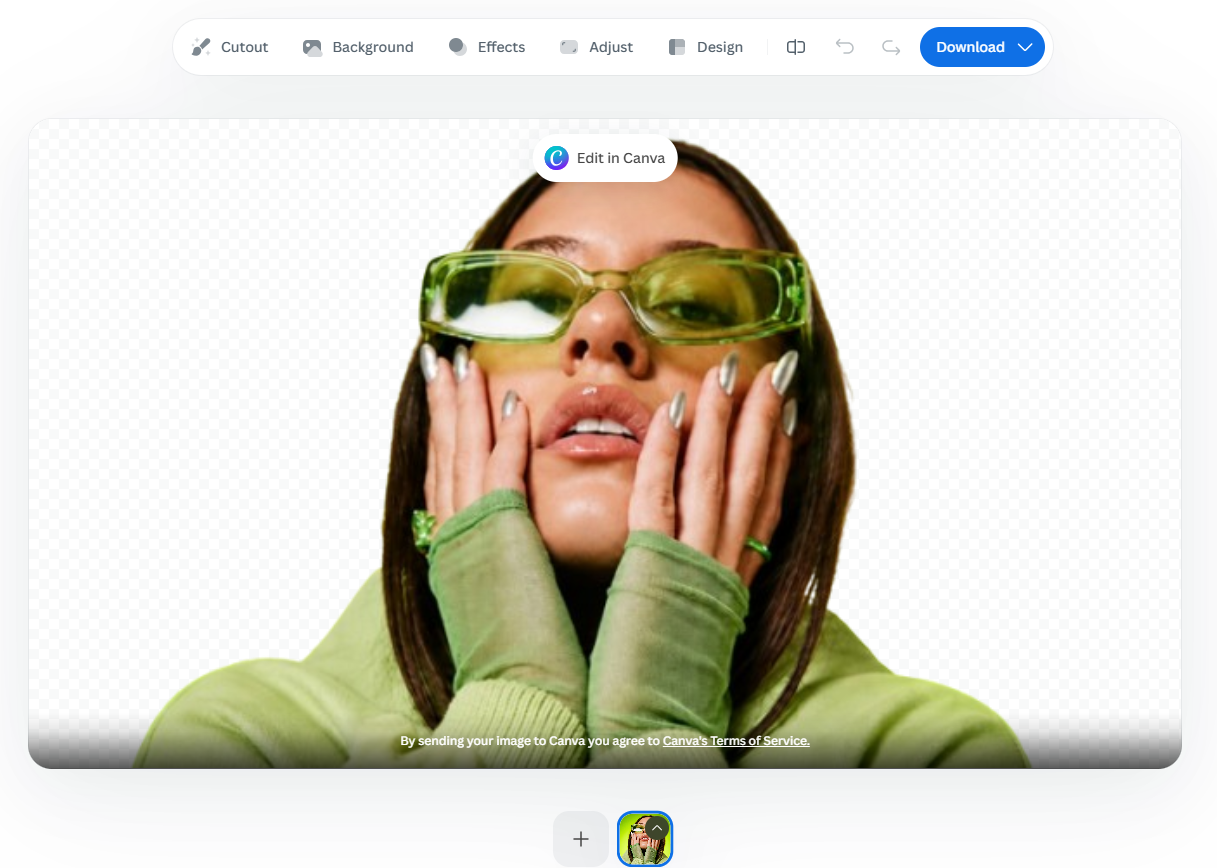
Even with these limitations, the speed is still its main strength, especially when handling a large number of simple images.
Best use cases: profile photos, simple product shots, bulk processing.
Main limitation: struggles with overlapping elements and fine edge detail.
2. Fotor – Balanced Quality for Product and Marketing
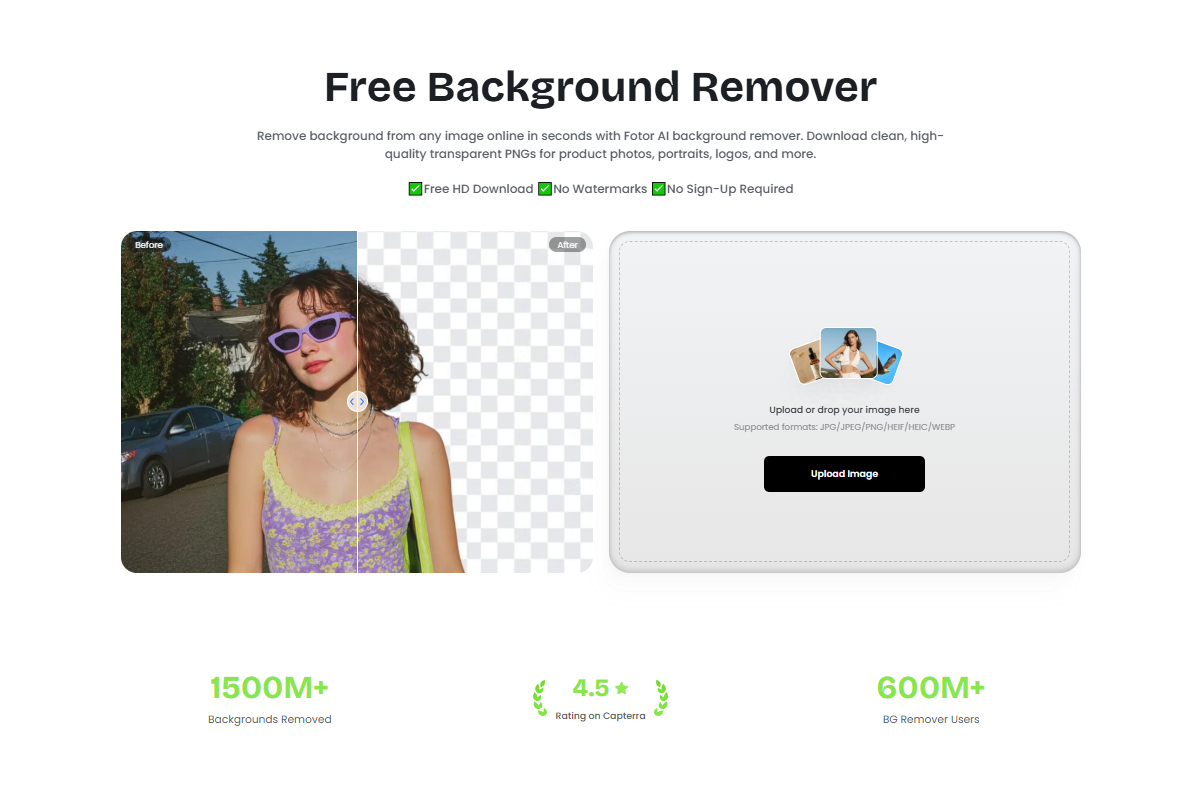
Fotor background remover was tested across a mix of product photos and lifestyle images, and across the images we tested, Fotor produced usable first-pass results on most standard product photos. On clean product shots with neutral backgrounds, the cutouts were strong enough to be used directly in e-commerce listings without further refinement.
In portrait images, especially those with medium-level hair detail, the edges stayed fairly consistent, with only small areas requiring cleanup. Compared to faster tools, Fotor handled uneven lighting and soft shadows more steadily, which made the results feel more dependable in day-to-day use.
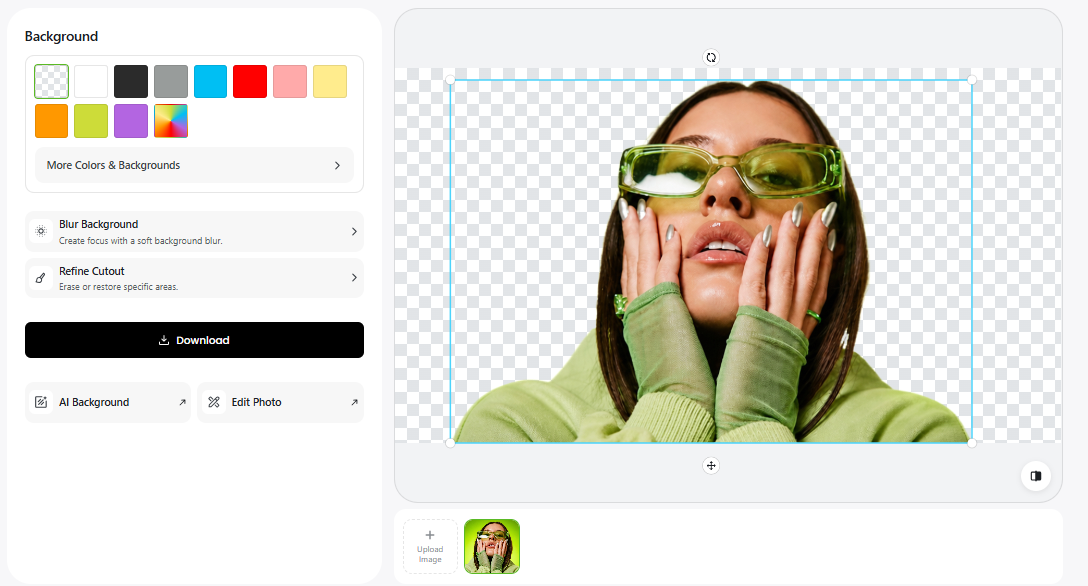
Where it started to struggle was in more complex images. Reflective surfaces and partially transparent objects occasionally produced small edge artifacts, especially around fine boundaries.
In practice, it feels less like a “fastest possible tool” and more like a stable option that reduces the need for corrections after the first result. And also, it works directly on this feature page without jumping to another page.
Best use cases: e-commerce product images, social media visuals, marketing assets.
Main limitation: less reliable with reflective or transparent edge details.
3. Canva Background Remover – Strong Design Tool
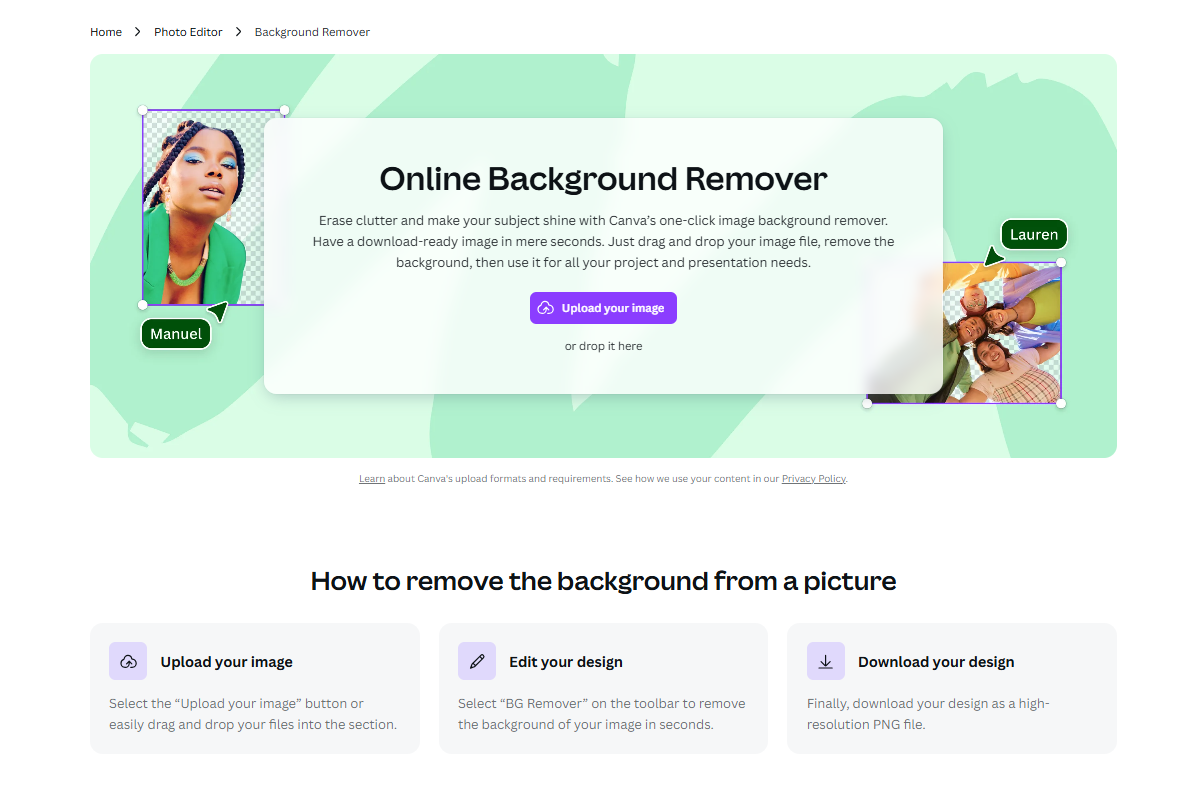
Canva’s background removal feature works more as part of a broader design workflow rather than a precision-focused cutout tool. In testing, it performed adequately for most social media visuals and simple layouts where perfect edge accuracy is not critical.
However, when looking closely at fine details such as hair strands or fur textures, the results were not always fully preserved. These issues become more noticeable when the image is zoomed in or used in higher-resolution designs, where edges can look slightly softened.

Where Canva stands out is how quickly the cutout can be turned into a finished design. Once the background is removed, placing the subject into templates feels immediate and smooth, which makes it useful for fast content production rather than detailed editing.
Best use cases: social media posts, marketing templates, fast design workflows.
Main limitation: weaker performance on fine edge detail and zoomed-in accuracy.
4. Pixlr – More Control with Manual Refinement
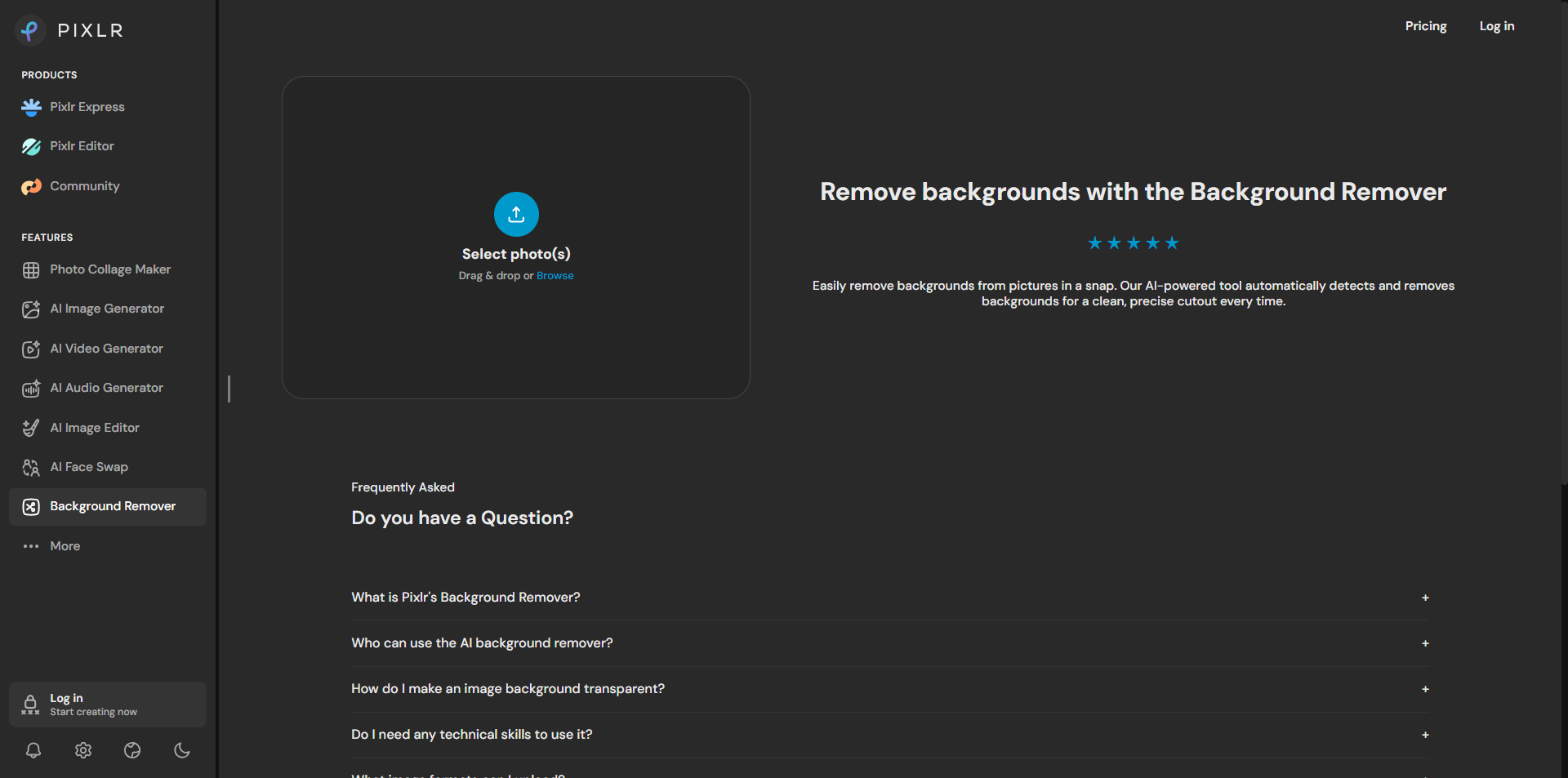
Pixlr felt more flexible compared to fully automated tools, mainly because it gives users direct control over the cutout after the initial result. However, the quality of the first output varied quite a bit depending on the complexity of the image.
In simpler cases, it handled uneven or messy backgrounds better than expected, especially when the subject was not clearly separated from the background. But in more complex images, the initial cutout often required noticeable manual adjustment before it looked usable.
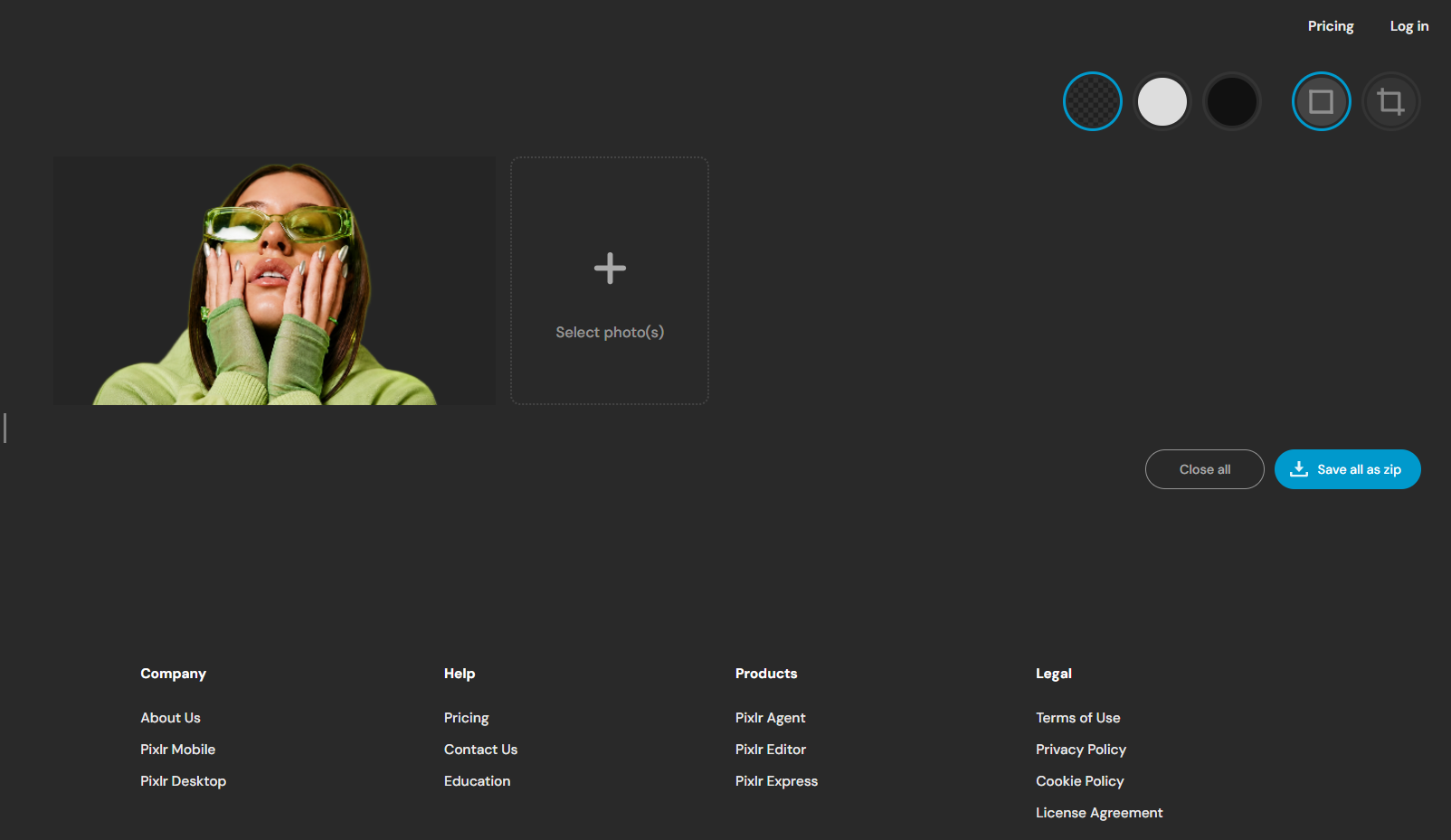
Unlike faster tools, achieving a clean result in Pixlr usually meant spending extra time refining edges with brush tools. This makes it less about speed and more about how much effort you are willing to invest in the final output.
Best use cases: Half professional editing, custom cutouts, detailed refinements.
Main limitation: requires significant manual cleanup to reach polished results.
5. Adobe Express – Stable and Standard Tool
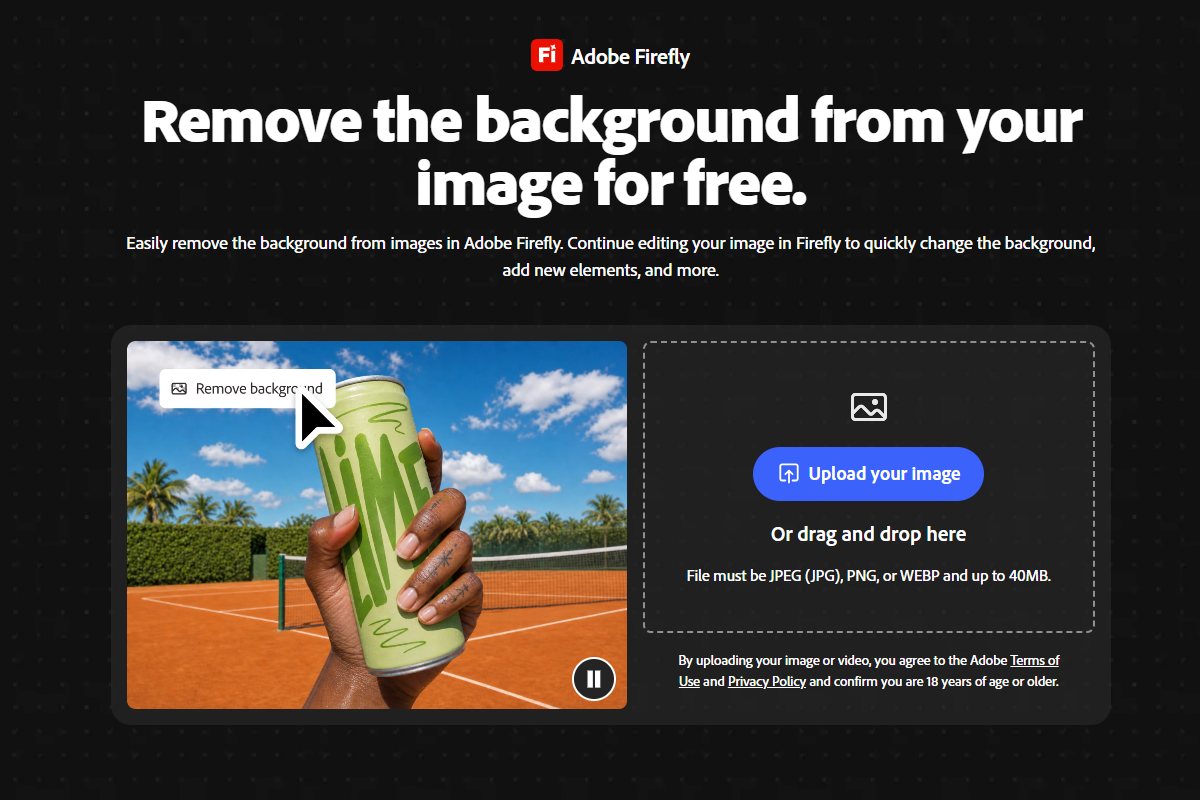
In our testing, Adobe Express generated consistent cutouts on standard portraits, although the processing workflow involved more steps than browser-first tools. The cutouts were generally reliable and required minimal correction in straightforward cases.
However, compared to lighter browser-based tools, it did not show a clear advantage in edge precision. In some cases, the results felt similar to simpler tools rather than significantly better, especially when dealing with more detailed images.
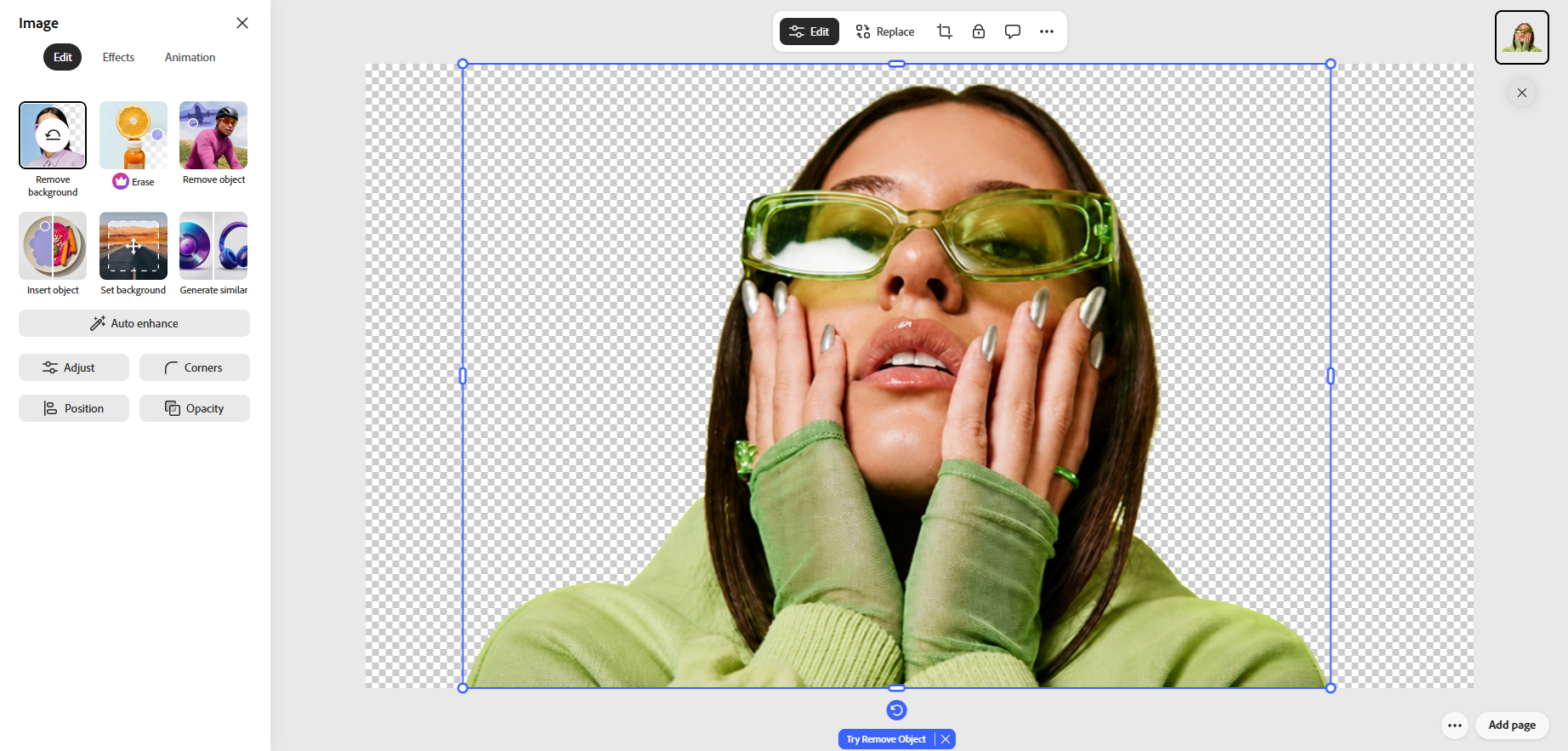
Its main strength lies in consistency and how well it fits into Adobe’s broader editing environment. That said, the overall experience feels less streamlined when the goal is only quick background removal, as loading and workflow steps are slightly heavier than more direct tools.
Best use cases: existing Adobe users, structured design workflows, multi-step editing projects.
Main limitation: slower and less efficient for quick, single-purpose background removal tasks.
Which Tool Performs Best in Real Use?
Across all tests, differences were less about whether tools work and more about how much cleanup is needed afterward.
- For fast and easy background removal, Remove.bg is still the quickest option, especially when working with simple portraits or clean product shots
- For everyday use, Fotor holds up well across most common images and doesn’t usually require extra cleanup afterward
- For design-heavy work, Canva works better when background removal is just one step in a bigger layout process
- For hands-on control, Pixlr makes more sense if you’re okay spending time refining edges manually
- For users already in Adobe, Adobe Express feels more like a built-in option that fits existing editing habits
In practical workflows, the deciding factor is not raw capability but how much post-processing time each tool saves.
Limitations of This Comparison
This comparison reflects our experience using a limited set of sample images and each tool's default automatic settings at the time of testing.
Different image types, future model updates, or manual editing workflows may produce different results.
We encourage readers to try several tools with their own images before choosing one for long-term use.
Final Thought
AI background remover tools in 2026 are generally capable of handling basic removal tasks without major issues. The real difference is not whether they work, but how well they handle edge complexity and how much manual correction they require afterward.
In real production workflows, the most valuable tools are those that produce usable results on the first pass and reduce the need for repeated adjustments, especially when processing images at scale.
Some tools included in this article are developed by companies affiliated with this website. To reduce bias, every tool was evaluated using the same image set and default settings before any manual editing. Our observations are based on hands-on testing rather than vendor feature descriptions.