


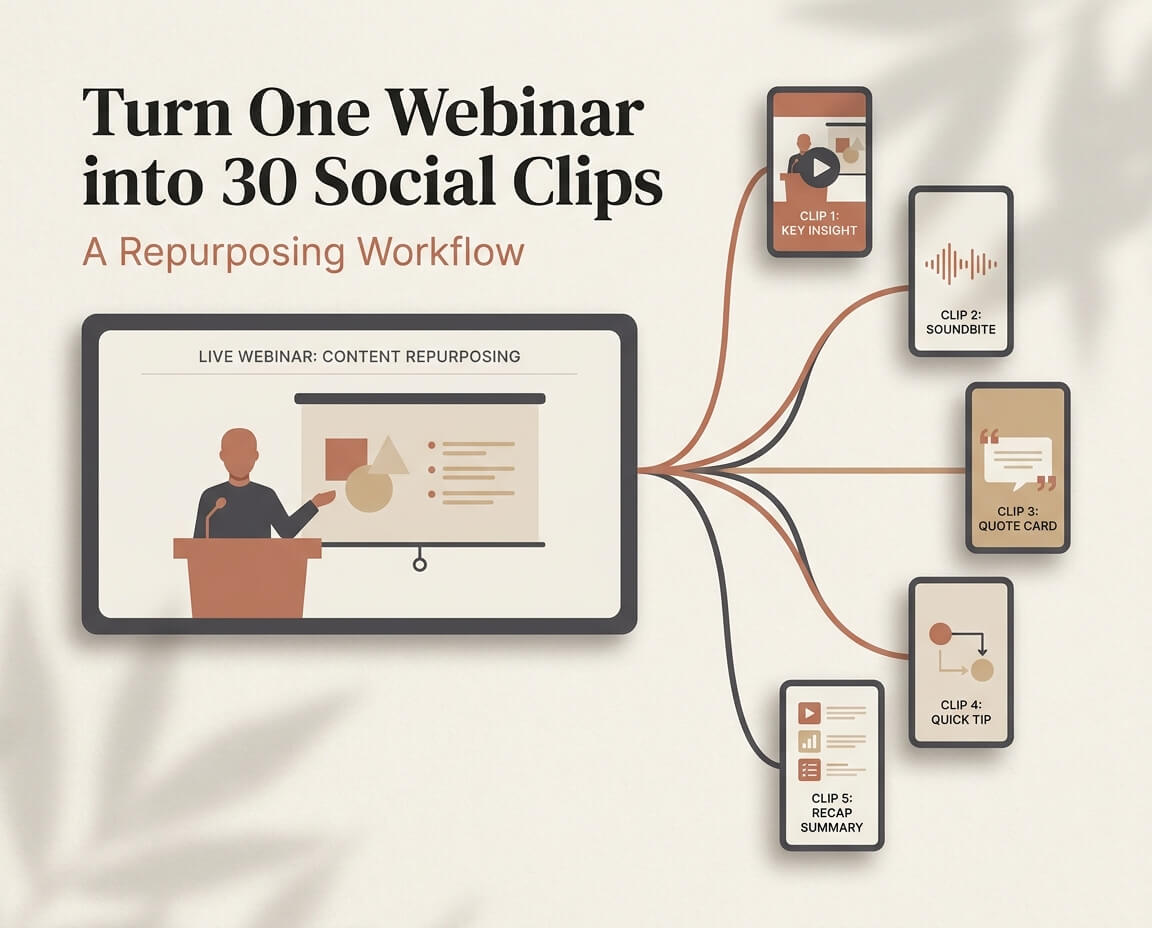
Why Repurpose a Webinar into Social Clips?
A webinar usually contains more valuable information than a single published video can deliver. Within one session, there may be expert insights, audience questions, practical advice, examples, and discussions that are useful for different audiences.
However, long-form webinar recordings are not always suitable for social platforms. Viewers often prefer short videos that focus on one clear idea and deliver value quickly.
Repurposing a webinar into social clips helps creators:
- Extend the value of existing content
- Reach audiences across different platforms
- Create more content without starting from scratch
- Turn important moments into focused videos with specific purposes
Instead of treating a webinar as one finished piece of content, creators can view it as a collection of reusable ideas that can be transformed into multiple social clips.
One Webinar Contains Multiple Content Opportunities
Content Source | Possible Social Content |
|---|---|
Expert insights | Educational clips, thought leadership videos |
Audience questions | Q&A clips, problem-solving videos |
Practical examples | Tutorial clips, case study videos |
Opinions and discussions | Commentary clips, discussion videos |
Start with One Webinar: What Content Can You Reuse?
Before creating social clips, the first step is identifying which parts of a webinar are worth repurposing. Not every section needs to become a separate clip. The strongest candidates usually contain a clear idea, answer a specific question, or offer useful information that can stand on its own.
Real Webinar Example: Finding Moments Worth Repurposing
We tested the workflow with Fotor Video Agent Crash Course: Fully Editable Motion Graphics Without After Effects | LIVE. We gave the webinar link to Fotor Agent and asked it to identify moments that could work as standalone social clips.
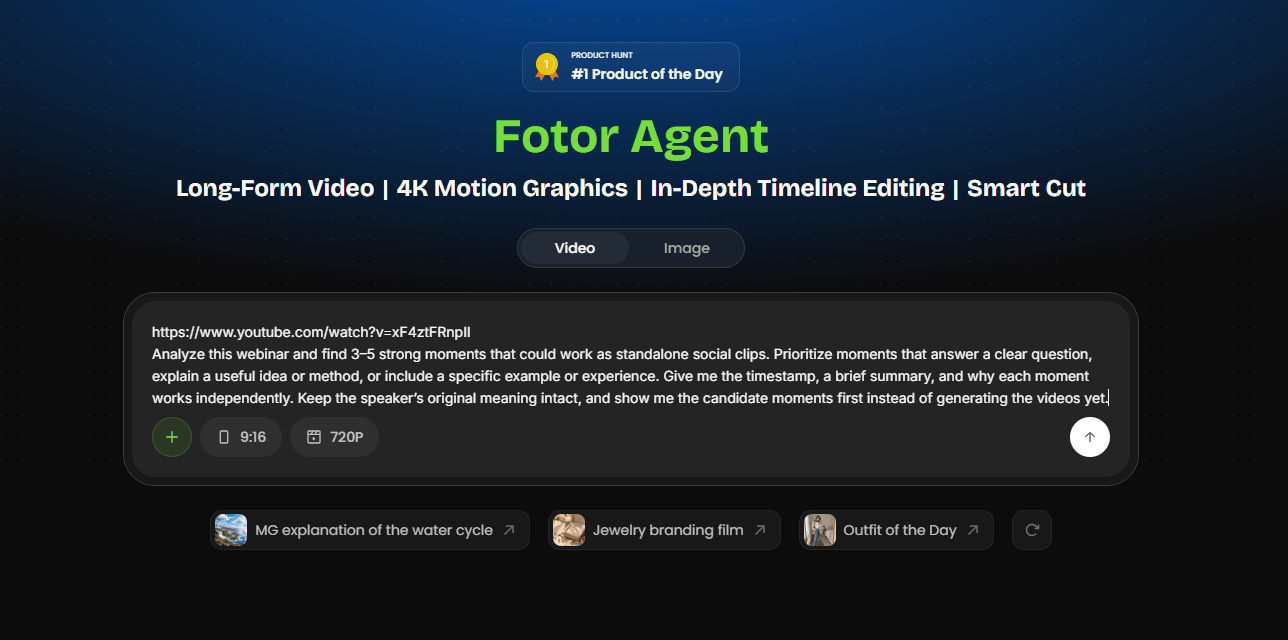
The Agent identified five candidate moments:
Time | What Happens | Why It’s Worth Repurposing |
|---|---|---|
14:28–15:02 | The speaker explains why Standard 720p can save about two-thirds of the credits. | A practical tip with a clear recommendation. |
29:31–30:01 | The speaker explains why prompts should include what you do not want changed. | A focused prompting principle with concrete examples. |
32:02–32:41 | The speaker demonstrates using a personal voice recording and fitting it to the video. | A practical example that works as a standalone explanation. |
34:06–34:38 | The speaker shows how to regenerate one incorrect clip instead of the entire video. | A clear problem-and-solution example with a specific takeaway. |
37:27–38:12 | The speaker demonstrates editing individual motion-graphics elements. | A self-contained demonstration of a specific capability. |
We then asked Agent to turn the selected moments into five separate clips, keeping each clip focused on its original section of the webinar.
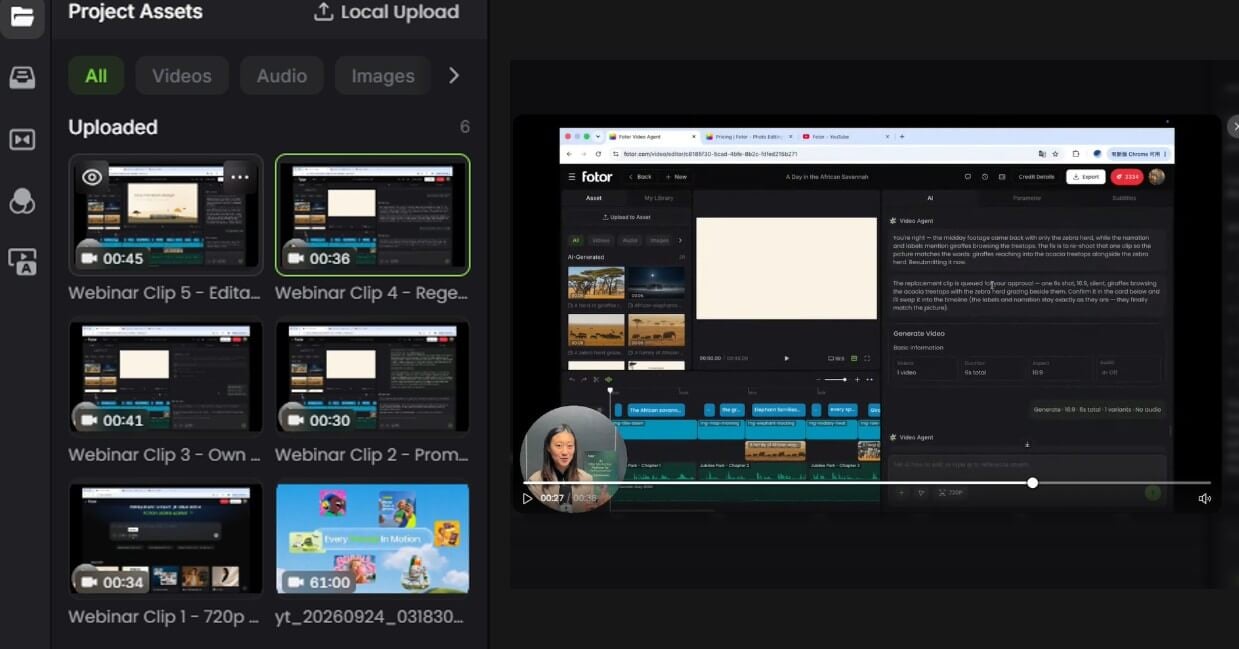
This process turns one long webinar into multiple reusable content pieces, each built around a clear idea, useful information, or a specific example.
Key Insights and Takeaways
Many webinars include valuable explanations, professional advice, and important conclusions that can become educational social clips.
Look for moments where speakers:
- Explain a useful concept
- Share practical recommendations
- Summarize an important idea
- Provide a solution to a common problem
These moments work well because viewers can understand the main value without watching the entire webinar.
Questions and Expert Answers
Audience questions and expert responses are another strong source of social content.
A well-structured question can become the foundation of a short video, while an expert answer can provide direct and practical information for viewers.
These clips are especially suitable for educational content because they are naturally built around a problem and a solution.
Stories, Examples, and Opinions
Stories, examples, and personal opinions can make webinar content more engaging and easier to connect with.
Useful moments may include:
- Real experiences
- Case studies
- Project examples
- Personal perspectives
- Industry observations
These clips can become story-driven videos or discussion-based content that helps audiences understand ideas through real situations.
Webinar Content to Social Clip Types
Webinar Content | Social Clip Type |
|---|---|
Key insights and takeaways | Educational clips and tip videos |
Questions and expert answers | Q&A clips and expert response videos |
Stories and examples | Story-based clips and case study videos |
Opinions and discussions | Opinion clips and discussion videos |
Plan Your 30 Social Clips
Finding valuable moments is only the first step. To turn one webinar into a steady stream of social content, organize the selected moments into a balanced content plan. The goal is not to cut the webinar into 30 arbitrary sections, but to build a mix of clips that serve different content purposes and audience interests.
Example 30-Clip Content Plan
Content Category | Purpose | Example Number of Clips |
|---|---|---|
Key insights and tips | Share practical knowledge and useful ideas | 10 |
Questions and answers | Address audience questions and common problems | 6 |
Stories and examples | Share real experiences and concrete examples | 6 |
Opinions and discussions | Present perspectives and encourage discussion | 4 |
Additional highlights | Cover other useful moments from the webinar | 4 |
Total | 30 | |
30 Clips Is an Example, Not a Fixed Formula
The number of clips depends on the webinar length, topic, and amount of valuable content available. In this example, 30 clips is used as a planning target rather than a rule for every webinar.
Each clip represents one core content piece. Versions adapted for different platforms can be treated as variations of the same clip rather than separate source clips.
Turn Webinar Moments into Standalone Social Clips
Finding a valuable moment is only the first step. A webinar segment does not automatically become an effective social clip simply by cutting it from the original recording. The selected moment may need a tighter opening, enough context, and adjustments for short-form viewing while keeping the speaker’s original meaning intact.
Real Webinar Example: From a Webinar Segment to a Social Clip
We selected the 34:06–34:38 segment from the webinar, where the speaker explains how one incorrect clip can be regenerated without rebuilding the entire video. We then used Fotor Agent to turn this extracted 16:9 clip into a standalone 9:16 social clip.
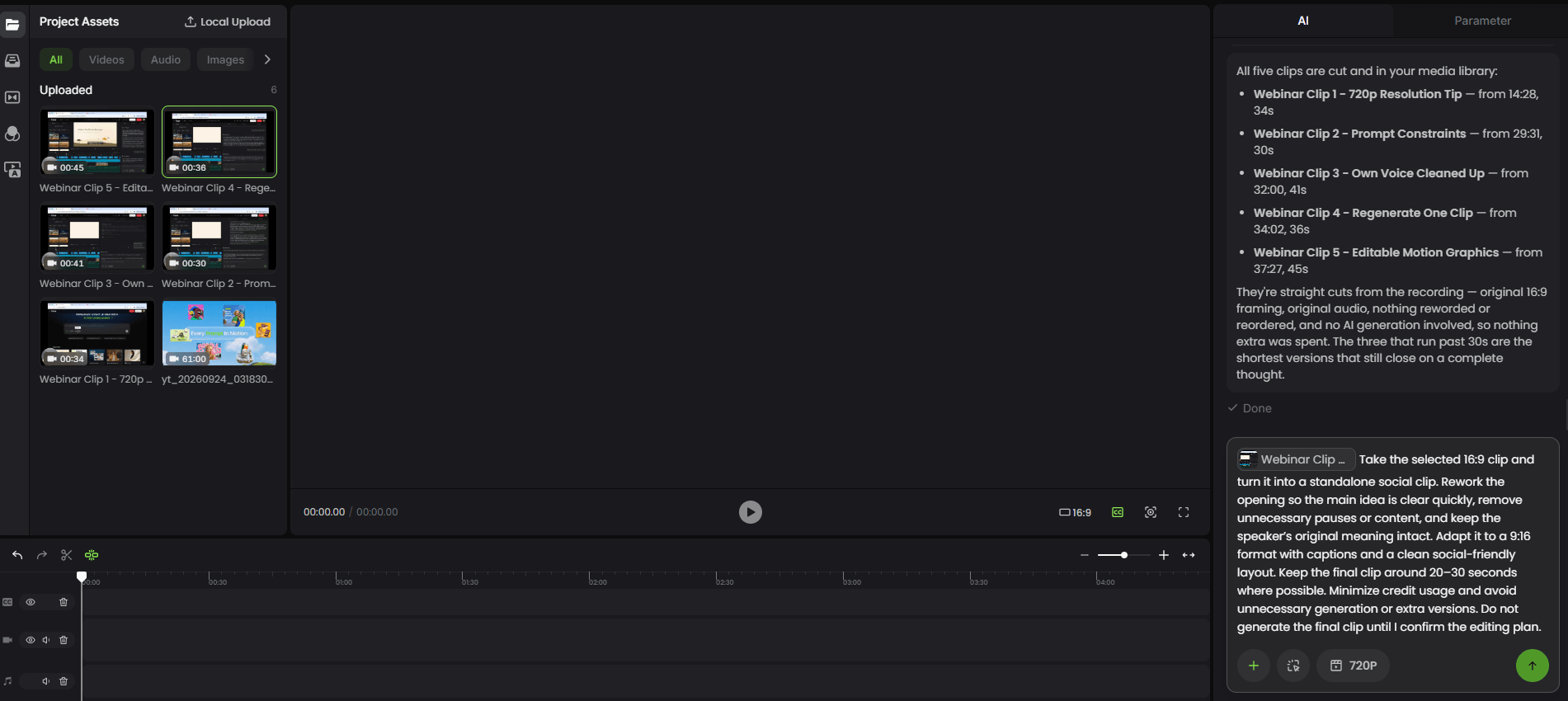
The clip was shortened from 36.5 seconds to about 27 seconds. The opening lead-in was removed, unnecessary pauses and filler words were trimmed, and the speaker’s original words and order were preserved.
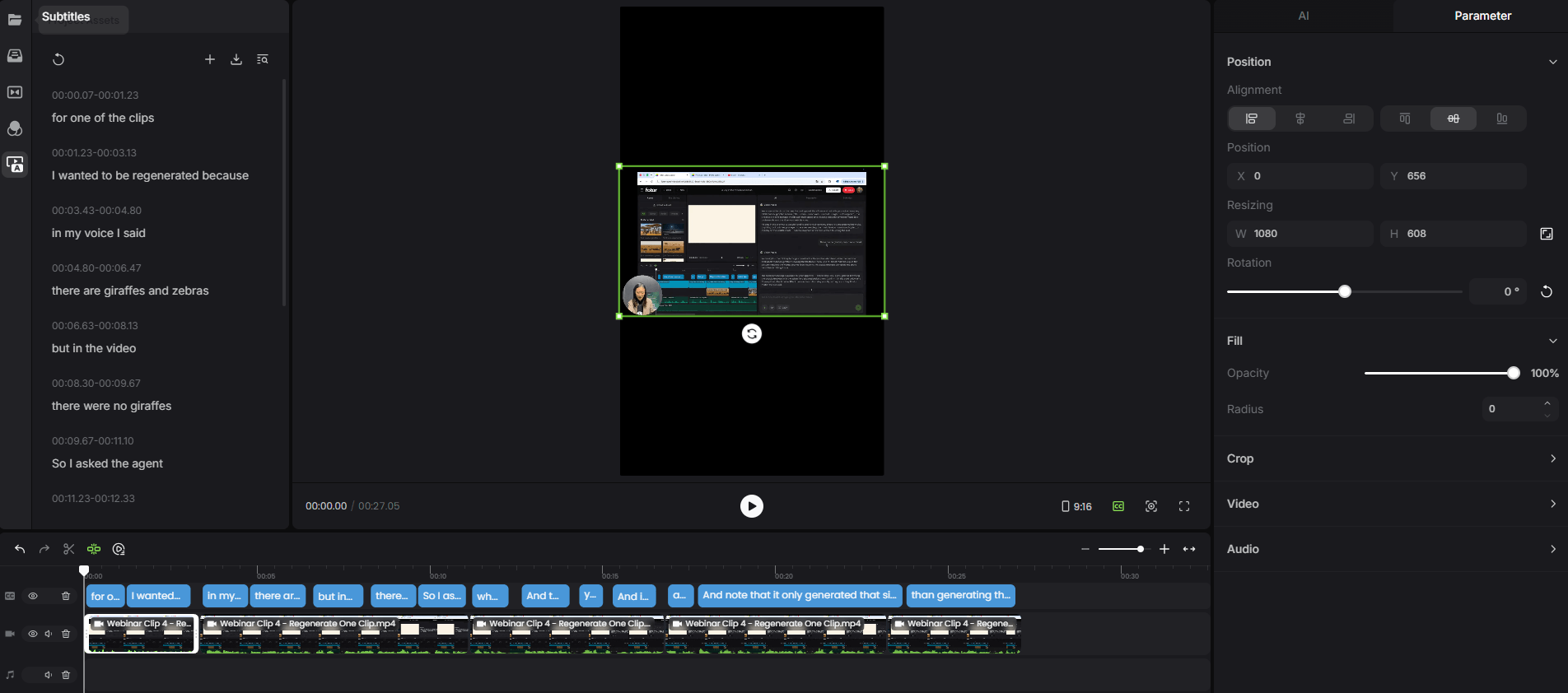
The video was then adapted to a 9:16 canvas with synced captions. The timeline keeps the video and caption tracks separately editable, while manual adjustment controls remain available for further refinement.
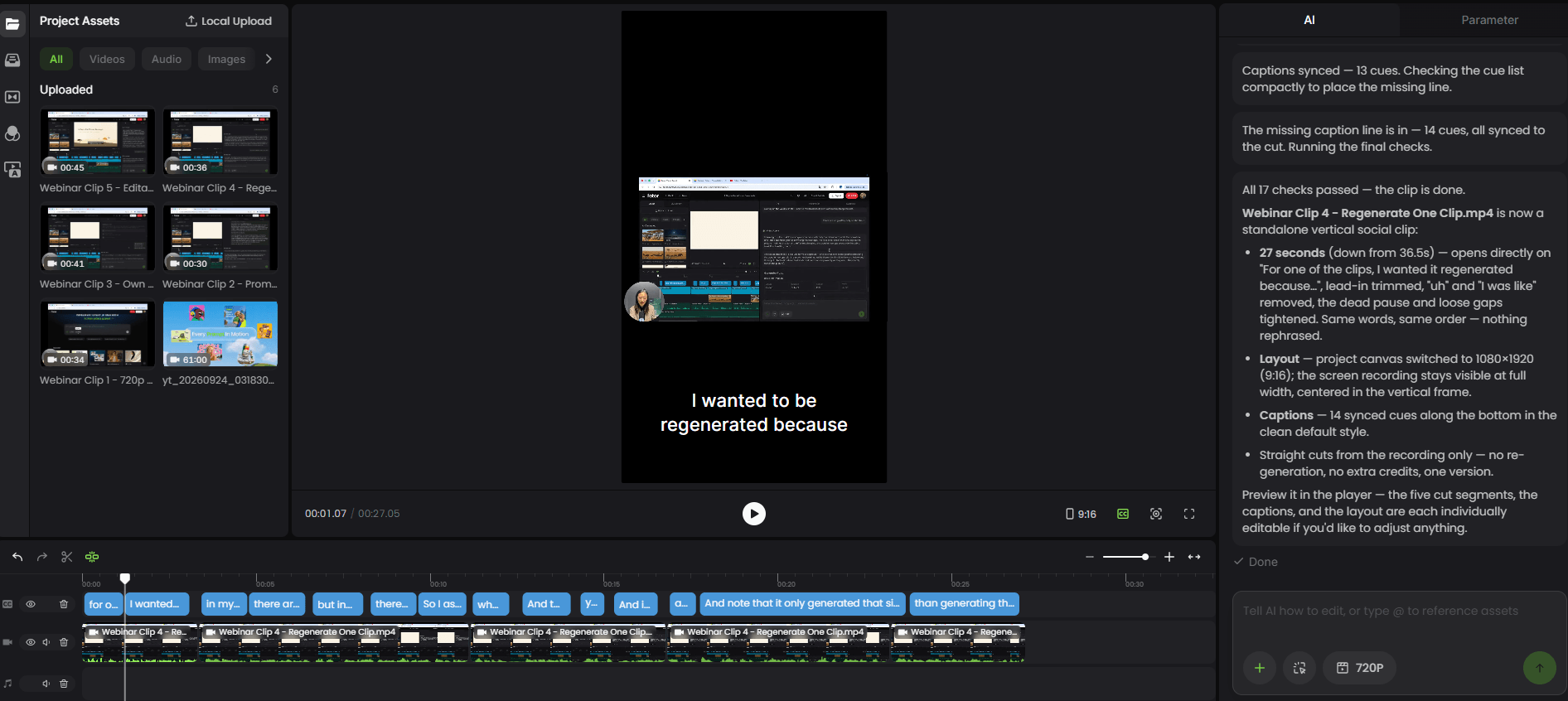
The final clip can be reviewed directly in the editor to check the framing, captions, pacing, and overall viewing experience before publishing.
Give Each Clip One Clear Idea
A strong social clip usually focuses on one main message instead of combining multiple ideas from the original webinar.
Keeping each video focused helps viewers quickly understand the value of the content and makes the message easier to remember.
When selecting clips, consider whether the moment can answer one question, explain one concept, or deliver one useful takeaway.
Rewrite the Opening for Social
Webinar recordings often begin with introductions, background information, or conversations that depend on the original audience context.
For social platforms, the opening should quickly communicate why viewers should continue watching. A stronger introduction can highlight the main question, key insight, or problem being discussed.
Adapt the Video for Short-Form Platforms
A webinar is usually created for a longer viewing experience, while social platforms require content that is easier to consume quickly.
Adapting a webinar clip may include:
- Adjusting video ratio for different platforms
- Adding captions or on-screen text
- Improving pacing and removing unnecessary sections
- Highlighting important visual information
These adjustments help the same content fit different viewing environments.
A Standalone Social Clip Needs Four Content Elements
1. Hook
Capture attention with a question, problem, or surprising idea.
2. Context
Provide enough background for viewers who did not watch the webinar.
3. Core Message
Deliver the main insight, answer, or explanation.
4. Action / Takeaway
Give viewers a clear conclusion or next step.
Scale the Workflow with AI
Once you have a clear standard for what makes a good social clip, the next challenge is applying that standard to more moments without repeating the same manual work. AI can help speed up content discovery, clip creation, and repeated adjustments, while creators remain responsible for selecting useful content and reviewing the final videos.
Find and Organize More Candidate Clips
Instead of reviewing a long webinar from beginning to end for every possible clip, AI can analyze transcripts and visual content to identify potential highlights based on the criteria you provide. Fotor Agent, for example, can identify key moments and generate a clipping plan based on your instructions.
Apply the Same Clip Requirements at Scale
Once you know the desired format, length, and focus of your clips, the same requirements can be applied across multiple selected moments. AI-assisted workflows can also help with repeated tasks such as trimming, captions, and reframing for different platforms.
Keep Human Review in the Workflow
Scaling production does not mean removing editorial decisions. Creators still need to check whether each selected moment has enough context, preserves the speaker’s original meaning, and fits the intended audience and platform.
Turn 30 Clips into a Social Content Calendar
Creating 30 clips does not mean publishing them all at once. A content calendar helps creators distribute different types of clips over time and keep one webinar useful beyond the original event.
Rather than publishing the same type of content repeatedly, spread different topics and formats across several weeks. This creates a more varied publishing schedule while making better use of the clips you have already created.
Mix Different Types of Clips
A balanced content calendar can combine different types of clips throughout each week:
- Educational tips can provide practical value
- Q&A clips can answer audience questions
- Stories can share experiences and examples
- Opinion-based clips can introduce different perspectives
Mixing content types helps avoid a repetitive feed and gives different parts of the webinar a chance to reach the audience.
Spread One Webinar Across Multiple Weeks
A webinar can continue generating social content after the original event. Instead of publishing all 30 clips in a short period, distribute them across several weeks based on your content plan and publishing capacity.
Example Social Content Calendar
Week | Content Mix | Number of Clips |
|---|---|---|
Week 1 | Insights, tips, Q&A, and stories | 8 |
Week 2 | Insights, Q&A, stories, and opinions | 7 |
Week 3 | Insights, tips, stories, and Q&A | 8 |
Week 4 | Insights, Q&A, and opinions | 7 |
Total | 30 |
What Makes Webinar Repurposing Work?
Successful webinar repurposing is not only about creating more videos. The value comes from selecting meaningful moments, reshaping them into standalone content, and reviewing each clip before publishing.
A strong repurposing workflow balances three important steps: finding valuable content, adapting it for a new audience, and making sure the final clip preserves the original meaning while working on its intended platform.
A Successful Webinar Repurposing Workflow
Find Value
Identify moments that provide a clear idea, useful information, or a strong perspective.
Adapt for Audience
Reshape each selected moment into a focused clip with enough context for viewers.
Review Before Publishing
Check the message, context, captions, format, and overall quality before publishing.
A webinar becomes a reusable source of social content when each selected moment is given a clear purpose, adapted for its audience, and reviewed before it goes live.
Frequently Asked Questions
How long should a social clip from a webinar be?
The ideal length depends on the platform, audience, and purpose of the clip.
Some clips may only need a short explanation of one key idea, while others may require more time to explain a question, example, or story.
The most important factor is keeping each clip focused on one clear message rather than making it longer than necessary.
How many social clips can you create from one webinar?
The number of clips depends on the webinar length, topic, and the amount of valuable content available.
A longer webinar with multiple discussions, questions, and examples may provide more opportunities for repurposing, while shorter sessions may produce fewer clips.
The goal is not to create as many videos as possible, but to turn meaningful moments into useful content.
What types of webinar content work best for social clips?
The most effective webinar clips usually come from moments that provide clear value to viewers.
Common examples include:
- Key insights and takeaways
- Expert answers to audience questions
- Practical tips and advice
- Stories, examples, and discussions
These moments are easier to understand independently and can work well as short-form content.
Can AI help repurpose webinars into social clips?
Yes. AI can assist with different parts of the repurposing workflow, including organizing content ideas, supporting editing tasks, and helping create video variations.
However, effective repurposing still depends on human decisions about content value, audience relevance, and final quality.
Do I need editing experience to create social clips from webinars?
Basic editing skills can be helpful, but successful social clips depend on more than technical editing ability.
Understanding the audience, choosing valuable moments, and creating a clear message are equally important parts of the process.
AI-assisted tools can help simplify repetitive editing tasks, allowing creators to focus more on content decisions.