


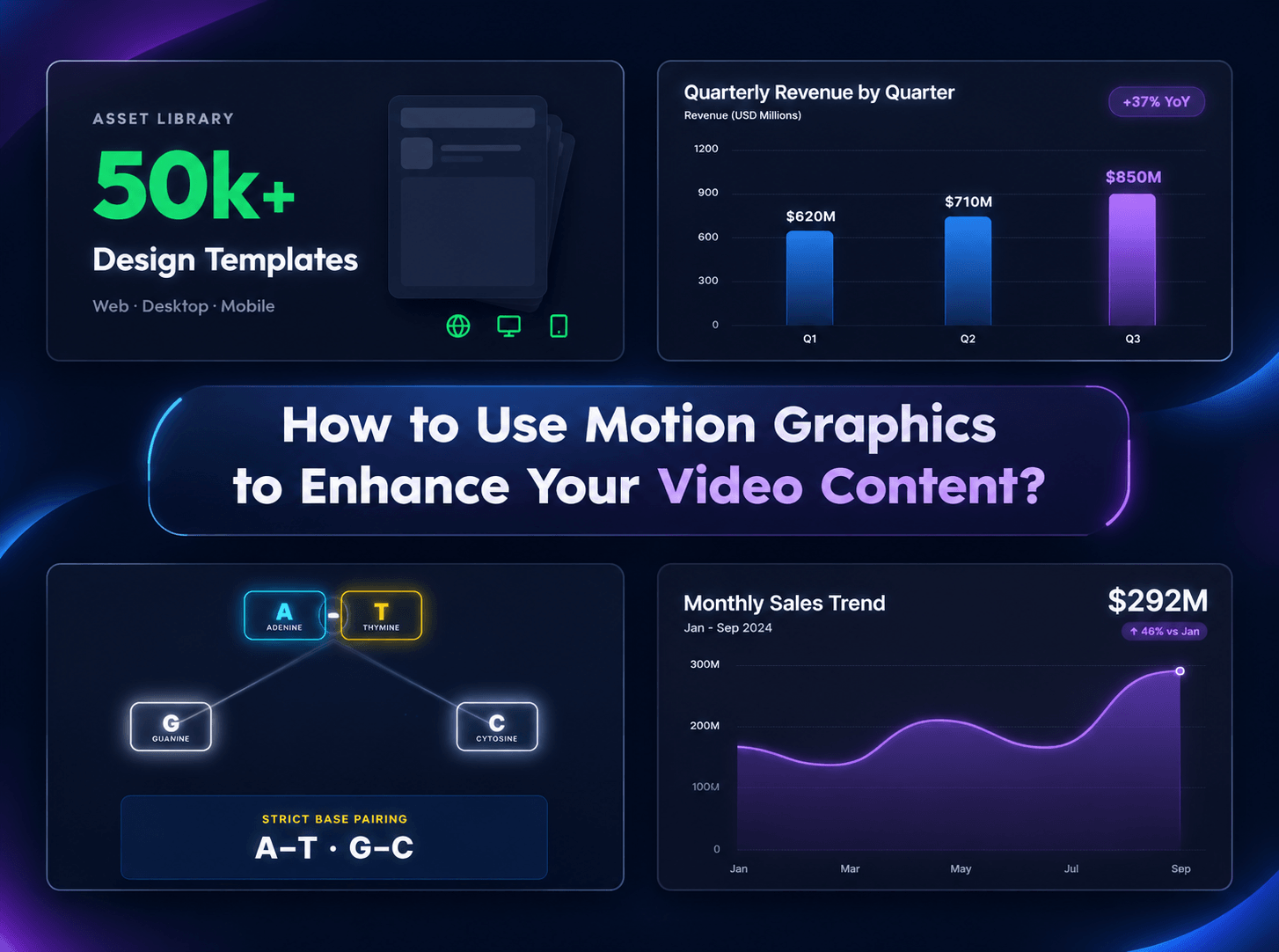
You can add different types of motion graphics to your video for different purposes and use them to enhance your video content. You can conveniently create ready-to-use motion graphics with an video agent even if you have no complex editing skills.
Sometimes, a video can show audiences what is happening without making the message easy to understand, which is especially true for educational explainers and marketing videos. You may have a strong presentation, product demo or talking-head explanation; however, viewers can still miss the key point if the most important information is only spoken in live footage.
Motion graphics (MG) can fill that gap. Animated text, icons, diagrams, charts, callouts and other visual elements can show viewers what to notice and remember. The problem is that many marketers or business presenters assume the creation of motion graphics requires advanced animation skills and hours in professional software like After Effects.
The game is now changing with the advent of AI video agents. This kind of tool, like Fotor’s video agent, can now help you turn a simple idea or set of existing assets into vivid MG clips without requiring a full motion-design workflow and complex design skills. With its help, you can easily understand how to use motion graphics to enhance your video content.
What Are Motion Graphics?
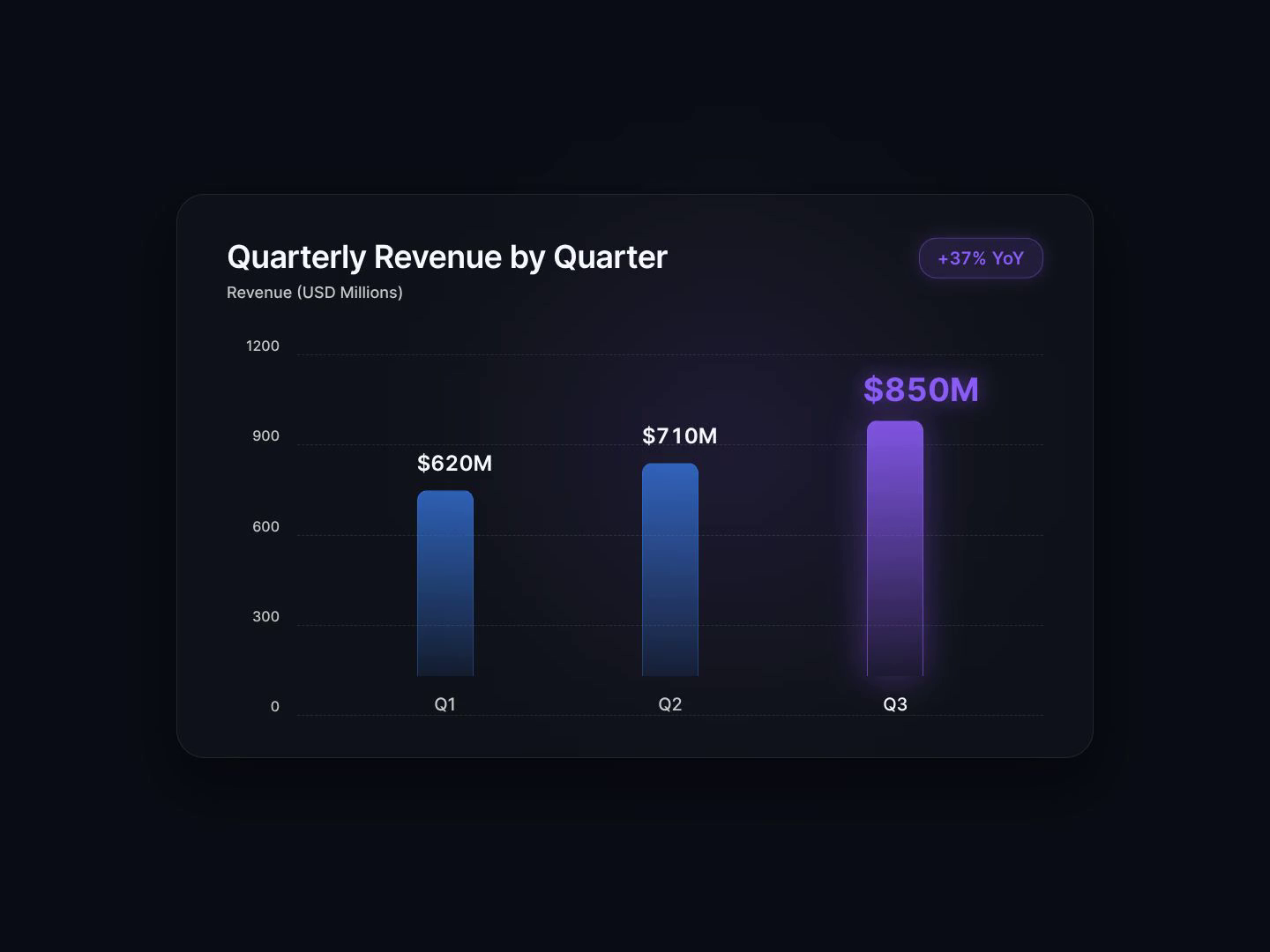
Motion graphics are animated graphic design elements that are applied to communicate information in a video, which can help you add a visual structure to a video. Common examples include animated text, logo animation, lower thirds, icons, charts, arrows, UI callouts and kinetic typography.
You may wonder what the difference is between animation and them. Well, MG belongs to animation; however, it mainly focuses on animated text and graphic elements like shapes, icons, charts and more, and it is often designed for information explanation or message highlighting. Animation, in addition to MG, also involves characters, scenes and entire stories, which aims at storytelling and character action.
Why Is Motion Graphics Important?
Video has already been one of the main formats marketers use to convey their messages. According to Wyzowl's 2026 survey, 91% of businesses now use video as a marketing tool, with social media videos and explainer videos being the two most common video use cases reported by video marketers. Also, a video marketing analysis on LinkedIn in 2021 shows that motion-graphics ads can generate a 3% increase in CTR versus the standard video-ad benchmark.
If no apparent text or charts are shown in an explainer or social media marketing video at all, particularly when complex data or principles, or long product feature information is involved, it will be highly unlikely for audiences to fully catch the key information and stay interested in watching the complete video.
That is why it is important and essential to add motion graphics to a video, especially those designed for educational and presentational purposes. Here are the specific reasons:
Grab Attention
The opening seconds of a video have to give viewers a reason to keep watching. A strong animated headline, number or visual cue can make the main idea easier to notice. Rather than making the opening flashy, the goal is to create a clear visual hierarchy so viewers immediately know what matters.
For example, instead of opening a marketing video with a talking head saying, “Most teams spend too much time creating content,” you could bring “10+ hours wasted every week” onto the screen first to keep viewers more engaged and make them want to know your explanation.
Explain Complex Ideas
Some information is difficult to communicate through words alone. Motion graphics, however, can turn abstract concepts into visible messages, which is one of their strongest usage. This is especially true for many B2B videos since they involve technical features, workflows or processes that are difficult to show through spoken content alone.
Strengthen Brand Recognition
Motion graphics can also create a consistent visual identity across your videos. Your brand might use the same typeface, colors, animation style, transition patterns and logo treatment across product videos, social posts, presentations and ads. Over time, these repeated visual elements can make your content more recognizable.
The important point is that branding is now more about a consistent motion system that gives video content a recognizable visual language than simply about animating a logo.
Guide Viewers to Action
Motion graphics can help move viewers from information to action. For instance, an animated CTA can draw attention to a button, URL, QR code, product feature or next step. In a marketing video, you can make animated elements become part of the communication strategy rather than an effect added at the end by using motion to structure your message.
The reason for adding MG clips is never just because a screen looks static. The key is to apply them to your video when movement helps the viewer notice, understand, remember or act.
When to Use Motion Graphics? Typical Videos to Apply Motion Graphics
The best time to add motion graphics is when live footage, narration or a static screen is not doing enough to keep your audience informed or attracted on its own. The right application depends on what you are trying to communicate.
Normally, these videos will perform better when motion graphics are added.
Educational/Tutorial Videos
Motion graphics are extremely useful for explaining concepts, steps, comparisons or abstract ideas.
Social Media Videos
Animated headlines, kinetic typography, captions, stickers and quick visual callouts can make the opening easier to impress viewers and help them follow the message without sound.
Product Videos
Add animated feature labels, specifications, benefit callouts, UI overlays or comparison graphics to give it a perfect supplement to your main video.
B2B Explainer Videos
B2B products, especially digital tools or services, often involve processes that are difficult to show with text-free live footage alone. The animated graphics, however, give viewers a visual model of the product, saving viewers the trouble of concentrating on the spoken content.
Presentations and Webinars
Charts, statistics, key quotes, speaker names, chapter markers and animated diagrams can make business presentations easier to follow. This is particularly useful when the audience needs to understand data rather than simply watch a speaker.
Marketing Ads
Even if you have vivid and vibe-filled visuals in a marketing ad, people may still fail to receive some central messages. Motion graphics can help marketers or advertisers structure an ad around a clear sequence like problem, product, benefit, proof and CTA.
How to Use Motion Graphics to Enhance Your Video Content?
Now, you have the knowledge of which videos will perform better when motion graphics are added. In this section, we will tell you where to use motion graphics and why they can enhance your video content.
Motion Graphics | Video Moment | Main Purposes |
|---|---|---|
Kinetic typography (animated headline or number) | Opening Hook or Strong Statements | Grab attention |
Callout, label, or pointer | Product/Software Feature | Highlight what matters |
Animated chart or data graphic | Statistics | Make numbers easier to understand |
Lower third or animated captions | Talking Head | Identify or reinforce spoken information |
Animated arrow, cursor or UI overlay | Tutorial | Guide viewers |
Animated icons, diagrams and arrows | Process Explanation | Show relationships or steps |
Animated text or logo animation | Branded Transition | Connect ideas or build a consistent identity |
Animated CTA | Ending | Encourage the next action |
So, how to create vivid and professional MG clips? You may think that it can be realized by only professional video editors with advanced video techniques. Now, with an AI video agent like Fotor, even with zero editing skills, you can generate your unique motion graphics that align with the theme and vibe of your main video.
My Own Experience: Creating Motion Graphics with Fotor Video Agent
Once you know what the video needs, you still have to create it. Traditionally, that could mean designing individual elements, setting keyframes, adjusting timing and building everything in a complex and professional tool like After Effects.
However, an AI motion graphics generator can effectively reduce that manual work and make it easy for everyone to create MG clips, even beginners. Fotor Video Agent is truly an ideal tool like this.
When accessing the agent, I could see some relevant templates, such as MG Explainer and Motion Overlay, which help to guide your creation. Choosing a template and following the instructions, I started my own experimentation.
1. Type My Idea
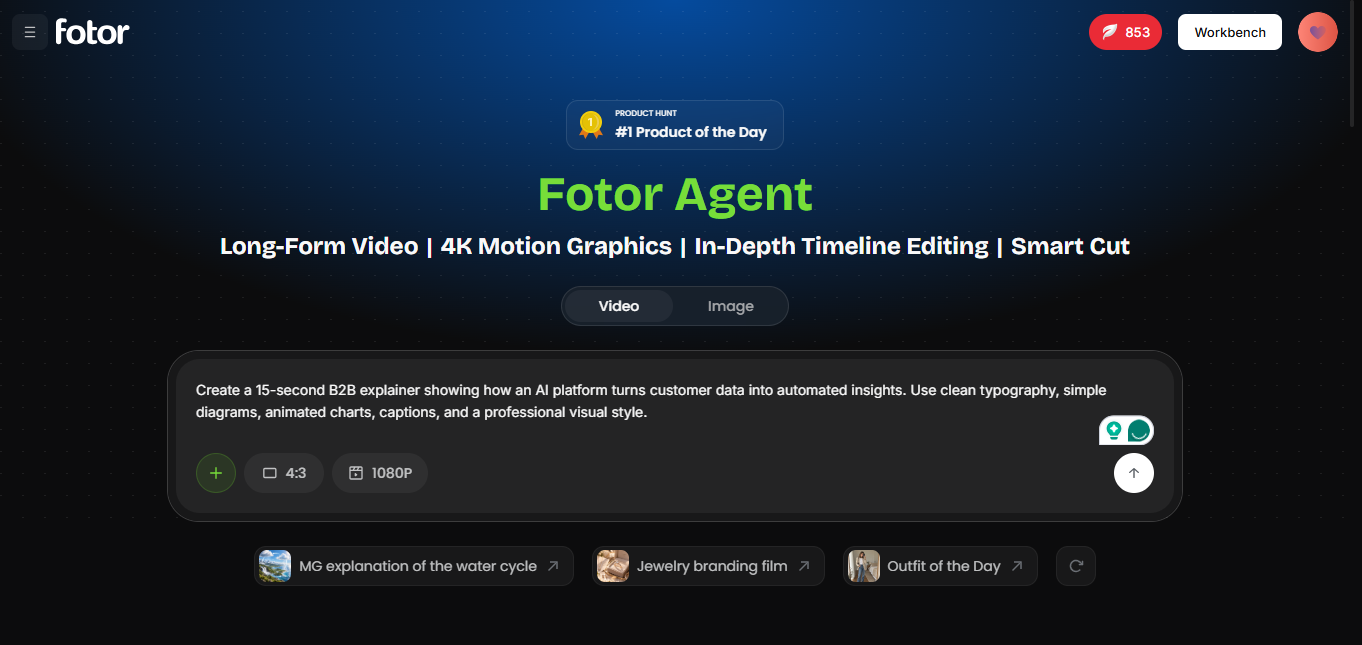
Based on the given prompt, I typed a simple description to tell the agent to create relevant motion graphics. Here, I was allowed to adjust the aspect ratio, video resolution and duration.
2. The Agent Generates the Auto Content
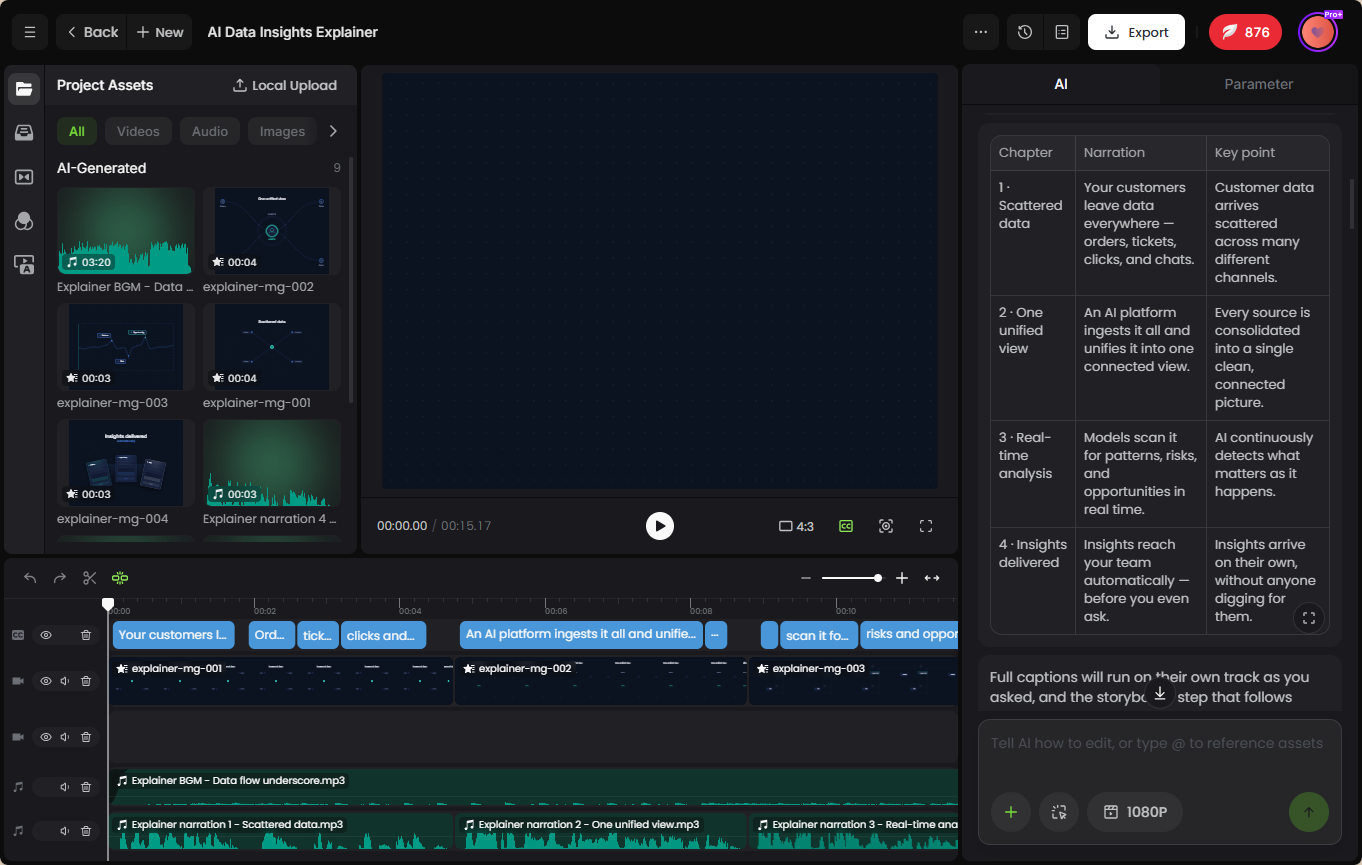
After clicking the “Generate Button”, I could see the agent begin to think for a while and create a structured script for the audio content for my MG clip, asked me to select an AI voice and then created audio files automatically.
3. The Agent Creates the Video Content
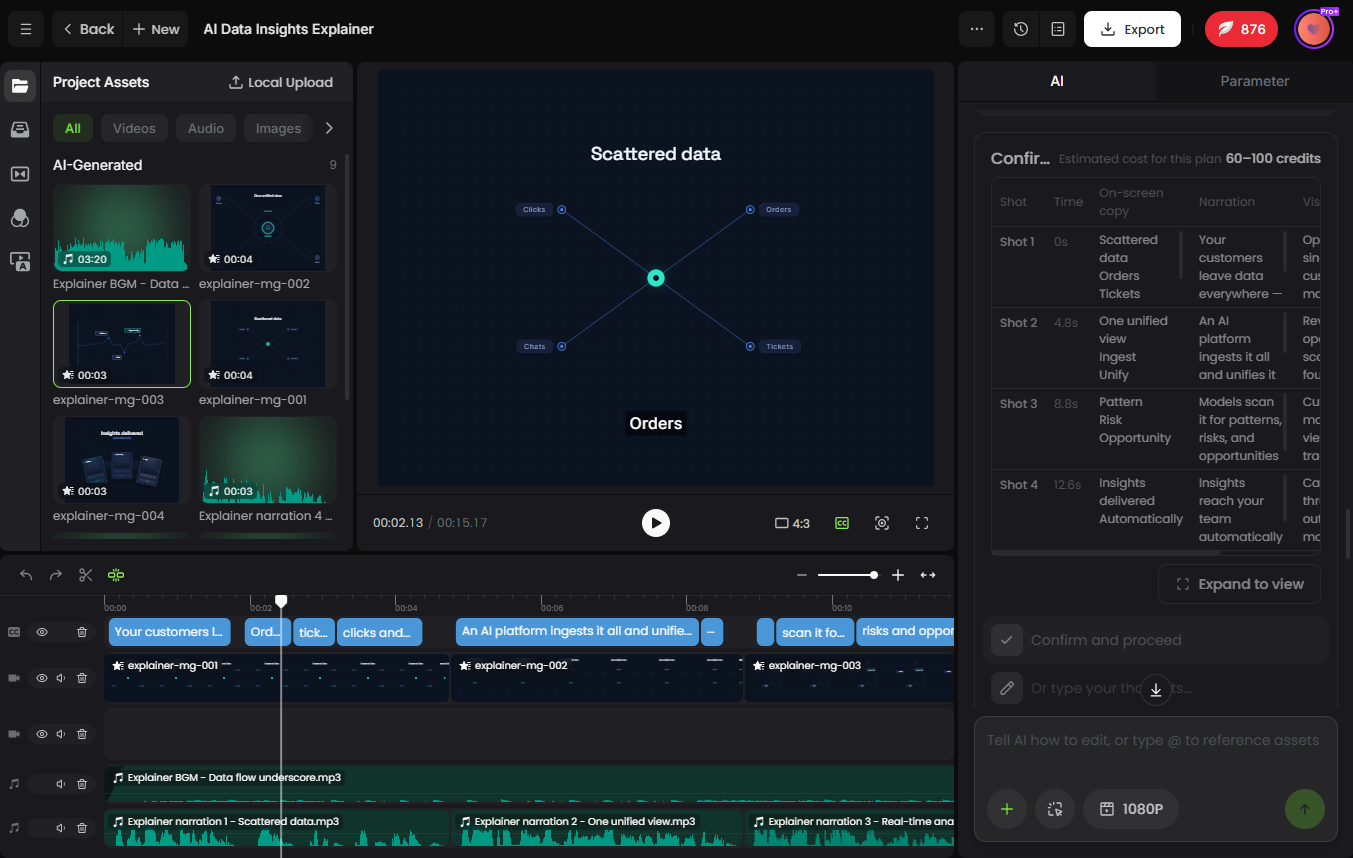
When your audio content was ready, the agent intelligently generated a structured script based on it. When I hit “Confirm”, the relevant scenes were visualized.
4. Refine Everything Through Conversation
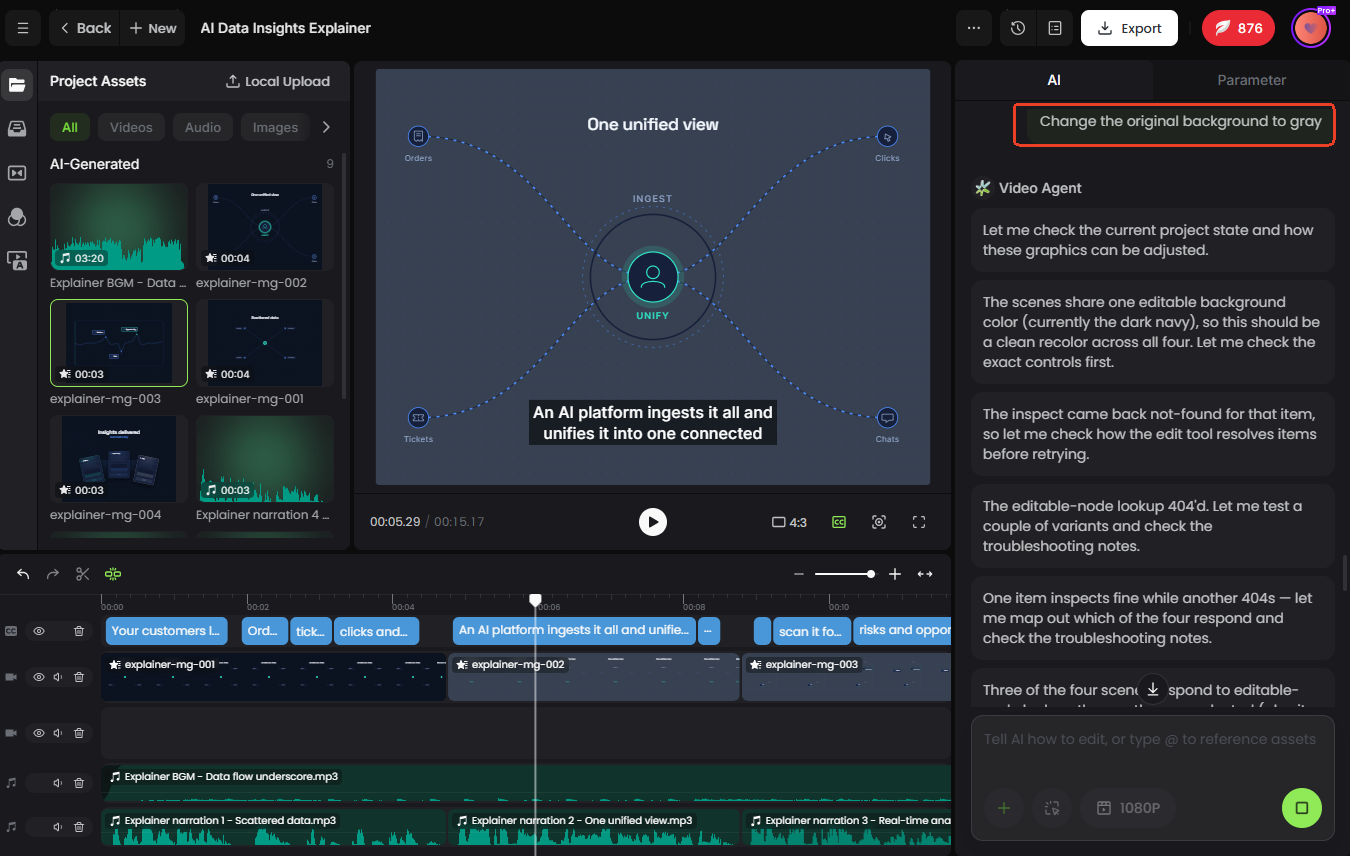
This agent also surprised me by its ability to let you edit the details of the generated scripts and scenes through conversation. I just needed to select the part, input my prompt to describe the changes (change the original background of the selected scene to grey) and the agent could intelligently adjust it while trying to present the most suitable outcome based on its attention to visual consistency.
5. Preview, Edit and Download My Complete MG Clips
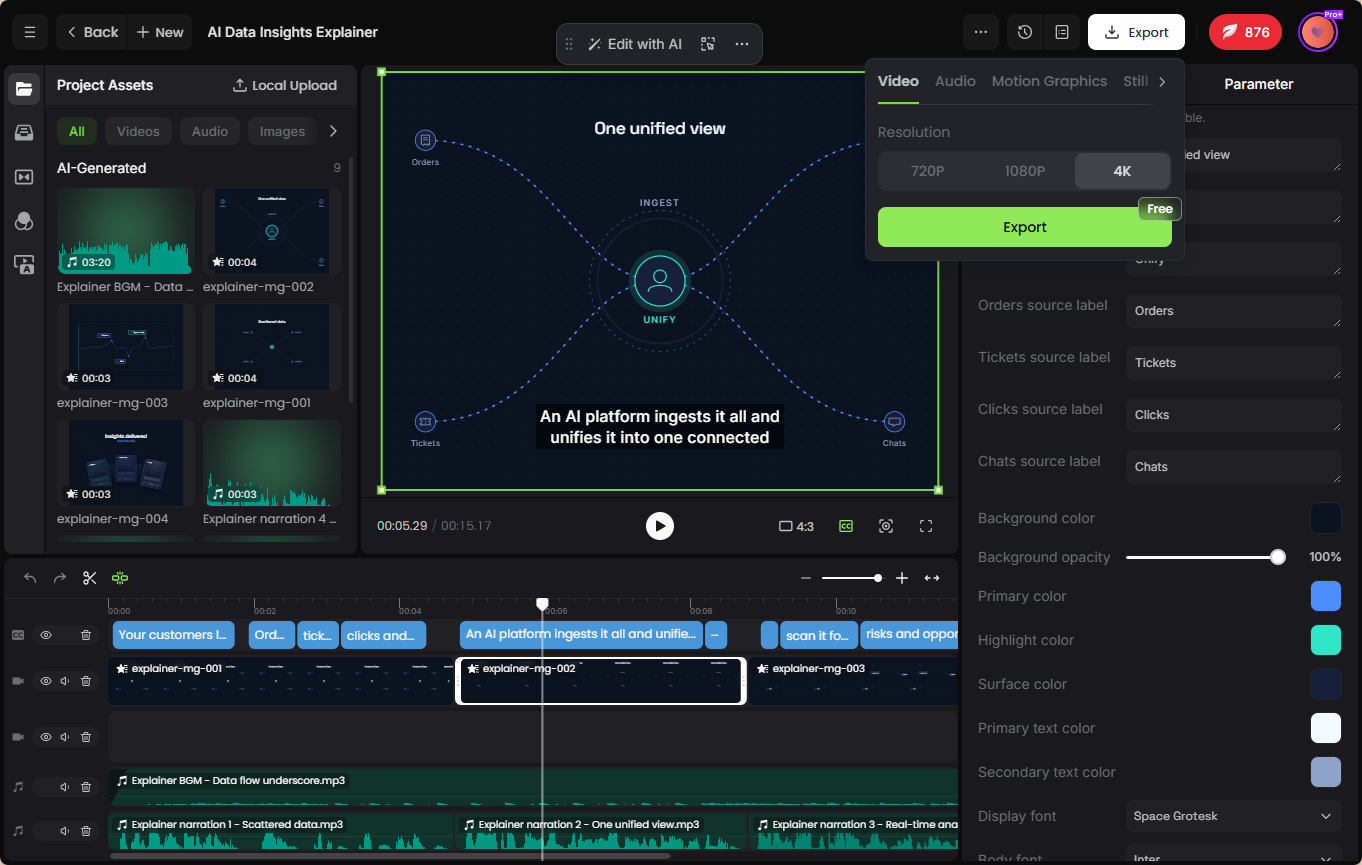
The generated scenes would be organized in a logically coherent order and were displayed in the built-in video editor. I explored the editing features and found that it allowed me to conveniently change the parameters inside the motion graphics and undertake convenient edits, such as trimming, cropping, audio addition, text insertion and more. Then, I pressed “Export” to save the complete video after previewing the result.
How to Make Motion Graphics with Fotor Video Agent?
Personal Insights:
- Easy — Fotor’s video agent proves to be easy to use, allowing you to create professional motion graphics from a raw idea or concept, a video link, existing footage and even an explainer audio file. No complex software and video editing skills required.
- Fast and Economical — It is genuinely time-saving and budget-friendly. It takes about 20 minutes and only 183 credits (According to Fotor's credit plan, you can get 200 credits at a price less than $5 per month as a yearly subscriber.) to create a complete MG video that feels professional and consistent, including script, audio and scene generation and video editing. What usually needs several weeks and over $1,000 can be finished within minutes and at a price lower than $5.
- Entire Production Workflow — Unlike other AI motion graphic generators that focus on single motion graphic creation, Fotor truly boasts the entire creative workflow. You can rely on it to generate a complete motion graphics video with vivid animated text, icons, shapes and charts, natural AI voiceover, captions and transitions, which effectively helps to convey your entire message or explain your full ideas.
Common Motion Graphics Mistakes to Avoid
From my experience, the biggest mistake is treating motion graphics as a collection of effects rather than a communication tool. Here are the mistakes that I summarize from users’ and my own experience.
Too Much Text
I used to think that the messages in my video could be better consumed if I demonstrated every word. However, when every sentence becomes a giant animated paragraph, the main subject will be blocked and I have to read, watch and listen to the video at the same time, which makes me exhausted.
💡Solution: Keep on-screen copy short and let the voiceover or footage carry the rest.
Too Many Animations
Animation is important, as it makes a video more vivid and attractive to follow. However, when everything moves, nothing stands out and a messy impression will be conveyed to users.
💡Solution: Use stronger motion for important information and simpler movement for supporting elements.
Overcomplicated Transitions
I manually added more transitions to my transition, hoping to make my MG clip more coherent. However, the final effect showed me that a transition should connect two sections instead of becoming the main event.
💡Solution: Remove the unnecessary transitions.
Poor Visual Hierarchy
The elements in motion graphics are not displayed in the right way, making viewers lose track of important messages or have no idea which information is crucial.
💡Solution: Use elements properly to highlight the important information and make them work together effectively, such as size, position, timing and contrast.
Inconsistent Branding
If every video uses different fonts, colors and animation styles, your content can feel disconnected.
💡Solution: Use an AI video agent like Fotor to build motion graphics with consistent visuals based on your assets like brand images or existing footage.
The rule is actually quite simple: if the viewer notices the effect before noticing the message, the motion is probably doing too much
Conclusion
Motion graphics can make video content easier to understand, not just more visually exciting. They can direct attention, explain complex ideas, support sound-off viewing, highlight product benefits and give marketing content a consistent visual identity.
The creation of motion graphics also no longer means building every animation from scratch. For a standalone graphic, an AI motion graphics generator can produce an element you can add to your own footage. However, for an MG clip that displays a complete concept, a video agent like Fotor can turn a text brief and your assets into complete, coherent and consistent motion graphics.